How to Print a Document from a USB Drive?
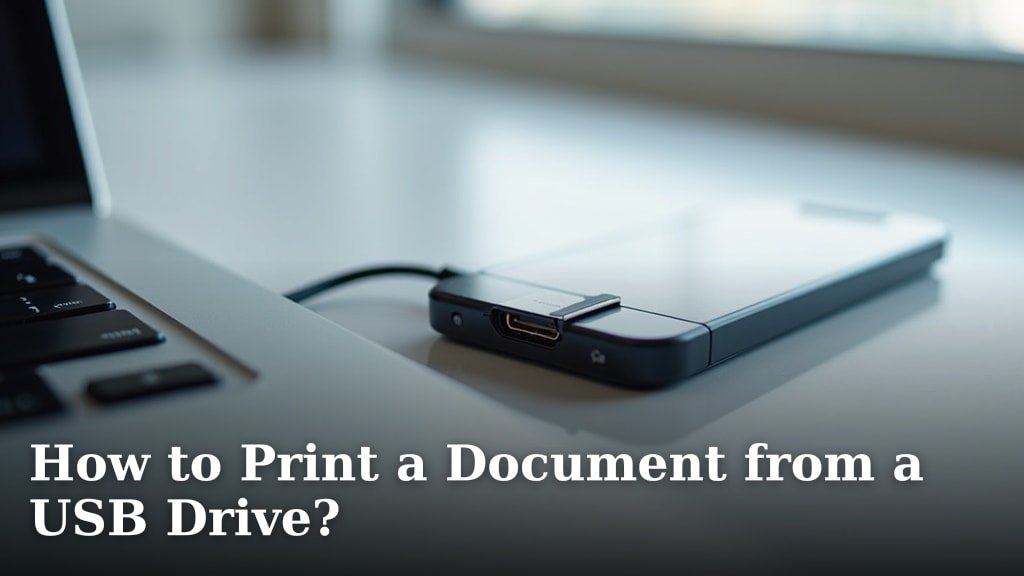
You can print a document from a USB drive directly from many printers, even without a computer. Most modern printers have a USB port for this exact purpose. It’s a handy feature when you need a quick print.
This method comes in handy for presentations, travel, or if your computer isn’t cooperating. We found that printers often offer on-screen menus to help you navigate files. You just need to know where to look and press a few buttons.
- Plug USB into printer.
- Select “Print” from menu.
- Choose your document.
- Adjust print settings.
- Press print.
Below, we’ll walk you through exactly how to print a document from a USB drive, step by step. We’ll cover everything from finding the USB port to selecting your perfect print settings.
Getting Your Printer Ready for USB Printing
Before you plug in your USB drive, let’s make sure your printer is ready for action. You might think all printers are the same, but there are a few things to check. This small step can save you a lot of headache later.
Understanding Printer Compatibility with USB Drives
Not every printer can read directly from a USB drive. We found that most modern multifunction printers (MFPs) and many dedicated photo printers offer this feature. But older models might not. How can you tell?
- Look for a USB port on the printer itself. It often looks like the port on your computer.
- Check your printer’s manual. It will clearly state if it supports direct printing from USB.
- Visit the manufacturer’s website. Search for your specific model and look for “direct print” or “USB host” features.
If your printer doesn’t have a USB port, don’t worry! You might still be able to print by connecting your printer to a device like a computer or certain smartphones. But for this guide, we’re sticking to the direct USB method.
Preparing Your Document for Direct Printing
Printers are somewhat picky about file types. We found that most direct-print-capable printers prefer common file formats. Sticking to these will give you the best chance of success.
- PDF (.pdf): This is usually the safest bet. PDFs look the same on almost any device or printer (Adobe).
- JPEG (.jpg/.jpeg): Great for photos and images.
- TIFF (.tif/.tiff): Another high-quality image format, less common but supported by some.
- Microsoft Word (.doc/.docx): Some advanced printers can handle these, but it’s less reliable than PDF.
- Text (.txt): Simple text files usually work well.
If your document is in an unusual format, we suggest converting it to a PDF first. Many free online tools can help you do this. This ensures your document appears exactly as you intend it to.
The Step-by-Step Process to Print from USB
Okay, your printer is ready, and your document is in the right format. Now for the main event! This is where you connect your USB drive and tell the printer what to do. It’s usually quite intuitive.
Locating and Inserting Your USB Drive
First, find the USB port on your printer. It’s often on the front or side panel, easily accessible. Some printers might hide it under a small flap. Don’t force anything!
- Make sure your USB drive is facing the correct way.
- Gently push it into the port until it’s firmly seated.
- The printer often makes a small beep or shows a message on its screen to confirm it has detected the drive.
If you don’t see any reaction, try removing the drive and reinserting it. If it still doesn’t work, ensure your USB drive isn’t faulty (perhaps try it on a computer).
Navigating the Printer’s On-Screen Menu
Once the USB drive is detected, your printer’s screen will probably change. Many printers will automatically display options like “Print Photos” or “Print Document.”
You’ll use the arrow buttons or the touchscreen interface to move through the menus. Think of it like navigating an old video game. The goal is to find your document.
- Look for options like “Print from USB,” “Memory Card,” “External Storage,” or “Document Print.”
- Select the appropriate option to browse the contents of your USB drive.
If your printer doesn’t automatically show these options, you might need to go to the main menu first. Look for a “Home” or “Menu” button.
Finding Your Document on the USB
Once you’re in the USB browsing menu, you’ll see a list of folders and files. This part is just like looking for a file on your computer. You’ll need to locate the specific document you want to print.
- Use the navigation buttons to scroll through the file list.
- If your document is in a folder, select the folder to open it.
- Once you find your document (e.g., “my_report.pdf”), highlight it and press “OK” or “Select.”
We’ve noticed that some printers display a small preview of the document. This is super helpful! It confirms you’ve picked the right one before you hit print.
Adjusting Print Settings and Initiating Print
After selecting your document, the printer will usually show you a “Print Settings” screen. This is where you customize your print job. Don’t just hit print immediately!
Common Print Options to Look For
Here’s a quick checklist of settings you might want to adjust:
| Setting | What It Does | Why Adjust It? |
|---|---|---|
| Number of Copies | How many identical printouts you want. | Need multiple handouts for a meeting? |
| Page Range | Which pages of the document to print (e.g., 1-5, or only page 3). | Don’t need the whole document? Save paper! |
| Paper Size | Tells the printer what size paper is loaded (e.g., Letter, A4). | Ensure your print fits the paper you have. |
| Print Quality | Draft, Normal, High. Affects ink usage and print clarity. | Draft for quick notes, High for important documents. |
| Color/Grayscale | Print in full color or black and white. | Save color ink for documents that don’t need it. |
| Duplex Printing | Print on both sides of the paper (if your printer supports it). | Save paper and reduce bulk. |
Take a moment to review these settings. Making changes here can save you paper, ink, and time. For instance, many office printers default to double-sided. If you need single-sided, change it!
Final Confirmation and Printing
Once your settings are dialed in, you’ll see a button that says something like “Print,” “Start Print,” or “OK.” Double-check everything one last time. Are the number of copies correct? Is it color or black and white?
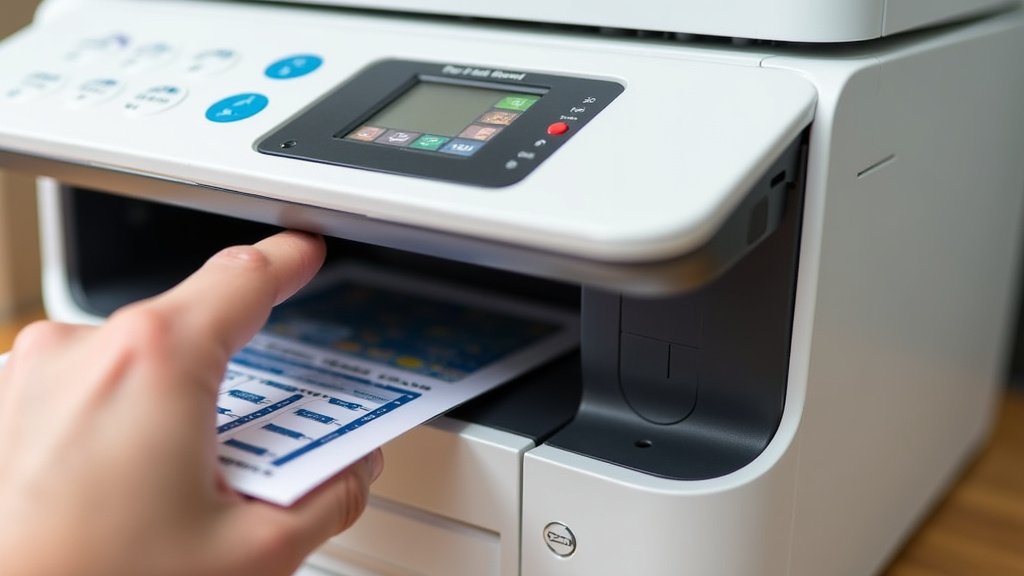
Then, go ahead and press that button! Your printer will whir to life, and your document should start printing. Be patient; sometimes it takes a moment for the printer to process the file, especially if it’s a large PDF or image.
Troubleshooting Common USB Printing Issues
Sometimes, things don’t go as planned. Don’t get frustrated! Many common issues with USB printing have simple solutions. We’ve gathered some of the most frequent hiccups we’ve encountered.
“File Not Found” or “Unsupported File Type” Errors
This is a classic. You’ve plugged in your USB, but the printer just isn’t seeing your file, or it’s giving you an error message. What could be wrong?
- Check file format: Did you convert your document to a PDF or compatible image format? As we covered, many printers don’t like Word documents directly.
- Corrupted file: Is the file itself damaged? Try opening it on a computer. If it won’t open there, it won’t print.
- USB drive formatting: Most printers prefer USB drives formatted as FAT32 (PCMag). If your drive is NTFS or exFAT, the printer might not recognize it. You might need to reformat the drive (which will erase all data, so back it up first!).
- File name length: Some older printers get confused by very long file names or names with special characters. Try renaming your file to something simpler, like “report.pdf.”
A good rule of thumb is to keep your USB drive clean and only put the files you need for printing on it. Clutter can sometimes confuse older printer software.
Printer Not Detecting the USB Drive
If your printer isn’t even acknowledging that you’ve plugged in a USB drive, here are a few things to try:
- Ensure it’s fully inserted: Sometimes it just needs a firm push.
- Try a different USB port: If your printer has more than one, test them all.
- Test a different USB drive: Your USB drive itself might be faulty. Try a different one if you have it.
- Restart your printer: Turn the printer off, wait 30 seconds, then turn it back on. This can often clear minor glitches.
- Check printer firmware: Occasionally, an outdated printer firmware can cause issues. Check your printer manufacturer’s website for updates, though this usually requires connecting the printer to a computer.
If you’ve tried these steps and your printer still won’t recognize any USB drive, it might be time to consult your printer’s support manual or contact the manufacturer. It could be a hardware issue.
Checklist for a Smooth USB Printing Experience
To help ensure your next USB printing adventure is a breeze, keep this quick checklist in mind:
- Is your document saved as a PDF or JPEG? (Most reliable formats)
- Is your USB drive formatted to FAT32? (Prevents recognition issues)
- Are there no special characters in your file name? (Avoids confusion)
- Is the document you want to print the only file on the USB? (Optional, but can simplify navigation)
- Do you have the correct paper loaded in the printer? (Matches your print settings)
Conclusion
Printing directly from a USB drive offers a convenient way to get your documents without needing a computer. You’ve learned how to check your printer’s compatibility and prepare your files for direct printing. We’ve walked you through finding the USB port, navigating menu options, and customizing your print settings. By following these steps and keeping our troubleshooting tips in mind, you can confidently print your documents. Go ahead and give it a try next time you need a quick print!
Frequently Asked Questions
Why isn’t my printer detecting my Word document from the USB?
Many printers don’t directly support Microsoft Word files (.doc or .docx) for USB printing. We found that converting your Word document to a PDF is usually the best solution. PDFs are universally recognized and maintain formatting across different devices and printers.
Can I print photos directly from a USB drive using these steps?
Yes, absolutely! The process is very similar for photos. You’ll plug in your USB, navigate the printer’s menu, and select your JPEG or TIFF photo files. Your printer might even have dedicated “Photo Print” options that offer specific photo-related settings like borderless printing.
Does the brand of my USB drive matter for printing?
Generally, no. Most printers are compatible with standard USB 2.0 or 3.0 drives from any major brand. The key factors are usually the drive’s formatting (FAT32 is best) and the health of the drive itself. A very old or faulty drive might cause issues regardless of the brand.
What if my printer doesn’t have a screen to navigate menus?
Some simpler or older printers might lack an LCD screen. If yours doesn’t have one, it’s unlikely to support direct USB printing. We found that a screen is almost always necessary to select files and adjust settings. In this case, you’ll need to connect your printer to a device like a computer.
Can I print multiple documents at once from my USB drive?
It depends on your printer model. Some advanced multifunction printers allow you to select multiple files from your USB and add them to a print queue. However, many basic printers only allow you to select and print one document at a time. You may need to repeat the selection process for each document.