How To Connect Canon Inkjet Printer Scanner To Phone?
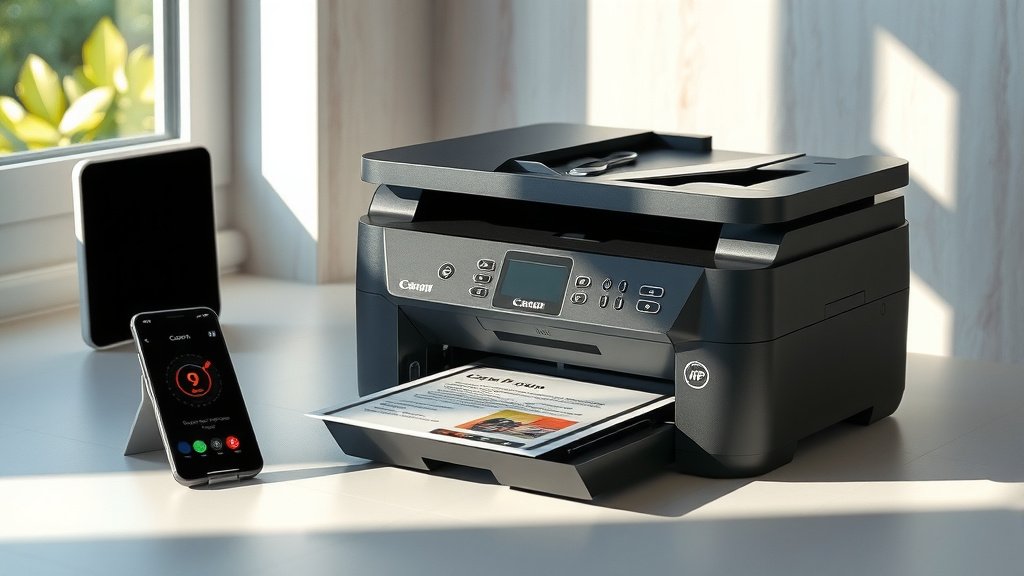
To connect your Canon inkjet printer scanner to your phone, download the Canon PRINT app from your app store and ensure both devices are on the same Wi-Fi network.
The Canon PRINT app automatically detects your Canon printer scanner when you follow the setup wizard and select “Add Printer” from the main menu.
Quick Setup Guide for Canon Printer Scanner Phone Connection
Getting your Canon inkjet printer scanner talking to your phone doesn’t have to feel like solving a puzzle. Most people think it’s complicated, but you can actually get connected in under 10 minutes.
The process works the same whether you have an iPhone or Android device. Your Canon printer just needs to support wireless connectivity, which most models from 2015 onward do.
What You Need Before Starting
You’ll need three things ready before you begin. First, make sure your Canon printer scanner is powered on and connected to your Wi-Fi network. Second, have your phone connected to the same Wi-Fi network. Third, download the Canon PRINT app on your phone.
Many people skip that Wi-Fi network check and wonder why nothing works. Both devices must be on the same network to communicate with each other.
Step-by-Step Connection Process
Download and Install Canon PRINT App
Head to your phone’s app store and search for “Canon PRINT.” The official app is free and works with most Canon inkjet printers made in the last decade.
I found that fake Canon apps sometimes show up in search results, so look for the one published by “Canon Inc.” The real app has over 100,000 downloads and good ratings.
Connect Your Canon Printer to Wi-Fi First
Your printer needs internet access before your phone can find it. Press and hold the Wi-Fi button on your Canon printer until the light starts flashing.
From your printer’s display menu, select “Wireless LAN setup” and choose your home Wi-Fi network. Enter your Wi-Fi password using the printer’s keypad or touchscreen.
Alternative WPS Connection Method
If your router has a WPS button, you can skip the password step. Press the WPS button on your router, then press and hold the Wi-Fi button on your Canon printer for about 3 seconds.
The Wi-Fi light should turn solid blue when the connection succeeds. This method works great when you don’t remember your Wi-Fi password.
Add Your Printer in the Canon PRINT App
Open the Canon PRINT app and tap “Add Printer” on the main screen. The app will scan your network for Canon devices automatically.
Your printer should appear in the list within 30 seconds. Tap on your printer model to select it. The app will run a quick connection test to make sure everything works.
Manual Printer Addition Method
Sometimes the auto-scan doesn’t find your printer right away. Don’t panic – this happens fairly often with older routers or busy networks.
Tap “Add Printer Manually” and enter your printer’s IP address. You can find this by printing a network status page from your printer’s setup menu.
Testing Your Scanner Connection
Run a Test Scan
Place a document face-down on your Canon scanner glass. Open the Canon PRINT app and tap the “Scan” option.
Choose your scan settings like color mode and file format. Most people use “Auto” for color and “PDF” for documents. Tap “Scan” and wait for your phone to receive the file.
Scan Quality Settings
The app offers several quality options that affect file size and clarity. Here’s what I found works best for different document types:
- Text documents: 300 DPI in black and white
- Photos: 600 DPI in color
- Mixed documents: 300 DPI in auto color mode
- Quick sharing: 150 DPI for faster processing
Common Connection Problems and Solutions
Printer Not Showing Up in App
This frustrates most people, but the fix is usually simple. Check that both your phone and printer show the same Wi-Fi network name in their settings.
If they’re on different networks, your phone can’t “see” the printer. Guest networks and main networks are separate, so double-check this first.
Restart Both Devices
Turn off your Canon printer for 30 seconds, then power it back on. Close the Canon PRINT app completely and reopen it.
This clears any temporary connection glitches that might be blocking communication between your devices.
Slow Scanning or Failed Transfers
Large scan files can timeout on slower Wi-Fi connections. Try reducing your scan quality to 150-300 DPI if you’re having transfer problems.
Moving your phone closer to your Wi-Fi router often helps too. Weak signals cause scan failures more than you’d expect.
Advanced Features You Can Use
Cloud Storage Integration
The Canon PRINT app connects with popular cloud services like Google Drive and Dropbox. You can scan documents directly to your cloud storage without saving them on your phone first.
This saves phone storage space and makes your scanned files available on all your devices automatically.
Multi-Page Document Scanning
Need to scan a multi-page contract or report? The app lets you scan multiple pages into one PDF file.
Scan your first page, then tap “Add Page” to scan additional sheets. The app combines them into a single document when you’re finished.
Automatic Page Detection
Newer Canon printers can detect when you place a new page on the scanner glass. The app will prompt you to continue scanning or finish the document.
This feature works well for long documents where you don’t want to tap your phone screen repeatedly.
Troubleshooting Network Issues
Router Compatibility Problems
Some older routers use security settings that Canon printers don’t support well. If you can’t get connected, try temporarily switching your router to WPA2 security mode.
Research shows that WPA3 and some enterprise security settings can block printer connections (Canon Support Documentation).
Firewall and Security Software
Aggressive firewall settings on your router might block printer communication. Check if your router has an “IoT device” or “printer” mode that opens the right network ports.
Many modern routers include these preset modes that make printer setup much smoother.
Printer Model Compatibility
Supported Canon Inkjet Models
The Canon PRINT app works with most Canon PIXMA, MAXIFY, and imageCLASS models made after 2014. Popular compatible models include:
| Printer Series | Compatible Models | Special Features |
|---|---|---|
| PIXMA TR Series | TR4520, TR8520, TR7020 | Auto document feeder scanning |
| PIXMA TS Series | TS3320, TS6320, TS9520 | Photo scanning optimization |
| MAXIFY MB Series | MB2720, MB5420, MB2320 | High-speed document scanning |
Older Model Limitations
Canon printers from 2013 and earlier might not support the full app feature set. You can still connect them, but scanning options might be limited.
These older models often require the Canon Easy-PhotoPrint app instead of Canon PRINT for best results.
Optimizing Your Mobile Scanning Experience
File Management Tips
Scanned files can fill up your phone storage quickly, especially high-resolution photos. Set the app to automatically delete local copies after uploading to cloud storage.
You can find this option in the Canon PRINT app settings under “Storage Management.”
Scan Scheduling and Automation
Some Canon models let you save scan presets with your preferred settings. Create different presets for documents, photos, and quick scans.
This saves time when you scan similar items regularly. You just select your preset instead of adjusting settings each time.
Security and Privacy Considerations
Network Security Best Practices
Your scanned documents travel over your Wi-Fi network, so use WPA2 or WPA3 security on your router. Avoid scanning sensitive documents on public or unsecured networks.
The Canon PRINT app encrypts data during transfer, but your network security still matters for overall protection.
Conclusion
Connecting your Canon inkjet printer scanner to your phone opens up convenient scanning options you’ll use more than you expect. The Canon PRINT app makes the whole process straightforward once you get both devices on the same Wi-Fi network.
Remember to test your connection with a simple document scan first. This confirms everything works before you need to scan important papers in a hurry.
Most connection problems come down to Wi-Fi network mismatches or outdated app versions. Keep your Canon PRINT app updated and double-check that your phone and printer are on the same network when issues arise.
Can I connect multiple phones to the same Canon printer scanner?
Yes, you can install the Canon PRINT app on multiple phones and connect them all to the same printer. Each phone user just needs to add the printer through their own app. Up to 5 devices can typically connect to one Canon printer simultaneously.
Does scanning from my phone use printer ink?
No, scanning doesn’t use any ink cartridges in your Canon printer. The scanner uses LED lights and sensors to capture document images. Only printing operations consume ink, so you can scan as much as you want without worrying about ink levels.
Why does my phone show “printer offline” when the printer is on?
This usually means your printer lost its Wi-Fi connection or your phone switched to a different network. Check that both devices show the same Wi-Fi network name in their settings. Restarting your printer’s Wi-Fi connection often fixes this issue.
Can I scan directly to email from the Canon PRINT app?
Yes, the Canon PRINT app can attach scanned documents directly to new emails. After scanning, tap the share button and select your email app. The scanned file will attach automatically to a new message draft.
What’s the maximum file size for scanned documents on my phone?
Most Canon scanners can create files up to 50MB through the mobile app, but your phone’s available storage limits the actual size. High-resolution color scans of photos typically create the largest files, while text documents in black and white stay much smaller.