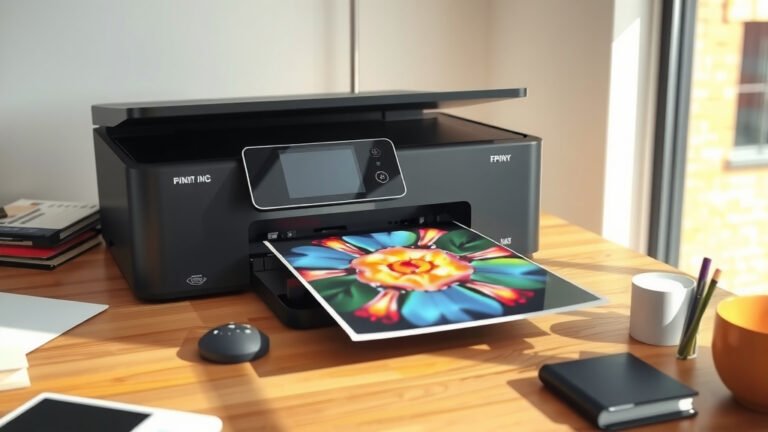
Is HP Officejet Pro An Inkjet Printer?
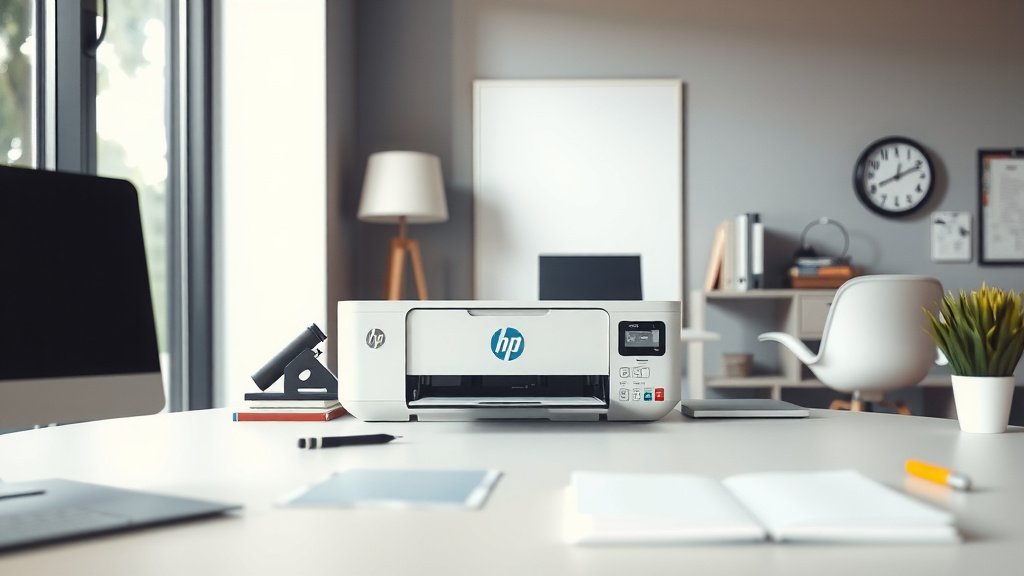
Yes, HP Officejet Pro is an inkjet printer that uses liquid ink cartridges to create documents and photos.
HP Officejet Pro printers spray tiny droplets of ink onto paper through microscopic nozzles, which defines them as inkjet technology.
What Makes HP Officejet Pro an Inkjet Printer
When you’re shopping for a new printer, understanding the technology behind it helps you make smart choices. HP Officejet Pro printers belong firmly in the inkjet family.
These machines work by heating liquid ink until it forms tiny bubbles. Those bubbles push ink droplets through small holes onto your paper. It’s like having thousands of microscopic paintbrushes working together.
How HP Officejet Pro Inkjet Technology Works
Your HP Officejet Pro contains multiple ink cartridges. Most models use four colors: black, cyan, magenta, and yellow. Some professional models add extra colors for better photo quality.
The print head moves back and forth across the paper. As it moves, it sprays ink droplets in precise patterns. Your computer tells the printer exactly where each droplet should land.
The Printing Process Step by Step
First, you send a document from your computer to the printer. The printer’s brain converts your file into a pattern of dots. Next, the print head heats the ink to create pressure. Finally, ink shoots through tiny nozzles onto the paper.
This process happens incredibly fast. Modern HP Officejet Pro printers can spray thousands of droplets per second.
HP Officejet Pro vs Other Inkjet Printers
You might wonder how HP Officejet Pro compares to other inkjet brands. From what I researched, HP uses thermal inkjet technology, while some competitors use piezoelectric systems.
Thermal inkjet means your HP printer heats the ink to create pressure. Piezoelectric printers use tiny crystals that change shape when electricity hits them. Both methods spray liquid ink, making them true inkjet printers.
Advantages of HP Officejet Pro Inkjet Design
HP Officejet Pro printers offer several benefits over basic inkjet models. They typically print faster than entry-level inkjets. Many models can print up to 24 pages per minute for black text.
The print quality often surpasses cheaper inkjet printers too. HP uses advanced ink formulations and precise nozzle control. This combination produces sharp text and vibrant colors.
Professional Features You Get
HP Officejet Pro models include features that basic inkjets often lack. You get automatic two-sided printing, which saves paper. Many models offer large paper trays that hold 250 sheets or more.
Network connectivity comes standard on most HP Officejet Pro printers. You can connect via Ethernet, Wi-Fi, or USB. Some models support mobile printing from your phone or tablet.
Inkjet vs Laser: Why Choose HP Officejet Pro Inkjet
Many people debate between inkjet and laser printers for office use. HP Officejet Pro inkjet printers offer unique advantages that laser printers can’t match.
Color printing costs less with inkjet technology. Laser printers need separate toner cartridges for each color. These cartridges cost more upfront than inkjet cartridges.
When Inkjet Technology Works Best
Choose HP Officejet Pro inkjet printers when you print photos regularly. Inkjet technology produces smooth color gradations that laser printers struggle with. The liquid ink blends naturally on photo paper.
Small to medium offices benefit from inkjet flexibility. You can print everything from business letters to marketing brochures on one machine.
Cost Considerations for Inkjet Printing
Inkjet printers typically cost less to buy initially. HP Officejet Pro models start around $150 for basic versions. Comparable laser printers often cost $300 or more.
Ink costs vary based on your printing habits. If you print thousands of pages monthly, laser might be cheaper per page. For moderate use, inkjet costs stay reasonable.
HP Officejet Pro Ink Types and Quality
Understanding your ink options helps you get better results. HP offers different ink types for various Officejet Pro models.
Standard HP ink works well for everyday documents. HP 902, 962, and 972 series cartridges fit different Officejet Pro models. Each series offers regular and high-yield options.
High-Yield vs Standard Cartridges
High-yield cartridges contain more ink than standard versions. They cost more upfront but print more pages. This makes them cheaper per page if you print regularly.
I found that high-yield cartridges typically print 2-3 times more pages than standard ones. The exact number depends on your specific HP Officejet Pro model.
Original vs Compatible Ink Options
HP recommends using original cartridges for best results. Original inks undergo extensive testing with HP printers. They typically produce more consistent colors and fewer printing problems.
Compatible cartridges from third-party companies cost less. However, quality varies widely between manufacturers. Some work well, while others cause print quality issues or damage.
| Cartridge Type | Cost | Quality | Reliability |
|---|---|---|---|
| HP Original | High | Excellent | Very High |
| HP Compatible | Medium | Good | Medium |
| Third-party | Low | Variable | Variable |
Maintaining Your HP Officejet Pro Inkjet Printer
Proper maintenance keeps your inkjet printer running smoothly. HP Officejet Pro printers need regular care to perform their best.
Clean the print heads monthly if you print frequently. Most HP Officejet Pro models include automatic cleaning cycles. You can start these through the printer menu or HP software.
Preventing Common Inkjet Problems
Print something at least once per week. This prevents ink from drying in the nozzles. Even printing a simple test page helps maintain ink flow.
Use your printer regularly rather than letting it sit unused. Extended periods without printing cause more maintenance headaches than frequent use.
Storage and Environment Tips
Keep your HP Officejet Pro in a stable environment. Extreme temperatures affect ink quality and printer performance. Room temperature between 60-80°F works best.
Avoid dusty locations when possible. Dust clogs print nozzles and affects print quality. Clean around your printer regularly with a soft, dry cloth.
Popular HP Officejet Pro Inkjet Models
HP offers several Officejet Pro models for different needs. Each model uses inkjet technology but offers varying features and speeds.
The HP Officejet Pro 9015e targets home offices and small businesses. It prints up to 22 pages per minute and includes wireless connectivity. The 6978 model offers similar features at a lower price point.
All-in-One vs Print-Only Models
Most HP Officejet Pro printers combine multiple functions. You get printing, scanning, copying, and faxing in one machine. This saves space and money compared to separate devices.
Print-only models cost less and take up less space. Choose these if you only need printing capabilities. All-in-one models make more sense for complete office functionality.
Choosing the Right Model for Your Needs
Consider your monthly printing volume first. Light users need different features than heavy users. HP rates each model for specific page volumes per month.
Think about paper sizes too. Most models handle standard letter and legal sizes. Some support larger formats like tabloid or A3 for special projects.
Troubleshooting HP Officejet Pro Inkjet Issues
Even the best inkjet printers sometimes have problems. Knowing basic troubleshooting saves time and frustration.
Streaky or missing colors usually mean clogged nozzles. Run the print head cleaning cycle from your printer menu. This forces ink through blocked nozzles to clear them.
Print Quality Problems and Solutions
Blurry text often indicates wrong paper settings. Check that your printer settings match the paper type you’re using. Plain paper needs different settings than photo paper.
Faded printing suggests low ink levels or old cartridges. Check ink levels through the HP software or printer display. Replace empty or very low cartridges promptly.
Connectivity and Software Issues
Wireless connection problems happen frequently with inkjet printers. Restart both your printer and router if printing stops working. This solves many temporary connection issues.
Update your HP printer software regularly. HP releases updates that fix bugs and improve performance. The HP Smart app makes updates easy on most devices.
Conclusion
HP Officejet Pro printers are definitely inkjet machines that use liquid ink cartridges and thermal printing technology. They offer professional features like fast printing speeds, automatic duplex printing, and network connectivity while maintaining the flexibility and photo quality advantages of inkjet technology. Whether you need an all-in-one solution for a small office or a reliable color printer for home use, HP Officejet Pro inkjet printers provide a solid balance of performance, quality, and value. Understanding their inkjet nature helps you make informed decisions about cartridges, maintenance, and whether this technology fits your specific printing needs.
Can HP Officejet Pro print photos as well as documents?
Yes, HP Officejet Pro inkjet printers excel at photo printing because they use liquid inks that blend smoothly for natural color gradations. Use photo paper and select photo quality settings for best results.
How often should I replace ink cartridges in my HP Officejet Pro?
Replace cartridges when ink levels get low or print quality degrades. High-yield cartridges typically last 2-6 months for moderate users, while standard cartridges may need replacement monthly with regular use.
What’s the difference between HP Officejet and HP Officejet Pro series?
HP Officejet Pro models offer faster print speeds, higher paper capacities, better build quality, and more professional features than basic Officejet models. Both use inkjet technology but Pro versions target business users.
Can I use third-party ink cartridges in my HP Officejet Pro without voiding warranty?
Using third-party cartridges won’t void your entire warranty, but HP may not cover damage caused by non-original inks. Original HP cartridges ensure best compatibility and print quality.
Why does my HP Officejet Pro print slowly sometimes?
Slow printing often occurs in high-quality or photo mode, when printing wirelessly with weak signals, during automatic print head cleaning cycles, or when ink levels are very low. Check these factors if speeds seem unusually slow.