
How to Reset Ink Levels on a Canon Printer?
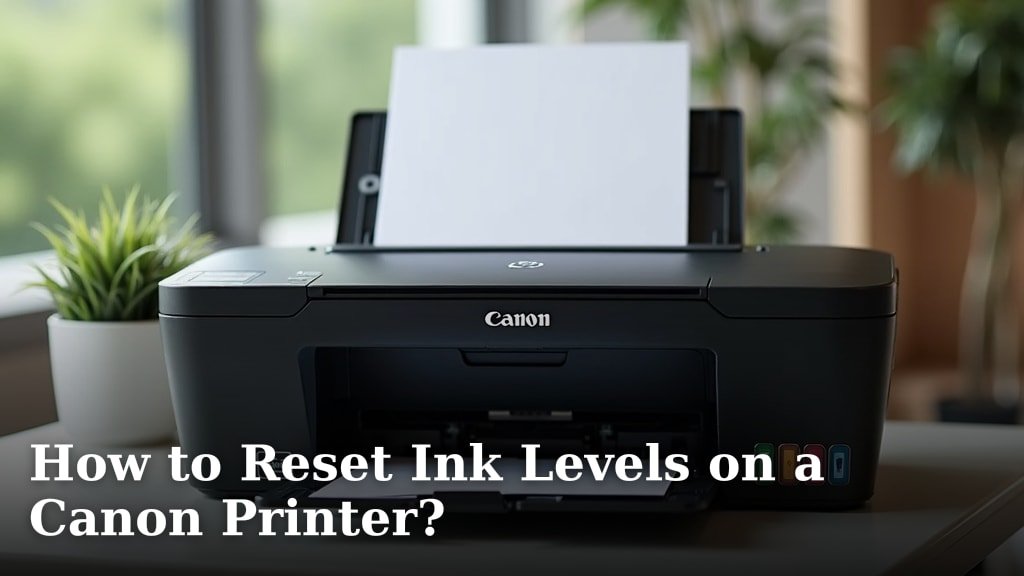
You can often reset Canon printer ink levels by performing a printer reset or accessing a maintenance menu. This is usually done when your printer incorrectly reports low ink, even after replacing cartridges. It’s a common issue many Canon users face.
Sometimes, your Canon printer may show empty ink tanks when they are not. This often happens after a firmware update or when using non-genuine cartridges. Resetting the ink levels can help your printer recognize the ink correctly again.
- Understand why your Canon printer shows low ink.
- Learn the common methods for resetting ink levels.
- Discover how to access your printer’s maintenance options.
- Know when it might be time for a new cartridge or printer.
Let’s walk through the common ways to troubleshoot and reset those ink levels on your Canon printer.
Troubleshooting Low Ink Warnings on Your Canon Printer
It can be really frustrating when your Canon printer decides to stop working, claiming the ink is empty when you know you just replaced it. This often happens after a firmware update or when using non-OEM cartridges. We’ll guide you through common methods to reset those ink levels so you can get back to printing.
Understanding Why Your Printer Thinks Ink is Low
Printers, especially Canon models, have built-in sensors and software to monitor ink levels. They track ink usage based on page counts and print patterns. Sometimes, these systems get a bit confused. This can happen if the printer doesn’t properly communicate with the ink cartridge. It’s like a car’s fuel gauge glitching – you know there’s gas, but the dashboard says empty.
One common culprit is a firmware update. Canon, like other manufacturers, sometimes pushes updates to printers. These updates can sometimes reset how the printer interacts with cartridges. This is especially true if you’re using cartridges that aren’t officially branded by Canon. The printer might simply not recognize them as “genuine” anymore after an update.
Another reason is a physical connection issue. When you install a new cartridge, there are small electronic contacts that need to align perfectly between the cartridge and the printer head. If these contacts are dirty or misaligned, the printer won’t get a proper reading. It’s a simple mechanical problem that can cause a lot of headaches.
Common Methods to Reset Canon Printer Ink Levels
You have a few options when your Canon printer is being stubborn about its ink levels. The easiest approach often involves a simple reset. Let’s look at the most effective ways we’ve found.
Method 1: The Printer Reset Procedure
This is often the first thing you should try. It’s like giving your printer a quick reboot. The exact steps can vary slightly by model, but the general idea is the same. You’re essentially telling the printer to forget its current state and start fresh.
First, turn off your Canon printer using the power button. Don’t just unplug it from the wall. Let it power down completely. This ensures all internal processes are properly shut down. Next, unplug the power cord from the back of the printer. Leave it unplugged for at least 60 seconds. This allows any residual power to dissipate, ensuring a full reset.
While the printer is unplugged, remove all ink cartridges. Gently take each one out. Inspect the contacts on both the cartridges and the print head inside the printer. If you see any dust or debris, you can carefully clean them. Use a soft, lint-free cloth, perhaps lightly dampened with distilled water or isopropyl alcohol. Be very gentle; you don’t want to damage these delicate parts.
After cleaning, reinstall the ink cartridges. Make sure they click firmly into place. Then, plug the power cord back into the printer and the wall outlet. Finally, turn the printer back on. Your printer should now attempt to re-initialize its ink level sensors. Hopefully, it will recognize the cartridges correctly.
Method 2: Accessing the Maintenance Menu
Some Canon printers have a hidden maintenance menu. This menu offers advanced options, including ways to reset ink counters. Accessing this menu is usually done through a specific button combination. It’s a bit like finding a secret level in a video game!
To access this menu, you’ll typically need to press a sequence of buttons on your printer’s control panel while it’s powering on or in a specific state. For many Canon models, you might need to press and hold the ‘Stop’ or ‘Resume’ button while pressing the ‘Power’ button. Then, you might be prompted to press the ‘Stop’ button a certain number of times. We found that the exact sequence can be quite specific to your printer model.
A common sequence we’ve seen is: Turn off the printer. Press and hold the ‘Stop’ button. While holding ‘Stop’, press and hold the ‘Power’ button. Release the ‘Stop’ button. Press the ‘Stop’ button two more times. Release the ‘Power’ button. This should bring up a menu on the printer’s display screen. Look for an option labeled something like “Counter Reset” or “Ink Level Reset.” Navigate using the arrow buttons and select the appropriate option.
Important Note: Be extremely careful when using the maintenance menu. It contains advanced settings that can cause damage if changed incorrectly. If you’re unsure about an option, it’s best to leave it alone. Many online forums and Canon support sites offer specific button combinations for different printer models. A quick search for your specific Canon printer model plus “maintenance menu” can often yield the exact instructions you need.
Method 3: Resetting Individual Cartridge Counters (Less Common)
In some rarer cases, you might be able to reset the counter for a specific cartridge. This is less about a full printer reset and more about telling the printer that a specific color is now “full.” This usually involves navigating through the printer’s standard menu, not the hidden maintenance menu.
On your printer’s LCD screen, you’ll typically go to the ‘Settings’ or ‘Setup’ menu. From there, look for an option related to ‘Ink’ or ‘Maintenance.’ You might find an option to “Reset Ink Levels” or “Replace Ink Cartridge.” Select the color that the printer is reporting as low and follow the prompts. Sometimes, you’ll have to tell the printer you’ve replaced the cartridge, even if you haven’t.
This method is not always available and can depend heavily on your Canon printer model and its firmware. If you don’t see an option like this in the regular menus, it’s likely not supported. It’s worth a quick check through your printer’s user manual or online support documentation for your specific model.
When to Consider Non-Genuine Cartridges
We know that Canon ink cartridges can be quite expensive. This leads many people to consider using third-party or “compatible” cartridges. While these can offer significant cost savings, they can also be the source of ink level issues. Manufacturers like Canon often design their printers and cartridges to work together in specific ways. Third-party cartridges might not have the exact same electronic chips or firmware.
Sometimes, using a non-genuine cartridge will trigger an immediate “unrecognized cartridge” error. Other times, as we’ve discussed, it might work for a while and then cause problems after a firmware update. If you’re consistently having ink level issues and you’re using non-genuine cartridges, it might be worth switching back to an official Canon cartridge to see if the problem resolves itself. It’s a troubleshooting step that can save you a lot of hassle.
We found that compatibility can vary widely among third-party brands. Some are excellent and work without a hitch, while others can be problematic. If you do choose to go the compatible route, Researching third-party brands can help avoid compatibility issues that lead to ink level errors.research the brand thoroughly. Look for reviews that specifically mention compatibility with your Canon printer model. Some reputable third-party brands have better track records for working with printer firmware updates.
A Quick Checklist for Resetting Ink Levels
To help you remember the steps, here’s a quick checklist. Keep this handy when you’re facing that dreaded low ink notification:
- Power Down Completely: Turn off the printer, then unplug the power cord for at least 60 seconds.
- Check Cartridge Contacts: Remove ink cartridges and gently clean the contacts on both the cartridges and the printer.
- Reinstall Securely: Ensure all ink cartridges are seated properly and click into place.
- Follow Reset Procedure: Try the standard printer reset or the specific maintenance menu sequence for your model.
- Restart and Test: Turn the printer back on and see if it recognizes the ink levels correctly.
- Consider Genuine Ink: If problems persist, try a genuine Canon cartridge to rule out compatibility issues.
Following these steps systematically should help you get your Canon printer back in working order. Sometimes, it’s just a matter of convincing the printer that it’s ready to print!
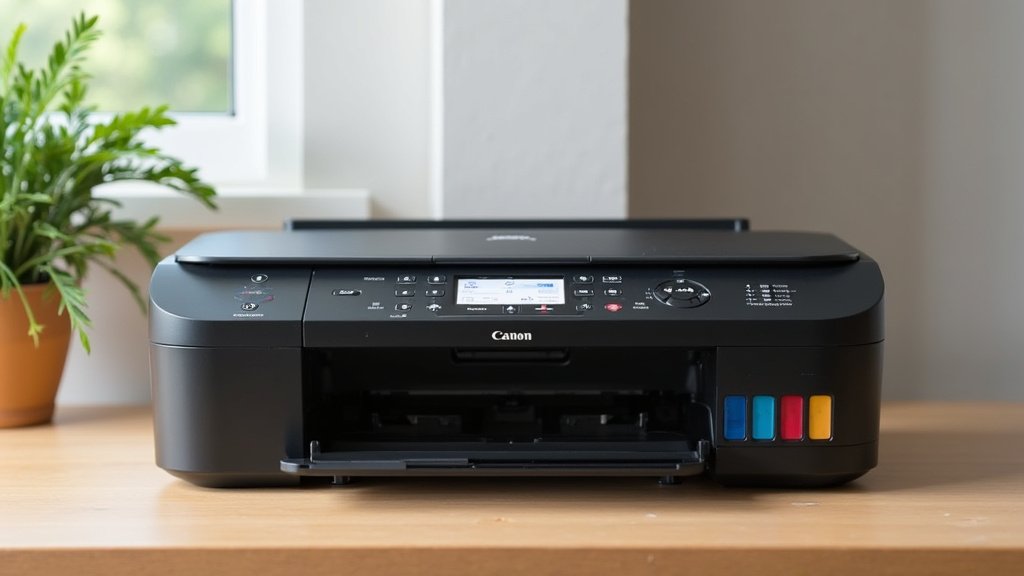
Conclusion
Dealing with phantom low ink warnings on your Canon printer can be a real headache. You’ve learned that sometimes a simple power cycle, a check of cartridge contacts, or even a dive into the maintenance menu can solve the problem. We’ve seen that firmware updates or non-genuine cartridges can sometimes throw off the printer’s ink level readings.
Don’t let a stubborn printer stop your workflow! If you’ve tried the reset methods and are still seeing issues, consider if it’s time for a new cartridge or perhaps even an upgrade. Keep these troubleshooting steps handy for your next printing emergency.
Frequently Asked Questions
Will resetting my Canon printer ink levels void the warranty?
Generally, performing a standard printer reset or accessing the maintenance menu for ink levels should not void your Canon printer’s warranty. These are considered user-maintainable functions. However, if you cause physical damage while attempting a reset, that specific damage might not be covered.
How often should I clean the ink cartridge contacts?
You don’t need to clean the ink cartridge contacts regularly. Only do this if you are experiencing printing issues or if your printer specifically indicates a problem with cartridge recognition. Gentle cleaning with a lint-free cloth is usually sufficient.
Can I reset ink levels if I’m using a refilled cartridge?
Resetting ink levels might help if your printer is misinterpreting the ink status of a refilled cartridge. However, the success can vary. Some refilled cartridges may have chips that don’t fully communicate with the printer after a reset or firmware update.
What is the difference between a printer reset and a maintenance menu reset?
A printer reset is a general reboot that clears temporary errors and can re-initialize communication with cartridges. A maintenance menu reset is more specific, often directly targeting internal counters like ink levels. The maintenance menu offers more advanced, direct control.
My printer still says low ink after trying all these steps. What now?
If you’ve exhausted all reset methods and are still getting low ink warnings, it’s highly probable that the ink cartridge is genuinely empty or faulty. We recommend replacing the cartridge with a new, genuine Canon ink cartridge to confirm if the issue is resolved.
