
Why Is My Printer Error Light Blinking?
A blinking printer error light usually means your printer needs attention for a common issue. It could be low ink, a paper jam, or an open cover. Your printer is trying to tell you what’s wrong. Don’t worry, it’s often a simple fix.
When that little light starts flashing, it can feel like your printer is shouting at you. We’ve all been there, right? It’s a sign that something isn’t quite right, from a simple paper tray issue to something needing a bit more troubleshooting. Many manufacturers use these lights to quickly signal a problem.
- Low ink or toner levels.
- A paper jam or misfeed.
- An open or misaligned cover.
- Need for maintenance or a reset.
- Connection or driver issues.
Let’s figure out why that light is blinking and get you back to printing in no time.
Troubleshooting Your Blinking Printer Light
That blinking light on your printer can be a real head-scratcher. It’s like a secret code that your machine is trying to send you. But don’t panic! Most of the time, these blinking lights are just indicators of common, easily fixable issues. Think of it as your printer giving you a gentle nudge, not a full-blown emergency. We’re here to help you crack that code and get back to printing documents, photos, or whatever else you need.
Common Culprits Behind the Blinking Light
The blinking light is your printer’s way of saying “Hey, something’s up!” It’s a universal signal across many brands. We’ve found that the most frequent causes are straightforward. Often, the fix is just a few simple steps away. Let’s break down the usual suspects.
Ink or Toner Levels Are Low
This is probably the most common reason for a blinking light. Your printer needs ink or toner to put images on paper. When those levels get critically low, the light starts to flash. It’s a friendly reminder to stock up before you run completely dry. Some printers will stop printing altogether when ink is critically low to prevent damage.
You might see a specific icon on your computer screen indicating low ink. Your printer’s manual will also tell you which lights correspond to ink levels. For example, a blinking ink cartridge light often means you need to replace a cartridge. If you’re printing a big project, it’s always wise to check your ink status beforehand.
Paper Jams or Misfeeds
Ah, the dreaded paper jam. It feels like the printer just ate your important document, doesn’t it? A paper jam is when a sheet of paper gets stuck somewhere inside the printer. This can happen if the paper isn’t loaded correctly, if you’re using the wrong type of paper, or if there’s a small piece of torn paper left from a previous jam.
When a jam occurs, the printer usually stops immediately. You’ll often see a blinking error light, sometimes accompanied by an error message on your computer. The key is to carefully remove the jammed paper. Open all accessible doors and trays. Gently pull the paper in the direction it would normally travel. Never yank it, as this can cause it to tear and leave small pieces behind.
Tips for Clearing a Paper Jam
Clearing a jam requires a bit of patience. First, turn off your printer. This is important for safety and to prevent further damage. Then, locate the jam. It could be in the paper tray, the output area, or deep inside the printer’s mechanism.
Once you find the stuck paper, pull it out slowly and steadily. Make sure you get all the pieces. Sometimes, a tiny scrap can cause subsequent jams. After clearing, close all covers and turn the printer back on. The blinking light should disappear.
Covers or Doors Are Not Properly Closed
Printers have several covers and doors that must be shut securely. These keep dust out and ensure the internal mechanisms can operate correctly. If any of these covers are even slightly ajar, your printer won’t work and will likely display a blinking light.
Think of it like a car door not being shut properly. The car won’t run, right? It’s the same principle. Common culprits include the scanner lid, access panels for ink cartridges, or the back maintenance cover. Take a moment to walk around your printer and ensure everything is clicked shut. You might hear a soft click when they are properly seated.
Maintenance or Reset Needed
Sometimes, a blinking light isn’t about a specific error but a general need for attention. Printers have internal components that wear down over time. Many models have a page counter, and when it reaches a certain limit, they’ll signal a need for maintenance.
This could mean cleaning the print heads or replacing a waste ink pad. Your printer’s manual will explain what this specific blinking pattern means. Many manufacturers also recommend periodic resets. This is like restarting your computer to clear out temporary glitches. Unplugging the printer for a minute or two can sometimes resolve minor electronic hiccups.
Connection and Driver Issues
While less common for a blinking error light, sometimes connectivity problems can trigger unusual light patterns. If your printer isn’t communicating properly with your computer, it can lead to confusion. This might be a loose USB cable or a Wi-Fi connection issue. Sometimes connectivity problems can trigger unusual light patterns, and this guide can help.
Driver software is also essential. The driver acts as a translator between your computer and your printer. If the driver is outdated, corrupted, or not installed correctly, printing can fail. Check your computer’s device manager or your printer’s software for any alerts related to drivers. Reinstalling or updating the driver can often fix these problems.
Decoding Specific Blinking Light Patterns
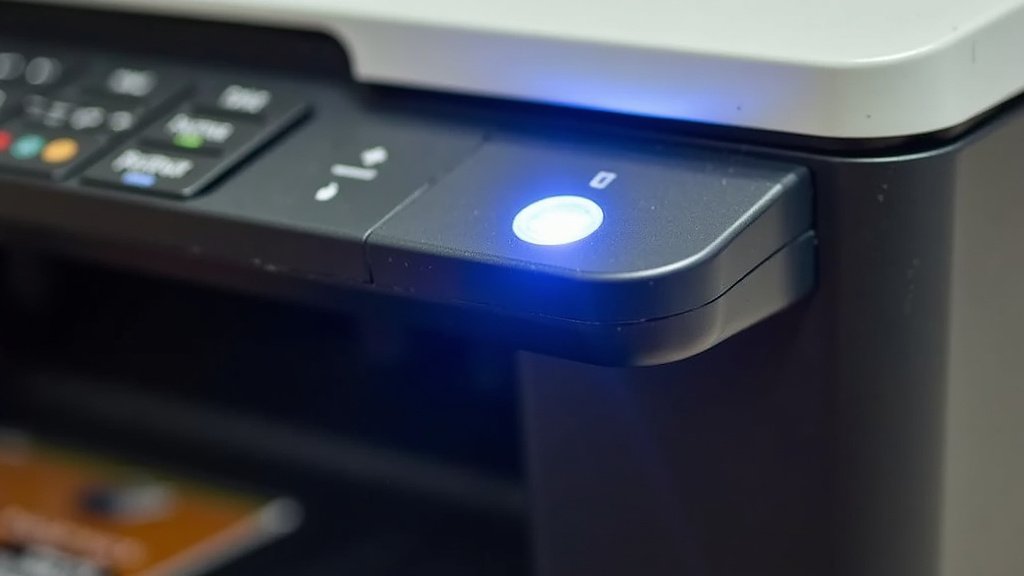
Different blinking patterns can mean different things. Manufacturers use these variations to give you more specific clues. You might see the power light blinking, or a separate error light. Sometimes, it’s a combination of lights. It’s worth consulting your printer’s manual for a definitive guide to your specific model’s light signals.
For instance, on many models, a steady blinking power light might indicate a general error or that the printer is in an error state. A blinking ink light, as we mentioned, points to ink issues. A paper light blinking alongside the power light often signals a paper jam.
| Light Pattern | Possible Cause | What to Do |
|---|---|---|
| Steady blinking power light | General error, device is warming up, or error state | Check for paper jams, open covers, or low ink. Refer to manual. |
| Blinking ink cartridge light | Low ink or toner | Replace the indicated ink or toner cartridge. |
| Blinking paper light | Paper jam, out of paper, or wrong paper size loaded | Clear jam, refill paper tray, check paper settings. |
| Blinking Wi-Fi or network light | Connection issue | Check your Wi-Fi or network cable connection. Reconnect printer. |
| All lights blinking | Severe error or hardware malfunction | Contact manufacturer support. |
When to Consult Your Printer Manual
Your printer manual is your best friend in these situations. It’s specifically written for your device. It will have a section dedicated to troubleshooting error lights. This section will often include a chart or diagram explaining each light’s behavior.
If you can’t find the physical manual, don’t worry! Most manufacturers provide PDF versions on their websites. Just search for your printer’s model number, and you should find a support section with downloadable manuals. It’s a great resource that can save you a lot of guesswork.
Performing a Printer Reset
A printer reset is a simple yet often effective troubleshooting step. It’s like hitting the refresh button for your printer’s internal systems. Many experts recommend this as a first step for many unusual blinking light scenarios.
Here’s a common method we’ve found works for many printers:
1. Turn off your printer.
2. Unplug the power cord from the wall outlet and from the printer itself.
3. Wait for at least 60 seconds. This allows any residual power to dissipate.
4. Plug the power cord back into the printer and the wall outlet.
5. Turn on your printer.
Observe the lights. If the blinking error light is gone, you’ve likely resolved a temporary glitch. If it persists, you’ll need to investigate further based on the specific light pattern.
Quick Checklist for Blinking Lights
Feeling overwhelmed? Here’s a quick to-do list to get you started. Tackle these steps systematically, and you’ll likely find the solution.
- Check for any visible paper jams.
- Verify all ink or toner cartridges are properly installed.
- Ensure all printer covers and doors are securely closed.
- Confirm the paper tray is loaded correctly with the right paper type.
- Try performing a full power reset of the printer.
- Consult your printer’s manual for specific light codes.
Conclusion
Dealing with a blinking printer light can be frustrating, but you’ve learned it’s often a simple signal for common issues. We’ve covered low ink, paper jams, open covers, and even maintenance needs. Most of the time, a quick check and a simple fix, like clearing a jam or reseating a cartridge, will get your printer back online. Don’t forget the power reset as a go-to troubleshooting step! If the light persists after these checks, your printer’s manual or manufacturer support is your next best resource to get printing again.
Frequently Asked Questions
What does it mean if only the power light is blinking?
A blinking power light often indicates a general error state or that the printer is warming up. Before assuming the worst, check for any paper jams or if any covers might be slightly ajar. Performing a full power reset can also clear temporary glitches that might cause this light to blink.
Can a blinking error light mean my printer is broken?
While a blinking light signals an issue, it doesn’t automatically mean your printer is broken. It’s usually an indicator for maintenance, a paper jam, or low ink/toner. Only in rare cases, such as all lights blinking simultaneously, does it suggest a severe hardware malfunction requiring professional attention.
How do I know which ink cartridge needs replacing if the light is blinking?
Your printer’s screen or companion software on your computer will usually display a specific message or icon indicating which ink or toner cartridge is low or empty. Many printer manuals also have charts that correlate blinking light patterns to specific cartridges.
Is it safe to print with a blinking error light?
It’s generally not recommended to continue printing if an error light is blinking, especially if it indicates a paper jam or a mechanical issue. Printing could potentially cause further damage to your printer or the document you’re trying to print. Address the blinking light first.
How often should I perform a printer reset?
You don’t need to perform a printer reset on a regular schedule. It’s best to use a reset as a troubleshooting step when you encounter unusual behavior, like a persistent blinking error light that doesn’t have an obvious cause, or after experiencing connectivity issues.
