Can You Print Photos without a Photo Printer?
On this page (11 sections)
- Using Your Regular Printer for Photo Prints
- Choosing the Right Paper is Everything
- Optimizing Your Printer Settings
- How to Print from Your Phone or Tablet
- Checking Your Photos Before You Print
- Great Alternatives to Printing at Home
- A Simple Checklist for Better Home Prints
- Understanding the Limitations Honestly
- When Should You Consider a Photo Printer?
- Conclusion
- Frequently Asked Questions
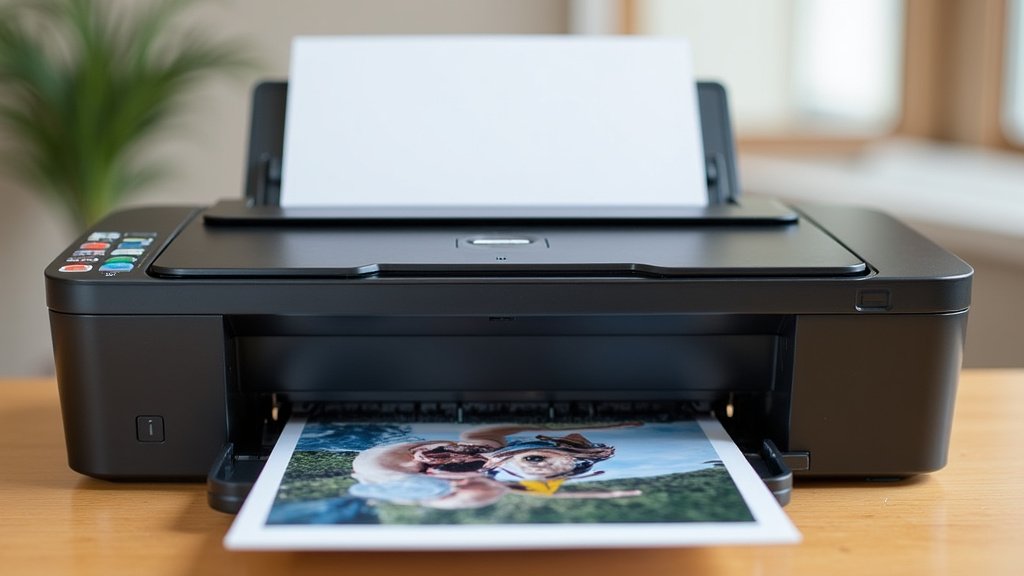
Yes, you absolutely can print photos without a photo printer. You can use your everyday printer to produce nice-looking pictures. The results might not be lab-quality, but they are perfect for personal albums or frames.
Many of us only need to print a few photos occasionally. We found that a standard inkjet printer can handle the job surprisingly well. You just need to know the right settings and paper types to use.
- Yes, a regular inkjet printer works for photos.
- Photo paper is the most important upgrade for good results.
- Use your printer’s “photo” or “best quality” settings.
- Online printing services are a great no-hassle alternative.
- You may sacrifice a bit on quality compared to a dedicated photo printer.
Below, we walk you through the exact steps and convenient alternatives. We cover everything from printer settings to the best paper to buy. Let’s make sure your memories look their best.
Using Your Regular Printer for Photo Prints
You don’t need a specialized photo printer to get started. Most modern inkjet printers in your home office can produce respectable photo prints. The key is understanding their capabilities. We found that standard printers are designed for documents, but with a few tweaks, they can handle images well.
The quality won’t match a lab or a dedicated photo printer. You might see less vibrant colors or slight graininess. However, for a family album or a desk frame, the results are perfectly satisfying. It’s about using the tools you already have.
Choosing the Right Paper is Everything
This is the single most important factor for good results. Plain copy paper will make your photos look dull and fuzzy. You need to buy dedicated **inkjet photo paper**. The coating on this paper is designed to absorb ink properly and create a sharp, colorful image.
Not all photo paper is the same. We found that the finish affects the look and feel dramatically. Here’s a quick guide to the most common types.
| Paper Finish | Best For | The Feel |
|---|---|---|
| Glossy | Vibrant, colorful snapshots. High-shine finish. | Smooth, reflective, like a traditional photo. |
| Matte | Artistic shots, portraits, and framing behind glass. | No shine, softer look, hides fingerprints. |
| Satin/Lustre | A balance between glossy and matte. Very popular. | Subtle sheen, fingerprint-resistant. |
| Canvas | Mimicking a painted canvas look for wall art. | Textured, thick, premium feel. |
Paper Weight and Quality
Paper is measured in grams per square meter (gsm). Heavier paper feels more like a real photo. We found that for decent prints, you should aim for paper at least 180 gsm. Anything under 150 gsm might feel flimsy.
Buying a sample pack is a smart move. It lets you test a few finishes without committing to a huge, expensive box. See what looks best for your specific pictures.
Optimizing Your Printer Settings
Just inserting photo paper isn’t enough. You must tell your printer what you’re doing. Go into your printer’s settings dialog before you hit print. This small step makes a huge difference.
Look for a setting that says ”Photo” or ”Best Quality.” This tells the printer to use more ink and print more slowly for a better result. Also, select the exact paper type you are using. The printer will then adjust its ink output accordingly.
The Secret: Color Management
Most printers have a color management option. If you see it, choose the printer’s own color correction. Don’t let your computer’s software do the work. We found this often yields the most accurate colors for the specific paper you have loaded.
It can feel technical, but think of it like a chef using a recipe. You want the printer to follow its own formula for the paper it’s cooking on. This prevents colors from looking too blue or too yellow.
How to Print from Your Phone or Tablet
You have thousands of photos on your phone. Getting them to your printer is surprisingly easy. You don’t need to email them to yourself. Most printer brands have a free app for Apple and Android.
Download the app for your printer’s brand. It will walk you through connecting to your home Wi-Fi. Once set up, you can print directly from your phone’s photo gallery. Many apps even offer basic editing tools.
Printing Directly from Social Media
Want to print that perfect Instagram shot? Some advanced apps allow this. You can connect your social media accounts to the printer app. This pulls the photo directly, saving you the step of saving it to your camera roll first.
Always remember to download the highest resolution version of the photo. The small preview on social media is compressed. Grab the original file from your device’s gallery for the best print quality.
Checking Your Photos Before You Print
Printing wastes paper and expensive ink if the photo isn’t right. Take a minute to prepare. Crop the image to focus on the subject. A cluttered background often distracts from the main moment.
Brightness is another common issue. Photos can look great on a bright screen but print out dark and muddy. Slightly increase the brightness or exposure on your computer before printing. It’s a small adjustment that prevents disappointment.
Great Alternatives to Printing at Home
What if your printer is old, out of ink, or you just want professional quality? You have excellent, convenient alternatives. Many services will print and mail your photos for a reasonable price.
We found that using a photo printing service is often the best choice for large orders or gift-quality prints. You simply upload your digital files online. They handle the professional printing, and you get pristine photos delivered to your door.
Local Stores with Photo Kiosks
Need prints today? Many drugstores, supermarkets, and office supply stores have self-service photo kiosks. You can often plug in a USB drive or connect your phone directly. The kiosk lets you edit and order prints right there.
The quality from these machines is usually very good. They use professional-grade printers and paper. It’s a fantastic middle ground between DIY and online ordering.
A Simple Checklist for Better Home Prints
Feeling a bit overwhelmed? Don’t be. Just follow this quick checklist before your next print job. It covers all the essentials we’ve discussed.
- Use real photo paper, not regular copy paper.
- Set your printer to “Photo” or “Best” quality in the settings.
- Select the exact paper type you loaded into the tray.
- Crop and brighten your photo on your screen first.
- Print a small test image if you’re trying new paper.
Understanding the Limitations Honestly
Let’s be real. A regular printer has limits. The inks used in home printers are dye-based and can fade over time, especially in sunlight. Photo labs use more durable, archival inks. For an heirloom meant to last 100 years, a lab is better.
The color gamut is also smaller. Your home printer can’t reproduce every single shade of color a professional printer can. Again, for cherished family memories, the difference is often negligible.
When Should You Consider a Photo Printer?
So, when does it make sense to invest in a dedicated photo printer? If you find yourself printing dozens of photos every month, the per-print cost can go down. The quality jump is also noticeable.
We found that enthusiasts who demand the absolute highest color accuracy and paper variety benefit most. It’s also a joy for crafters who want to print stickers, cards, or scrapbook elements on demand.
The Bottom Line on Cost
A dedicated photo printer has a high upfront cost. You also buy special ink cartridges and a variety of papers. Do the math. If you print 100 4×6 photos a year at a store, compare that total to the printer’s cost plus a year’s supply of ink and paper.
For most people, the occasional print is cheaper and easier at a store or online. The home printer is a convenience for occasional, immediate needs.
Conclusion
So, can you print photos without a photo printer? Absolutely. We found that your everyday inkjet printer can produce great results with the right paper and settings. Use glossy or matte photo paper, select “Best Quality” in your printer settings, and you’ll be surprised. For larger orders or professional quality, online services and local kiosks are fantastic, no-hassle alternatives. Your home printer is perfect for quick, personal prints.
Start with a small test print using the checklist from our article. If you want convenience, try uploading to a trusted online service. You have all the tools to turn your digital memories into tangible keepsakes.
Frequently Asked Questions
What is the cheapest way to print photos at home?
The most budget-friendly method is using your existing inkjet printer with affordable inkjet photo paper. You avoid any new hardware costs. Buying paper in bulk or sample packs further reduces the per-print expense.
Will my inkjet printer’s ink fade over time?
Yes, the dye-based inks in most home printers can fade, especially in direct sunlight. For long-term display, keep framed prints out of direct sun. Using archival photo paper can also help slow down fading.
Can I print a photo directly from my phone without a computer?
Yes, most modern printers have a free app for iOS or Android. You can connect to your Wi-Fi and print directly from your phone’s photo gallery. The app will guide you through the simple setup process.
How do I know if my printer is good enough for photos?
If your printer has an inkjet print head and can handle thicker paper, it is likely sufficient. Look for a “photo” or “best quality” setting in your printer’s preferences. We recommend doing a small test print to check the results yourself.
Are online photo printing services better than my home printer?
For large orders or gifts, services often provide better color accuracy and durability. They use professional-grade equipment and inks. For occasional, quick prints, your home printer offers unbeatable convenience.