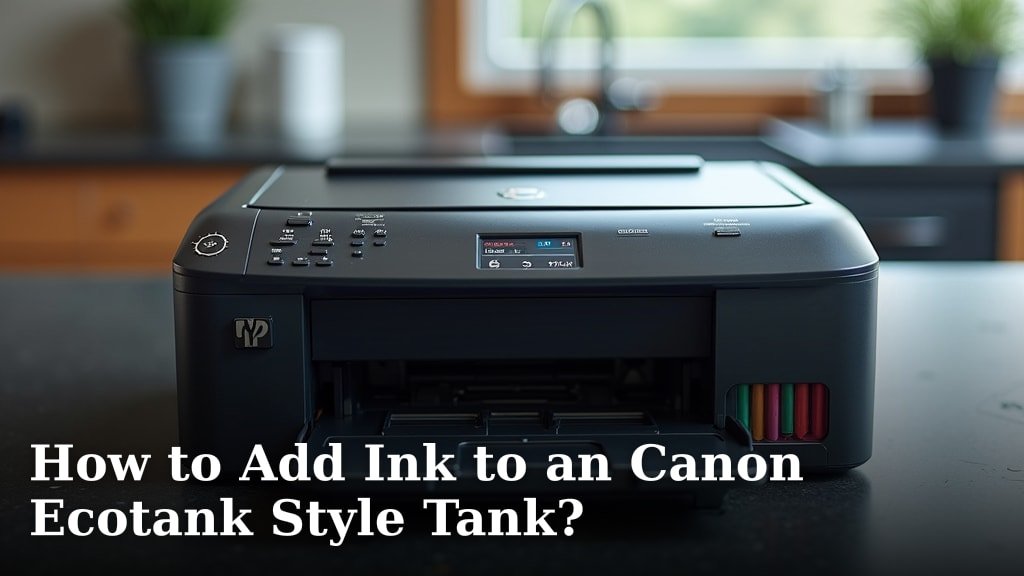
How to Refill Canon PIXMA G6020 Ink
To refill Canon PIXMA G6020 ink, match each Canon ink bottle to the tank color, open the correct tank cap, and fill only to its upper line. Keep the printer level, avoid squeezing or tipping a bottle, and follow the G6020 manual if anything differs.
On this page (8 sections)
- Which ink bottles fit the Canon PIXMA G6020?
- What should you prepare before refilling?
- How do you refill each Canon G6020 ink tank?
- What precautions help prevent spills and mistakes?
- What should you do after refilling?
- What paper can you use to check print quality?
- How do you know when a refill is complete?
- What is the safest way to refill Canon PIXMA G6020 ink?
To refill Canon PIXMA G6020 ink, match each Canon ink bottle to the tank color, open the correct tank cap, and fill only to its upper line. Keep the printer level, avoid squeezing or tipping a bottle, and follow the G6020 manual if anything differs.
The G6020 is a MegaTank printer with refillable black, cyan, magenta, and yellow tanks. This model uses Canon GI-20 bottles; check the bottle label before pouring, because a similar looking container may fit a different printer.
Which ink bottles fit the Canon PIXMA G6020?
The Canon PIXMA G6020 uses GI-20 bottles in black, cyan, magenta, and yellow. Match both the GI-20 number and the color to the label beside the tank before opening a bottle.
Don't guess by bottle shape or cap color alone. Canon has several MegaTank models and bottle families, and ink made for another model may not be the correct refill for your G6020.
For model-specific details, consult the Canon PIXMA G6020 support and manuals. Canon’s instructions take priority if they differ from a general refill guide.
If you're familiar with another brand's tank system, the general steps in how to add ink to an Epson EcoTank style tank may help you understand the process, but the bottle fit and refill steps are not interchangeable. You can also compare the tank approach in how to add ink to a Canon EcoTank style tank, then use the G6020 manual for this exact printer.
What should you prepare before refilling?
Prepare the correct bottle, a clean and level work area, and a paper towel for an accidental drip. Check the printer's ink level windows first so you refill only the tanks that need ink.
- Confirm the printer is stable and level.
- Read the color labels beside the tanks and on each bottle.
- Keep the bottle upright until you are ready to connect it.
- Open only the tank you intend to fill.
- Keep children and pets away from the open bottle and printer.
Avoid placing the bottle over paper you want to keep. A small amount of ink can stain a work surface, so use a washable or protected area.
Should you turn the printer off first?
Follow the G6020 manual for the printer's required power state during ink refilling. Don't unplug the printer or move its print head unless Canon's instructions tell you to do so.
Keep your hands away from the print head and other internal parts. The refill process should be limited to the tank caps and bottle opening.
How do you refill each Canon G6020 ink tank?
Open the matching tank, seat the correct bottle as instructed, and let the ink flow without force. Watch the tank's level window and stop at its upper limit line.
- Open the tank cover and locate the color you need.
- Remove that tank's cap without disturbing the other caps.
- Uncap the matching GI-20 bottle according to its instructions.
- Hold or seat the bottle as the bottle design directs, keeping it aligned with the fill port.
- Let ink flow into the tank and watch the level rise.
- Stop when ink reaches the upper line, then remove the bottle carefully.
- Close the tank cap and cover before moving to another color.
Don't squeeze the bottle or force it into the opening. If the bottle doesn't sit correctly or ink doesn't flow as expected, stop and check the bottle and printer instructions rather than pushing harder.
Refill one color at a time. This makes it easier to confirm each bottle matches its tank and reduces the chance of mixing colors.
What if only one color is low?
Refill only the tank that needs ink, using its matching color bottle. There's no need to open every tank or top them all off just because one is low.
Check each level window before closing the cover. If any tank is near or below its lower mark, consult the manual for the G6020's ink level and printing guidance.
What precautions help prevent spills and mistakes?
Use the right bottle, keep it upright, and stop at the tank's marked limit. Those steps reduce the most common refill problems: a wrong-color pour, overflow, and drips around the fill port.
Don't leave an open bottle unattended. Keep its tip clean and avoid touching it to a different tank opening.
If ink gets on your hands, wash with soap and water. Our guide to how to get printer ink off your hands covers practical cleanup steps.
Wipe any fresh ink from the printer's exterior with a soft cloth, following Canon's cleaning guidance. Don't pour water or cleaning fluid into a tank or onto internal printer parts.
Can you use unbranded ink in a Canon G6020?
Use ink that Canon identifies as compatible with the G6020, and verify the bottle number before refilling. A bottle that looks similar or claims broad printer compatibility may not match the tank's fill port or ink requirements.
The guide to installing unbranded ink cartridges in a Canon printer covers cartridge compatibility, but cartridges and G6020 refill bottles are different systems. Don't apply cartridge instructions to a MegaTank refill.
If you need a cartridge for another Canon PIXMA model, see our guide to the best ink cartridges for Canon PIXMA printers. For the G6020, use the bottle type and refill process specified for this model.
What should you do after refilling?
Close each cap firmly, close the tank cover, and check the printer for drips before printing. If the ink level warning remains or print quality changes, use the G6020 manual's troubleshooting steps.
Avoid running a cleaning cycle just because you refilled a tank. Cleaning uses ink, so first check the ink levels, confirm the caps are closed, and print a normal test page if needed.
For ordinary documents, standard multipurpose paper can help you check whether text prints clearly after a refill. Boise X-9 is legal-size, 20 lb white paper sold in a 5,000-sheet case.
Use the paper size your document and printer settings require. Legal-size paper won't suit a check that calls for standard letter sheets.
What paper can you use to check print quality?
Use paper that fits the G6020's paper settings and the job you are printing. A plain text page is enough to check basic output after a refill; photos need paper suited to the image and print settings.
Hammermill Printer Paper is legal-size, 20 lb white copy paper in a 500-sheet ream. Its maker describes ColorLok technology as helping colors print brighter, blacks bolder, and ink dry faster.
If you plan to print photos, paper choice matters more than a routine text check. Our guide to the best Canon PIXMA printer for photos explains what to consider for photo printing.
How do you know when a refill is complete?
A refill is complete when the ink reaches the tank's upper line and the bottle is removed without a spill. Close the tank cap and printer cover, then confirm that each refill went into the correct color tank.
If the printer still shows a low-ink message, check Canon's on-screen instructions and the manual. Don't assume that a message means you should keep adding ink beyond the tank's marked limit.
What is the safest way to refill Canon PIXMA G6020 ink?
To refill Canon PIXMA G6020 ink, use matching GI-20 bottles, fill one color at a time, and stop at the upper line. Read the model manual before starting, keep the printer level, and clean up any drip promptly.
Choose Canon's matching bottle when you want the model-specific refill. For other PIXMA printers, check the exact model before buying cartridges or bottles, since the right supply depends on the printer's ink system.
Frequently asked questions
What ink does a Canon PIXMA G6020 use?
The G6020 uses refillable ink tanks and matching Canon GI-20 ink bottles: black, cyan, magenta, and yellow. Match the bottle label and color to the tank before opening it, and check Canon's current support information or the printer manual if you are unsure about a bottle.
Can you refill Canon G6020 ink while the printer is on?
Canon's refill instructions should guide the printer's power state, so check the G6020 manual before starting. Keep the printer level, open only the tank you are filling, and avoid touching internal parts or moving the print head while the caps are open.
How full should a Canon PIXMA G6020 ink tank be?
Fill the matching tank only to its upper limit line. Stop when ink reaches that mark; overfilling can cause spills, and the tank does not need to be filled past the marked range to complete a refill.
What should you do if you spill printer ink on your hands?
Wash the ink off promptly with soap and water, and avoid rubbing it into your skin. If a stain remains, use the steps in our guide to how to get printer ink off hands; keep ink away from eyes and children.