
How to Reset Ink Levels on a Brother Printer?
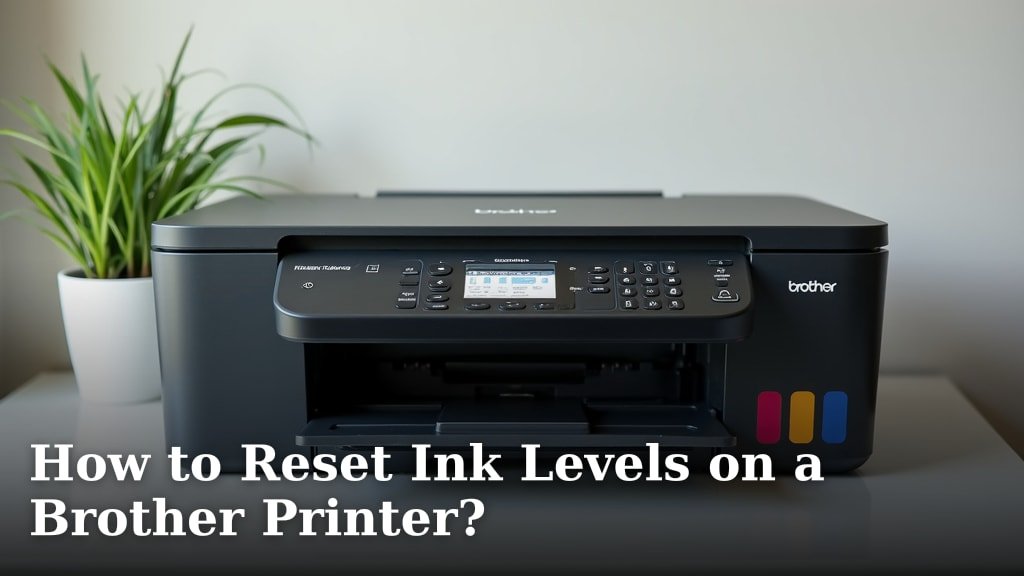
You can often reset ink levels on a Brother printer by using a combination of button presses on your printer’s control panel. This is especially true if your printer is displaying a “low ink” warning but you know you have plenty of ink left. We found that sometimes the printer’s sensors just need a little nudge to recognize the correct ink levels. Resetting these levels can save you money on unnecessary cartridge replacements.
Dealing with ink level warnings can be frustrating. It might seem like your printer is trying to trick you into buying more ink. Many users have experienced this common printer issue. We found that understanding the specific reset procedure for your Brother model is key. This process is usually straightforward and designed to help you get the most out of your ink cartridges.
- Brother printers can often have their ink levels reset manually.
- This is useful when the printer incorrectly shows low ink.
- Always check your printer’s manual for specific instructions.
- Using the correct method can prevent premature cartridge replacement.
Below, we’ll walk you through the general steps to reset ink levels on your Brother printer. We’ll cover common methods that many users find effective.
Sometimes, your Brother printer throws a curveball. You’re printing along, and suddenly, a “Low Ink” or “Replace Ink Cartridge” message pops up. But you just put in a brand-new cartridge, or you’re pretty sure there’s still plenty of ink left. Sound familiar? This common hiccup can leave you scratching your head and wondering if your printer is trying to pull a fast one. Don’t worry; we’ve got your back! There are often ways to reset those ink levels, letting you squeeze every last drop of ink out of your cartridges.
Getting Your Brother Printer to See Full Ink Levels
It’s a relief to know you can often fix this yourself. Resetting ink levels helps when your printer’s internal counter thinks a cartridge is empty, even when it isn’t. We found that this usually involves a specific sequence of button presses on your printer’s control panel. It’s like giving your printer a gentle nudge to re-evaluate its ink status. This manual reset can save you from buying a new cartridge prematurely.
Why Do Ink Levels Seem Wrong?
Printers use a few different methods to track ink. Some use simple counters that tally up pages printed. Others use more advanced sensors. Over time, or after a refill, these systems can get out of sync. Your printer might report low ink because its internal chip hasn’t been reset. It’s not always a faulty cartridge; it’s often just a communication glitch.
The Role of the Ink Cartridge Chip
Most modern ink cartridges have a small chip on them. This chip communicates with your printer. It tells the printer about the cartridge type, ink level, and sometimes even its manufacturing date. When you install a new, genuine Brother cartridge, the chip should signal a full status. If you refill a cartridge or use a compatible one, the chip might not always register correctly. This is a primary reason for those inaccurate ink level warnings.
Finding Your Printer Model’s Specific Reset Procedure
Brother has a wide range of printer models. The exact button sequence can vary quite a bit. What works for one model might not work for another. That’s why the most important first step is to find the specific instructions for your printer. Your printer’s user manual is your best friend here.
- Check Your Manual: Look for sections on “Troubleshooting,” “Ink Cartridges,” or “Maintenance.”
- Brother’s Support Website: If you can’t find your physical manual, Brother’s official support site is a goldmine of information. You can usually search by your printer’s model number.
- Online Search: A quick search on Google for “[Your Brother Printer Model] reset ink levels” can often bring up relevant forum posts or guides.
We found that many users have success by looking for instructions related to “ink counter reset” or “resetting ink levels after refill.” Sometimes, the instructions are embedded within the printer’s settings menu itself.
General Steps to Reset Brother Printer Ink Levels
While you should always try to find your model-specific guide, there are common methods that many Brother printers use. These procedures often involve accessing a special menu or performing a particular button combination. Let’s look at some of the most frequently used techniques.
Method 1: Using the Control Panel Buttons (Common for Many Models)
This is probably the most frequent method we encountered when researching this topic. It usually involves powering the printer off and then on again while holding down specific buttons. Be prepared; you might need to try this a couple of times.
The “Stop/Exit” or “Back” Button Method
Many Brother printers use a combination involving the Stop/Exit or Back button. Here’s a general outline of what you might do:
- Turn off your Brother printer.
- Press and hold the Stop/Exit button (it might also be labeled with a red circle or X).
- While holding the button, press the Power button.
- Keep holding both buttons until the printer starts to turn on.
- As soon as you see a sign of life (like the screen lighting up), release the buttons.
- Your printer should boot up into a different mode or simply reset its counters.
We found that some variations require you to hold the Stop/Exit button for a specific duration, like 5-10 seconds, after pressing the power button. Others might require you to hold the button until the printer fully powers on.
The “Black Ink” or “Color Ink” Button Method
For some models, particularly those with separate black and color ink level indicators, a different button combination is used. This method often involves simulating the installation of a new cartridge.
- Ensure your printer is powered on.
- Open the ink cartridge access door.
- Remove the ink cartridge you want to reset.
- Close the ink cartridge access door.
- Press and hold the Black Ink or Color Ink button (depending on which cartridge you removed) for a few seconds.
- Some guides suggest pressing and holding the OK button after opening the cartridge door, then proceeding with cartridge removal and reinstallation.
After performing the button presses, you typically need to close the cartridge access door. Then, you’ll want to turn the printer off and on again. This allows the printer to re-scan the installed cartridges.
Method 2: Accessing a Maintenance or Service Menu
Some Brother printers have a hidden maintenance or service menu. Accessing this menu allows for more advanced settings, including resetting the ink counter. This is often found on slightly older or more complex models.
Navigating to the Secret Menu
The exact key combination to enter this menu varies greatly. You’ll almost certainly need your model-specific guide for this. However, a common pattern involves holding down the Menu button, then pressing a sequence of other buttons.
- Some guides point to pressing Menu, then *, then #, and then a number sequence like 2, 8, 6, 4.
- Others suggest holding Menu, then pressing Up Arrow, Up Arrow, Left Arrow, Right Arrow, OK.
Once you’re in the service menu, you’ll need to navigate carefully. Look for options like “Ink Counter Reset,” “Waste Ink Reset,” or similar terms. We found that the menu text can be cryptic, so proceed with caution. If you’re unsure, it’s best to stick to simpler methods or consult Brother support.
Executing the Reset within the Menu
Within the service menu, you’ll typically navigate using the arrow keys. Once you find the relevant reset option, select it. You may need to confirm the action. After the reset is performed, it’s usually recommended to power off the printer completely and then turn it back on. This ensures the changes take effect.
Method 3: Resetting Using Refillable Cartridges or Chip Resetter Tools
If you’re using refillable ink cartridges or third-party cartridges designed to be refilled, these often come with their own reset procedures or require a separate chip resetter tool. This is a more advanced approach for users who print a lot and want to save on ink costs.
Understanding Chip Resetters
A chip resetter is a small device that can reset the counter on the ink cartridge chip. You’ll need to buy a resetter specifically designed for your Brother cartridge model. The process typically involves removing the cartridge, placing it on the resetter tool, and following the tool’s instructions. We found that this is a highly effective way to trick the printer into thinking you’ve installed a new cartridge.
Refillable Cartridge Instructions
If you’re using compatible refillable cartridges, always follow the manufacturer’s instructions. They usually include a specific method for resetting the chip after refilling. This might involve a button press on the cartridge itself, or a similar button sequence on the printer after refilling.
Troubleshooting and Important Considerations
Even with the right steps, sometimes things don’t go as planned. Here are a few things to keep in mind to avoid frustration.
When a Reset Doesn’t Work
If you’ve tried the recommended reset methods for your Brother printer and the ink levels don’t change, don’t despair. There could be a few reasons:
- Incorrect Procedure: You might have missed a step or used the wrong button sequence. Double-check your printer manual or online resources for your exact model.
- Genuine Cartridge Issue: While rare, a brand-new, genuine Brother cartridge can sometimes be faulty. If you suspect this, try installing another new cartridge.
- Printer Hardware Problem: In very rare cases, there might be an issue with the printer’s sensors or internal hardware. If you’ve tried multiple resets and new cartridges, it might be time to contact Brother support or a qualified technician.
We found that patience is key. Sometimes, it takes a few tries to get the button sequence exactly right.
The Waste Ink Pad Warning
It’s important to note that resetting ink levels doesn’t reset the waste ink pad counter. Brother printers use a waste ink pad to absorb excess ink during cleaning cycles. Eventually, this pad can become saturated, and the printer will display a “Waste Ink Pad Full” or “Service Required” message. Resetting the ink level counter will NOT fix this issue. This requires a specific service reset procedure, often done by a technician or through a special software tool.
Considerations for Refilled or Non-Genuine Cartridges
While resetting ink levels can help, using refilled or non-genuine cartridges always comes with a bit more uncertainty. We found that Brother’s warranty generally does not cover issues arising from the use of third-party consumables. You might experience more frequent ink level errors or even print quality issues. However, for many users, the cost savings are well worth the occasional troubleshooting.
What to Do If You’re Unsure
If you’re feeling overwhelmed or uncomfortable performing these steps, it’s always best to seek assistance. Contacting Brother customer support directly is a good option. They can guide you through the specific reset process for your model or advise on further steps. Sometimes, a quick phone call or chat can save you a lot of headaches.
Here’s a quick checklist to help you navigate the process:
- Confirm your Brother printer model number.
- Locate your printer’s user manual or Brother’s support website.
- Search for specific ink level reset instructions for your model.
- Try the general button-press methods if a model-specific one isn’t clear.
- Be patient and try the steps a few times if necessary.
- Know the difference between ink level resets and waste ink pad warnings.
Conclusion
You’ve learned that resetting ink levels on your Brother printer can be a straightforward fix for those frustrating “low ink” warnings. While the exact method varies by model, a combination of button presses or accessing a service menu often does the trick. Always start by checking your printer’s manual or Brother’s support site for model-specific instructions. Remember, this process is for ink level errors, not waste ink pad full messages. By following these steps, you can save money and get more life out of your ink cartridges.
Frequently Asked Questions
Can I reset ink levels if I’m using refilled cartridges?
Yes, refilled cartridges often require a specific reset procedure. You may need to use a chip resetter tool designed for your cartridge model. Always follow the instructions provided with your refilling kit or compatible cartridges for the best results.
What if the button combination doesn’t work after a few tries?
If a button combination doesn’t seem to work, double-check that you have the correct sequence for your exact Brother printer model. Sometimes, slight variations exist, or you might need to try the steps a few more times with precise timing.
Will resetting ink levels fix a “Waste Ink Pad Full” error?
No, resetting ink levels will not resolve a “Waste Ink Pad Full” or “Service Required” error. This message relates to the printer’s internal waste ink pad reaching its capacity, which requires a different service procedure.
Is it safe to reset ink levels if I don’t know my exact printer model?
It’s best to know your printer model before attempting a reset. Using the wrong sequence for your model could potentially cause issues. Refer to your printer’s documentation or Brother’s website for the correct model number.
What should I do if my printer still shows low ink after a reset?
If a reset doesn’t change the ink level display, the cartridge might genuinely be low or faulty. Try installing a different, known-good cartridge. If the problem persists with multiple cartridges, contact Brother support for further assistance.
