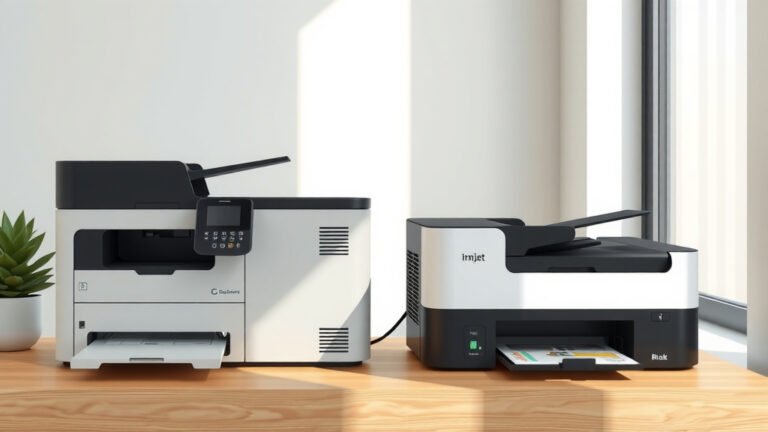
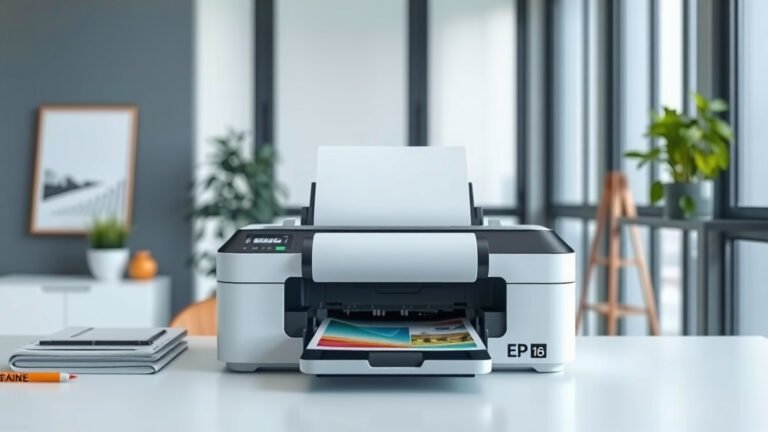
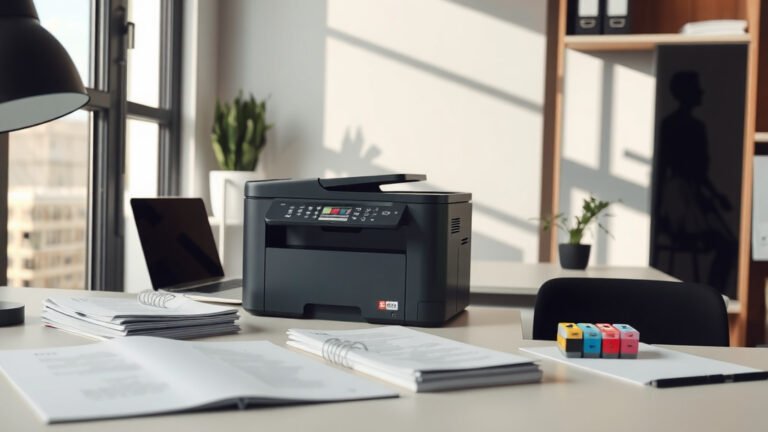
Which Factor Affects The Speed Of An Inkjet Printer?
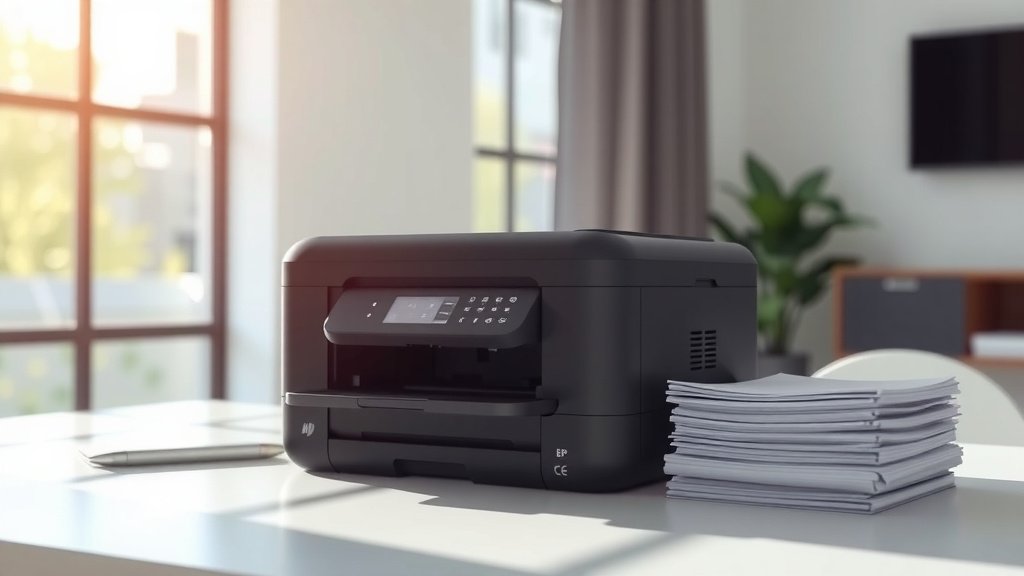
Your inkjet printer’s speed depends on several factors including print resolution, ink type, paper quality, processor power, and the complexity of your documents.
Print resolution has the biggest impact on speed – higher DPI settings can slow your printer down by 50% or more compared to draft mode.
The Main Factors That Control Your Inkjet Printer Speed
Want to know why your printer crawls through some jobs but zips through others? Your inkjet printer speed changes based on what you’re asking it to do.
Think of your printer like a chef in a kitchen. A simple sandwich takes minutes, but a fancy five-course meal needs hours. Same idea with printing.
Print Resolution Makes the Biggest Difference
Print resolution is your biggest speed killer. When you pick higher DPI (dots per inch), you’re telling your printer to be super detailed.
Draft mode prints at 300 DPI and flies through pages. Photo quality mode uses 1200 DPI or higher and takes its sweet time.
I found that switching from photo quality to normal mode can cut your print time in half. That’s huge when you’re printing 20-page reports.
How Different Resolution Settings Affect Speed
- Draft mode (300 DPI): 15-20 pages per minute
- Normal mode (600 DPI): 8-12 pages per minute
- Best mode (1200+ DPI): 2-4 pages per minute
Document Complexity Slows Things Down
What you’re printing matters just as much as how you print it. Simple text documents are like sprinting on a flat track.
Photos, graphics, and mixed documents are like running uphill with a backpack. Your printer needs time to process all those colors and details.
Text vs Graphics Speed Comparison
Plain text documents print fastest because your printer just needs to lay down black ink in simple patterns. No color mixing, no complex calculations.
Graphics make your printer work harder. It has to figure out color combinations, gradients, and precise placement for every tiny detail.
Hardware Factors That Impact Your Print Speed
Your Printer’s Processor Power
Every printer has a tiny computer inside called a processor. Just like your laptop, faster processors handle tasks quicker.
Budget printers often have slower processors. Premium models pack more processing punch and can handle complex jobs without breaking a sweat.
Memory Matters Too
Your printer needs memory (RAM) to store document data while printing. More memory means smoother printing, especially for large files.
Low memory causes your printer to pause and process documents in chunks. It’s like trying to memorize a book one page at a time instead of reading the whole thing.
Print Head Technology and Speed
Your print head is the part that actually puts ink on paper. Different technologies work at different speeds.
Thermal inkjet heads heat up ink to create bubbles that push droplets onto paper. Piezoelectric heads use electric pulses to squeeze ink out.
Single Pass vs Multiple Pass Printing
Some printers make multiple passes over the same area to build up color and detail. Others can lay down all the ink in one pass.
Single pass printing is faster but might sacrifice some quality. Multiple passes take longer but often produce better results.
Ink and Paper Choices That Affect Speed
Ink Type Makes a Real Difference
The type of ink in your printer changes how fast it can work. Dye-based inks flow easier and often print faster than pigment inks.
Pigment inks are thicker and more durable, but they take more time to apply properly. It’s the trade-off between speed and longevity.
Original vs Compatible Ink Cartridges
I researched this topic and found that ink choice can affect speed. Original manufacturer cartridges are designed to work perfectly with your specific printer model.
Compatible cartridges might work differently. Some flow at different rates or have slightly different consistency that can slow things down.
Paper Quality and Print Speed
Not all paper is created equal when it comes to printing speed. Your printer adjusts its speed based on what type of paper you load.
Plain copy paper lets your printer run at full speed. Photo paper forces it to slow down and be more careful with ink placement.
How Paper Settings Change Speed
| Paper Type | Speed Impact | Why It Changes |
|---|---|---|
| Plain Paper | Fastest | Absorbs ink quickly |
| Photo Paper | Slowest | Needs precise ink control |
| Cardstock | Medium | Thicker material to handle |
Software and Settings That Control Speed
Print Driver Settings
Your print driver is like a translator between your computer and printer. The settings you choose here directly control print speed.
Many people never look at these settings and miss out on speed improvements. You can often find speed optimization options buried in the advanced settings.
Color Management Settings
Color management can slow down your printing significantly. Your printer spends extra time making sure colors look perfect.
For everyday documents, you can often turn off advanced color management and gain speed without losing much quality.
Background Printing and Spooling
Your computer can send print jobs to a queue while you keep working. This print spooling makes things feel faster even when actual print speed stays the same.
Large files take longer to send to your printer. While the physical printing might be fast, waiting for data transfer can feel slow.
Network and Connection Speed Issues
USB vs WiFi vs Ethernet Connections
How you connect your printer affects speed more than most people realize. USB connections usually offer the fastest data transfer.
WiFi can be slower, especially if your network is busy or your printer is far from the router. Ethernet falls somewhere in between for most home setups.
Network Traffic and Print Speed
If everyone in your house is streaming videos while you’re trying to print, you might notice slower performance with wireless printers.
Your printer shares network bandwidth with everything else connected to your WiFi. Heavy internet usage can create bottlenecks.
Simple Ways to Speed Up Your Inkjet Printer
Adjust Your Quality Settings
The easiest speed boost is lowering your print quality for everyday documents. Save the high-quality settings for photos and important presentations.
Most people can’t tell the difference between normal and best quality for text documents. Why wait twice as long for the same result?
Use Draft Mode for Internal Documents
Draft mode is perfect for emails, rough drafts, and documents you’re just reviewing. You’ll save time and ink.
Switch back to normal or best quality only when you need to impress someone or create final versions.
Keep Your Printer Maintained
A dirty or clogged printer runs slower than a clean one. Regular maintenance keeps everything flowing smoothly.
Clean print heads work more efficiently. Clogged heads force your printer to make multiple passes or work harder to get good results.
Update Your Print Drivers
Printer manufacturers sometimes release driver updates that improve speed and performance. Check for updates every few months.
Newer drivers might include speed optimizations or bug fixes that make your printer run better.
When Speed Really Matters vs When It Doesn’t
High-Volume Printing Needs
If you’re printing hundreds of pages regularly, speed becomes a big deal. Every minute saved per page adds up to hours over time.
Consider upgrading to a faster inkjet model or even a laser printer if you consistently need high-speed printing.
Photo Printing Should Stay Slow
Don’t rush photo printing. Those beautiful family pictures deserve the extra time for best quality results.
Fast photo printing usually means compromised quality. Take the time to do it right the first time.
Conclusion
Your inkjet printer speed depends on a mix of hardware, software, and the choices you make. Print resolution has the biggest impact, but document complexity, paper type, and printer hardware all play important roles.
The good news? You control most of these factors. Adjust your quality settings for different types of documents. Use draft mode for everyday printing and save high quality for special projects. Keep your printer clean and your drivers updated.
Speed isn’t everything in printing. Sometimes taking a little extra time gives you much better results. Find the right balance for your needs and you’ll be happy with both speed and quality.
Why does my printer print the first page fast but then slow down?
Your printer often processes the first page while still receiving data for the rest. Once the buffer fills up, it has to wait for each page to process completely before printing, causing the slowdown.
Can using cheaper ink cartridges make my printer slower?
Yes, some compatible cartridges have different ink viscosity or flow rates that can cause your printer to adjust its timing and print more slowly to maintain quality.
Does printing in color always take longer than black and white?
Usually yes, because your printer needs to mix different colored inks and make multiple passes to build up the right colors and saturation levels.
Why does my wireless printer seem slower than when connected by USB?
WiFi connections can have lower bandwidth than USB, especially if your network is busy. The printer also needs extra time to process network communications between print commands.
Will cleaning my print heads actually make printing faster?
Clean print heads allow ink to flow properly, which means your printer doesn’t need to make extra passes or work harder to achieve good print quality, resulting in faster overall printing.