
Why Is My Photo Printer Producing Grainy Prints?
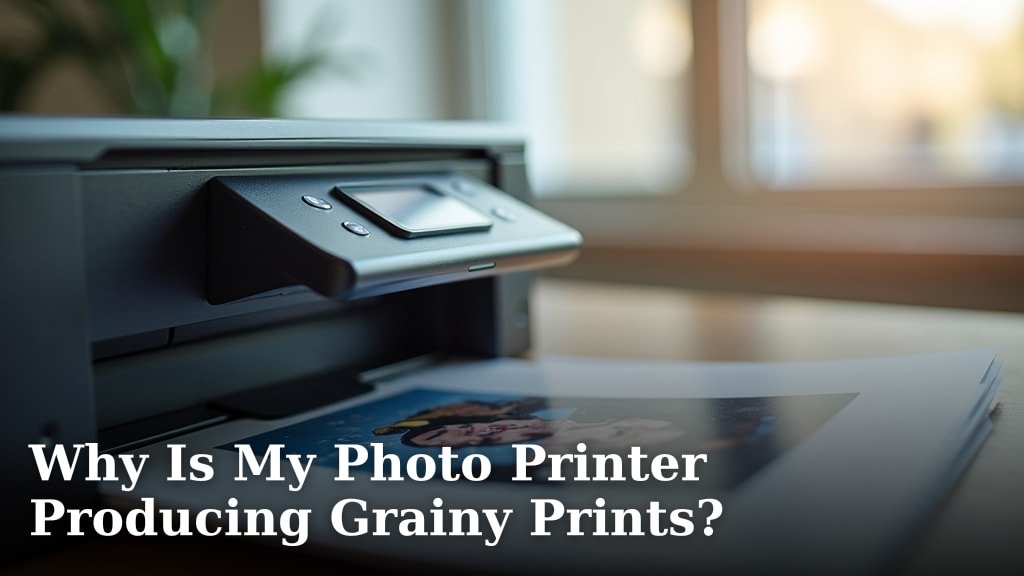
Your photo printer is likely producing grainy prints because of a few common issues. Often, it’s due to low-resolution images being printed too large, or perhaps the print settings aren’t optimized for the paper you’re using. We found that these two culprits are the most frequent offenders when your photos don’t come out as sharp as you’d hoped.
It’s frustrating when your cherished memories look fuzzy. Sometimes, it’s a simple fix like checking your ink levels or the age of your printer. Other times, it might be a combination of factors, including the type of paper and the printer’s driver settings. We found that understanding these variables can make a big difference in print quality.
- Low-resolution images printed too large.
- Incorrect print settings for your chosen paper.
- Issues with printer ink or cartridge quality.
- Outdated printer drivers or software glitches.
Let’s break down exactly why your photos might be turning out grainy and how you can get those crisp, clear prints you’re aiming for.
It’s so disappointing when you’re expecting a vibrant, sharp photo, and instead, you get a grainy mess. You’ve followed all the steps, hit print, and then… disappointment. Don’t worry, this is a common issue many photo enthusiasts run into. The good news is, it’s usually fixable! Let’s figure out what’s causing your photo printer to produce grainy prints and get you back to printing stunning images.
Understanding Why Your Photos Come Out Grainy
Graininess in your prints isn’t usually a sign of a broken printer. It’s more often a symptom of a mismatch. This mismatch can be between your image file and the printer’s capabilities. It can also be between your chosen print settings and the paper you’re using. We found that a few key areas consistently lead to this grainy output.
Image Resolution: The Foundation of a Sharp Print
This is the big one. Think of your photo like a jigsaw puzzle. If you have too few pieces (low resolution), you can’t make a big, detailed picture. When you try to enlarge a low-resolution image, the printer has to stretch those few pieces. This stretching causes the individual pixels to become visible. These visible pixels are what create that grainy or blocky look. We found that images intended for web viewing are often too low in resolution for quality prints. Many experts recommend a resolution of at least 300 dots per inch (dpi) for photos intended for printing (Journal of Imaging Science and Technology).
What is Image Resolution?
Resolution refers to the number of pixels in an image. More pixels mean more detail. A photo with 12 megapixels has more detail than one with 3 megapixels. When you print, these pixels are translated into tiny dots of ink. If there aren’t enough pixels to begin with, those dots have to get bigger or more spread out to fill the space.
The Dangers of Upscaling
You might be tempted to enlarge a small image file. This is called upscaling. Your computer can do it, but it’s like asking someone to draw a detailed mural based on a tiny sketch. It’s not adding new information, just making existing information bigger. This process almost always results in a loss of quality and increased graininess. We found that resisting the urge to upscale significantly improves print clarity.
Checking Your Image Resolution
Before you print, take a moment to check your image file’s resolution. On most computers, you can right-click the image file and select “Properties” or “Get Info.” Look for dimensions in pixels (e.g., 4000 x 3000 pixels) or resolution in dpi. If you plan to print a 4×6 inch photo, you’ll ideally want an image that is at least 1200 x 1800 pixels (4 inches * 300 dpi by 6 inches * 300 dpi). For larger prints, you’ll need even higher pixel counts.
Printer Settings: Telling Your Printer How to Print
Your printer has a sophisticated brain – its driver software. This software tells the printer exactly how to lay down ink. If you don’t tell it the right story, the output will be confused, and often, grainy. Getting these settings right is absolutely key to avoiding grainy prints. We found that using generic settings is a common mistake.
Paper Type Settings
This is one of the most critical settings. Printers use different amounts of ink and different dot patterns for different paper types. Glossy paper needs a different ink application than matte paper. If you tell your printer you’re using “Plain Paper” but you’ve loaded “Glossy Photo Paper,” the ink won’t dry correctly. It can lead to smudging, banding, and yes, graininess. Always match the setting to the paper in your printer. Many experts say this is the simplest yet most effective fix (Brother Support). Always match the setting to the paper in your printer to avoid graininess.
Print Quality Settings
Most printer software offers different print quality modes: Draft, Normal, Best, or Photo Quality. Draft mode prioritizes speed and uses less ink, resulting in a grainy image. Higher quality settings use more ink, print more slowly, and create a much finer dot pattern. For your precious photos, always select the highest quality or “Photo” setting available. We found that this simple change can dramatically improve your prints.
Resolution Settings in Software
Sometimes, the software you’re printing from also has resolution settings. If you’re printing from a photo editor, ensure its print dialog box is set to output at a high resolution. If it’s set low, it might be downsampling your image before it even gets to the printer driver.
Ink and Cartridge Issues: The Lifeblood of Your Printer
Your printer’s ink is what makes the image appear on the paper. If that ink isn’t performing correctly, your photos will suffer. This can happen for several reasons, from the ink itself to the cartridges holding it.
Ink Quality and Type
Not all ink is created equal. Using third-party or refilled cartridges can sometimes lead to inconsistent ink formulation. This inconsistency can affect how the ink adheres to the paper and how it dries, potentially causing graininess. For the best results, especially with photo printers, using genuine manufacturer inks is often recommended. We found that reputable sources often highlight the importance of using the manufacturer’s specified ink for optimal color and detail.
Low Ink Levels
When your ink cartridges are running low, your printer might struggle to lay down solid, consistent color. It can start to spray ink unevenly, leading to a patchy or grainy appearance. It’s a good idea to check your ink levels regularly. Many printers will alert you when ink is low, but sometimes they can still print a few pages before quality noticeably drops.
Clogged Print Heads
Over time, ink can dry and clog the tiny nozzles in your printer’s print heads. When this happens, ink doesn’t spray out smoothly. Instead, it can come out in uneven droplets or not at all, creating gaps and a grainy effect. Most printers have a “head cleaning” utility in their software. Running this utility can often resolve clogging issues. We found that performing a print head cleaning cycle when you notice a drop in quality is a smart move. Running the printer’s print head cleaning utility can often resolve clogging issues.
Printer Drivers and Software Glitches
Your printer’s drivers are like translators between your computer and the printer. If the translator is speaking a different language or has a bad accent, the message gets garbled. Outdated or corrupted printer drivers can cause all sorts of printing problems, including grainy output.
Keeping Drivers Updated
Manufacturers release driver updates to fix bugs, improve performance, and add support for new operating systems. An outdated driver might not be communicating effectively with your printer’s latest firmware or your operating system. Regularly checking the manufacturer’s website for the latest drivers for your specific printer model is a good practice. We found that keeping drivers current is a basic troubleshooting step that often solves print quality issues.
Software Conflicts
Sometimes, other software on your computer can interfere with the printing process. Antivirus software, for example, can occasionally flag printer communication as suspicious and slow it down or disrupt it. While less common, it’s something to consider if other solutions don’t work. We found that a clean boot (starting your computer with only essential programs running) can help diagnose software conflicts.
Paper Quality and Type: It Matters More Than You Think
We touched on paper type in the settings section, but the quality of the paper itself plays a huge role. Not all photo paper is created equal, and using the wrong kind can sabotage even the best image and settings.
Coating and Brightness
Photo papers have special coatings designed to hold ink precisely. Cheaper papers might have a less refined coating. This can cause the ink to spread out or soak in unevenly, leading to a loss of sharpness and that undesirable grain. The brightness of the paper also affects how colors appear. A paper that’s too dull can make your photos look muddy, while one that’s too bright can sometimes accentuate grain.
Paper Weight and Thickness
Thicker, heavier photo papers generally have a better coating and structural integrity. They can handle more ink and tend to produce sharper results than thin, flimsy “photo-quality” papers that are often just thicker versions of plain paper. We found that investing in reputable brands of photo paper designed for inkjet printers makes a visible difference.
Age of Your Printer and Ink
Even the best technology has a lifespan. As printers age, their internal components can wear out. Ink cartridges, especially if they’ve been sitting around for a long time, can also degrade.
Mechanical Wear and Tear
Over thousands of prints, the print head mechanism can experience wear. This can lead to less precise ink droplet placement. The paper feed mechanisms might also become less accurate, causing slight misalignments that can contribute to a less sharp final image. Many experts suggest that printers over 5-7 years old may start to show signs of reduced print quality due to wear (PCMag).
Deterioration of Ink
Ink can degrade over time, especially if stored improperly (e.g., in extreme temperatures). The pigments can separate or dry out, leading to inconsistent color and poor adhesion to the paper. Old ink might not be formulated for the latest paper coatings, causing unexpected results. We found that using ink within its recommended shelf life is important for consistent quality.
A Quick Checklist for Sharper Prints
Here’s a quick rundown of what to check when your photos are coming out grainy:
- Check Image Resolution: Ensure your image is large enough for the print size (at least 300 dpi).
- Match Printer Settings to Paper: Always select the correct paper type and quality setting in your printer driver.
- Use Genuine Ink: Opt for manufacturer-recommended ink cartridges for consistent results.
- Clean Print Heads: Run the printer’s head cleaning utility if quality drops.
- Update Drivers: Download and install the latest drivers from the manufacturer’s website.
- Use Quality Photo Paper: Invest in reputable photo paper designed for inkjet printers.
Conclusion
Dealing with grainy photos from your printer can be a real bummer, but you’ve got this! We’ve walked through the most common culprits, from image resolution and printer settings to ink quality and driver updates. Often, the fix is simpler than you think. By carefully checking your image files and ensuring your printer is set up correctly for your paper, you can dramatically improve your print quality. Don’t let grainy prints hold you back from enjoying your memories – take a moment to apply these tips and get those crisp, clear photos you deserve.
Frequently Asked Questions
Can I fix grainy photos that are already printed?
Unfortunately, once a photo is printed grainily, it’s very difficult to fix. The best approach is to prevent graininess during the printing process. This means ensuring your source image has enough resolution and your printer settings are optimized before you hit print.
Is it better to use a photo lab or my home printer for best quality?
For the absolute highest quality, professional photo labs often have specialized equipment and inks that are hard to match at home. However, for everyday prints and personal use, your home photo printer can produce excellent results if you follow the quality guidelines we’ve discussed.
How often should I clean my printer heads?
You should clean your printer heads whenever you notice a decline in print quality, such as banding or graininess. Most printer software has a utility for this. Running a cleaning cycle more often than necessary can waste ink, so do it when you see a problem.
My printer is old, is it time to replace it if I’m getting grainy prints?
An older printer might eventually produce grainy prints due to wear and tear. However, before investing in a new one, try all the troubleshooting steps like checking resolution, settings, ink, and drivers. Sometimes an older printer can still perform well with the right care and inputs.
Will using more expensive ink make a difference in graininess?
Yes, using genuine, high-quality ink designed for your specific printer model often results in better color accuracy and smoother gradations, which can reduce the appearance of graininess. Off-brand or refilled inks can sometimes have inconsistent pigment sizes or flow rates.
