5 Best Printers for QuickBooks Check Printing (November 2026)
The best QuickBooks check printing include the HP LaserJet Pro 3101sdw for fast office check workflows, the Brother DCP-L2640DW Wireless Compact Monochrome Multi-Function Printer for compact multifunction printing, and the Business Checks on Top for standard printer check stock.
On this page (5 sections)
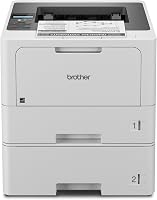
The best printer for QuickBooks check printing is the HP LaserJet Pro 3101sdw because its monochrome laser engine prints up to 35 pages per minute, feeds up to 250 sheets and supports automatic duplexing.
The Brother DCP-L2640DW is close behind for offices that also need scanning and copying.
QuickBooks check printing depends on more than printer speed.
You need standard check stock, the correct paper orientation, a matching QuickBooks layout and careful alignment before printing a complete batch.
Print speed matters when checks sit between invoices, reports and payment records.
A faster engine keeps the office moving and reduces waiting at the tray.
The HP suits small teams that print professional black and white documents every week.
Its scanning and copying tools also help when you archive signed records or copy supporting paperwork.
The Brother suits a smaller desk where one compact unit must cover several tasks.
Its dual band wireless, Ethernet and USB options give you choices for how the printer connects.
Paper choice matters as much as the printer itself.
Standard 8.5 x 11 in sheets let you print checks on blank stock in QuickBooks.
You must load the sheet in the correct direction for every printer.
A wrong orientation can shift the payee, date and amount fields by a small but costly margin.
That is why a single test sheet should come before any full batch.
Experienced users still run that test after a driver update, a new paper pack or a QuickBooks change.
Small offices often feel pressure to buy the fastest model listed.
The better choice is the setup that matches your paper, layout and bank needs.
If you are comparing printer types first, read our guide to the best printers for printing checks.
If your office already owns an inkjet, see Can You Print Checks with an Inkjet Printer? before buying a laser model.
Those guides help you decide whether laser, inkjet or dot matrix printing fits your workflow.
They also explain why paper stock and printer settings must be checked together.
Once you know the printer type you prefer, the rest of the decision becomes simpler.
You can then focus on tray size, duplexing, scanning and long term supply costs.
Our picks at a glance
-
1

-
2
 Best for compact multifunction printing
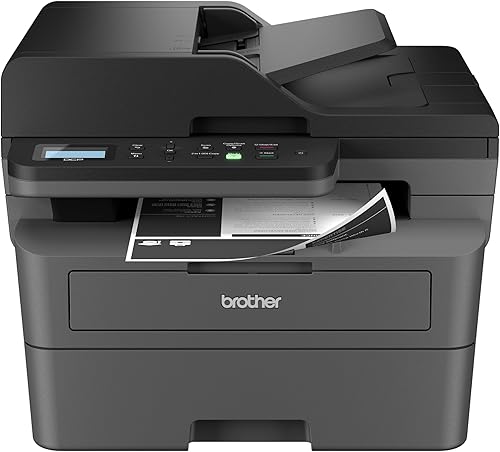
Brother DCP-L2640DW Wireless Compact Monochrome Multi-Function Printer
9.6/10 our score
See it on Amazon -
3

- 4
 Check it
DocuGard Standard Blue Marble Top High Security
Best for high-volume check stock - 5
 Check it
Epson LQ-590II Dot Matrix Printer
Best for multipart business forms
The best printer for QuickBooks check printing by use
The HP and Brother laser printers are the strongest choices for regular QuickBooks office work. The check paper picks solve the supply side of the job, while the Epson is aimed at multipart forms.
Our score weighs specs, features and buyer feedback against what you're shopping for. Printer choices are listed from highest score to lowest score.
HP LaserJet Pro 3101sdw: Best for fast office check workflows
- Monochrome laser printing
- Automatic duplex printing
- 250-sheet input tray
- 50-sheet auto document feeder
Fast monochrome printing, automatic 2-sided output and a 250-sheet tray make this a strong fit for regular office check work.
Pros
- Up to 35 ppm black printing
- Automatic duplexing
- 50-sheet auto document feeder
Cons
- Works only with cartridges using HP chips or circuitry
- Larger and heavier than a basic print-only model
The HP LaserJet Pro 3101sdw is the best printer for QuickBooks check printing when you want fast black-and-white output and fewer paper refills. Its stated print speed is up to 35 pages per minute, and the 250-sheet input tray gives you room for regular office documents between check jobs.
Automatic duplex printing helps when you need 2-sided paperwork alongside checks. The 50-sheet auto document feeder also supports scanning and copying, so this is more useful than a print-only device for an office handling invoices, reports and payment records.
The printer connects through Ethernet or USB and supports wireless printing. Its maximum media size is 8.5 x 14 in, which covers the 8.5 x 11 in check stock used by the paper picks in this guide.
The HP includes an introductory black toner cartridge with an approximate yield of 1,000 pages. HP also states that the printer is intended to work only with cartridges using HP chips or circuitry, so factor that supply restriction into your setup.
Choose it for a busy office that wants quick laser output, scanning and copying in one unit. Check the QuickBooks alignment with one sheet before printing a full batch.
Brother DCP-L2640DW Wireless Compact Monochrome Multi-Function Printer: Best for compact multifunction printing
- Monochrome laser printing
- Copy and scan functions
- Automatic duplex printing
- 50-page auto document feeder
The Brother combines printing, scanning and copying in a compact footprint, with flexible connections for computers and mobile devices.
Pros
- Up to 36 ppm black-and-white printing
- 50-page auto document feeder
- 250-sheet paper tray
Cons
- Maximum copy run is 50 copies
- Uses Brother TN830 or TN830XL toner
The Brother DCP-L2640DW is the best printer here for a compact multifunction workspace. It prints black-and-white documents at up to 36 pages per minute, slightly faster than the HP, and combines printing, copying and scanning in one device.
Its 50-page auto document feeder helps with multi-page copying and scanning. The 250-sheet paper tray also reduces refill frequency when you switch between check work and general office printing.
Connection options include dual-band wireless, Ethernet and USB. The Brother Mobile Connect app supports printing, scanning and printer management from compatible mobile devices, while the printer also works with laptops, PCs, smartphones and tablets.
Automatic duplexing can reduce paper use for regular documents. For check printing, use the one-sided layout required by your check stock and QuickBooks settings, then confirm that the check position stays aligned.
Brother identifies TN830 and TN830XL as compatible toner choices. Pick this model if you want a printer that can handle QuickBooks checks while also serving as a small office scanner and copier.
Business Checks on Top: Best for standard printer check stock
- 100 sheets of 24 lb check stock
- 8.5 x 11 in sheets
- Laser and inkjet compatible
- High-security paper features
This 100-pack gives QuickBooks users standard-size blank check stock for laser or inkjet printing and routine accounting work.
Pros
- Compatible with laser and inkjet printers
- Artificial watermark and microprint border
- Smooth 24 lb paper
Cons
- Paper is a supply, not a printer
- Only 100 sheets per pack
Business Checks on Top is the best check stock in this group for standard printer use. Each pack has 100 sheets of 24 lb paper, with sheets measuring 8.5 x 11 in and individual checks measuring 3.5 x 8.5 in.
The paper works with laser and inkjet printers, which gives you more flexibility if you already have an office printer. Its smooth finish is suited to routine accounting work, vendor payments, payroll checks and other payment documents.
Security features include an artificial watermark, microprint border, warning box and hidden void technology. The paper is diamond blue and recyclable, with a stated brightness of 92.
Load one sheet according to your printer's manual and run a sample from QuickBooks. Check the payee line, amount fields, date and signature area before printing the rest of the pack.
Choose this paper when you need a smaller supply for occasional checks or want to confirm alignment before ordering a larger ream. It is check stock, so pair it with a printer and QuickBooks layout that match your workflow.
DocuGard Standard Blue Marble Top High Security: Best for high-volume check stock
- 500 blank business checks
- Laser and inkjet compatible
- 11 security features
- 8.5 x 11 in paper
A 500-sheet ream suits offices that print checks often and want security features such as microtext, watermarks and patterned backgrounds.
Pros
- 500-sheet supply
- Laser and inkjet compatible
- 11 stated security features
Cons
- Requires compatible check-printing software
- The printer must accept suitable MICR ink or toner for bank processing
DocuGard Standard Blue Marble Top High Security Check Paper is the best choice for offices that print checks in larger batches. The ream contains 500 blank 8.5 x 11 in sheets, each made from 24 lb blue paper.
DocuGard identifies 11 security features, including a VOID pantograph behind endorsement, security warnings, VOID when copied, an anti-splice backer, watermarks, a check verification number, a patterned background and microtext print.
The paper works with laser and inkjet printers and is compatible with most money management software programs. Its uncoated finish and 92 brightness fit standard office printing, while the larger quantity reduces how often you restock.
DocuGard also notes that compatible check-printing software and a printer that can accept MICR ink or toner are required for bank-readable checks. That requirement matters more than printer speed if your bank workflow depends on MICR processing.
Pick this stock for payroll, vendor payments or recurring business checks. Confirm your QuickBooks layout, printer settings and bank requirements before using the entire ream.
Epson LQ-590II Dot Matrix Printer: Best for multipart business forms
- 24-pin monochrome dot matrix printing
- USB and parallel connections
- Letter and envelope media support
- Up to 7-sheet capacity
The Epson is a specialist choice for impact printing, including multipart forms up to 7 sheets thick, rather than a typical home-office check printer.
Pros
- 24-pin impact printing
- USB and parallel interfaces
- Supports multipart forms
Cons
- Much taller than the laser picks
- Print-only design
- Less suited to ordinary single-sheet check printing
The Epson LQ-590II is the best choice here for multipart business forms, not ordinary single-sheet QuickBooks checks. It is a 24-pin monochrome dot matrix printer with USB and parallel connections.
Its impact-printing design supports cut-sheet, continuous and multipart forms up to 7 sheets thick. That makes it useful when one print action must mark several layers of a form.
The Epson supports letter paper and No. 6 and No.
10 envelopes. Its stated dimensions are 17.6 in deep, 11.2 in wide and 21.1 in high, so plan more vertical and rear clearance than you would for the HP or Brother.
This is a print-only device. It has automatic and manual duplex settings, a maximum black-and-white copy resolution of 240 dpi and a maximum sheet capacity of 7.
Choose it only when impact printing or multipart forms are central to your work. For standard blank check stock, a laser or inkjet printer is usually the simpler match.
Which printer type works best with QuickBooks checks?
A monochrome laser printer is the most balanced choice for frequent QuickBooks checks. It produces black text quickly and handles regular office documents well.
The HP and Brother models also provide scanning and copying for related accounting tasks. That makes them more useful than a print-only device for a small office.
Laser printing suits offices that produce reports, invoices and letters as well as checks. One device can cover the full set of daily paperwork without a separate copier.
Automatic duplexing helps when reports need two sided output. It does not change how blank checks print, because checks normally use a one sided layout.
The 250 sheet tray on both laser models reduces how often you stop to refill paper. That helps during payroll runs or vendor payment batches.
A 50 sheet feeder on both models also speeds scanning and copying of multi page records. For small teams, that saves time when documents need to reach the accounting file.
An inkjet printer can work when the check stock supports inkjet printing and the ink stays sharp on the paper. The Business Checks on Top and DocuGard paper both identify inkjet compatibility.
You still need to test alignment and print quality with inkjet. Smooth stock can give cleaner lines, while the wrong finish can make ink spread.
Inkjet printing can suit a home office or very small business with light volume. It can also suit a user who already owns a good inkjet and prints checks only now and then.
Let the ink dry before handling a fresh check. That habit protects the payee and amount fields from smudging in the stack.
A dot matrix model is more specialized. The Epson LQ-590II makes sense for multipart forms, but its tall body and print-only design add less value for a normal single-sheet check workflow.
Impact printing can mark several layers of a form in one pass. That is useful for carbon style copies that a laser printer cannot produce.
The trade off is a larger footprint and a print only role. It lacks the scanning and copying tools that help with modern office records.
For standard blank check stock, laser or inkjet printing is usually simpler. For a wireless office setup, compare these choices with our guide to the best wireless printing printer.
Wireless convenience does not replace the need to set the correct paper size and orientation in QuickBooks. A wireless printer still needs the right tray, layout and paper type selected.
Test the connection after setup, especially if several staff share the device.
What to check before buying a QuickBooks check printer
Start with paper compatibility. The check stock must match your printer type, and the printer tray must accept the sheet size used by your QuickBooks layout.
Next, confirm how the paper feeds. A straight, predictable path can make alignment easier, while a tray that handles standard 8.5 x 11 in sheets gives you more flexibility for the paper in this guide.
Consider whether you need more than printing. The HP and Brother include scanning and copying, which can help when you archive payment records or copy supporting documents.
Speed matters more when you print many checks or switch between checks and office documents. Both laser printers here are rated above 35 pages per minute, while the Epson is aimed at impact forms rather than ordinary office output.
Finally, check the toner or ink plan. The HP uses cartridges with HP chips or circuitry, and the Brother identifies TN830 and TN830XL toner.
Supply availability and compatibility should be part of the decision.
How to print QuickBooks checks with fewer alignment errors
Set the QuickBooks check style before loading paper. Confirm whether your layout uses voucher, standard or another check format, then match the printer paper size and orientation.
The check style controls where each field lands on the sheet. A mismatch at this stage can move every line on the printed check.
Open the printer settings and confirm the same paper size there. Standard 8.5 x 11 in stock is common, but the driver must agree with QuickBooks.
Next, check orientation and paper source. Some trays feed the sheet top first, while others feed it bottom first.
Your printer manual will show the correct side and direction for printing. Load the sheet exactly as shown, not as the paper tray guides suggest from habit.
Print one test sheet first. Compare the payee, date, amount and bank information fields with the blank check areas before committing to a full batch.
Hold the test sheet against a window or bright light to spot small shifts. Check the signature area as well, because banks and payees look there first.
Also confirm that the date and amount sit inside their printed boxes. A tiny shift can still be readable, but it may look unprofessional.
It can also cause a bank processing issue in strict workflows. Keep the paper flat and protected from moisture.
Store blank check stock in its wrapper until you need it. Humidity can curl sheets and make feeding less predictable.
A bent corner can pull the sheet off line as it passes through. Load only the amount your printer tray handles reliably.
Avoid mixing check stock with ordinary office paper during the check job. Keep ordinary paper in a separate tray or remove it during check printing.
Start with a smaller load for the first batch. Add more sheets only after the first run prints cleanly.
If the output is shifted, adjust the QuickBooks layout or printer settings in small steps. Do not change several settings at once, because you may not know which adjustment solved the problem.
Move one setting, print one test sheet, and compare the result. Record each change in a note so you can repeat the working setup later.
For secure business checks, use the security features of the stock as one part of your process. Limit access to blank checks, protect printed checks and follow your bank requirements for MICR printing.
Store blank stock in a locked drawer or cabinet when the office closes.
Verdict: which is the best printer for QuickBooks check printing?
The HP LaserJet Pro 3101sdw is the best printer for QuickBooks check printing if you want fast monochrome output, automatic duplexing, a 250-sheet tray and built-in scanning and copying.
It suits a busy office that prints checks along with reports and invoices.
The 35 pages per minute rating helps when the printer handles a mixed workload.
Automatic duplexing saves paper on two sided documents.
The 50 sheet feeder supports scanning and copying for payment records.
That combination makes it more than a check printer alone.
Pick the Brother DCP-L2640DW for a compact wireless multifunction printer with a 50-page feeder.
It prints at up to 36 pages per minute and combines print, scan and copy functions.
Its smaller footprint can suit a desk or a small office corner.
Dual band wireless, Ethernet and USB give you flexible connection choices.
The Brother Mobile Connect app also supports mobile printing and scanning.
That can help when you need a quick copy or scan away from the desk.
Choose Business Checks on Top for a smaller paper supply.
Its 100 sheets of 24 lb stock suit occasional checks and first time setup.
The 8.5 x 11 in sheets work with laser and inkjet printers.
Security features include a watermark, microprint border and hidden void technology.
That makes it a practical starter pack for testing alignment.
Choose DocuGard for 500 high-security sheets.
The larger ream suits payroll and vendor payments that repeat every month.
Its 11 security features include microtext, watermarks and a patterned background.
The blue 24 lb paper fits standard office printing workflows.
You will restock less often with a 500 sheet supply.
Choose the Epson LQ-590II only when multipart impact forms are part of the job.
Its 24 pin design can print through forms up to 7 sheets thick.
That strength does not help with ordinary single sheet checks.
Its print only design and taller body also limit its use in a small office.
The best setup is the one that matches your printer type, paper stock, QuickBooks layout and bank requirements.
Test alignment with a single sheet before printing checks for payment.
Our top 3 picks at a glance
-
1
-
2
Best for compact multifunction printing
Brother DCP-L2640DW Wireless Compact Monochrome Multi-Function Printer
9.6/10 our score
See it on Amazon -
3
Frequently asked questions
What is the best printer for QuickBooks check printing?
The HP LaserJet Pro 3101sdw is the best printer for QuickBooks check printing in this group because it combines monochrome laser output, automatic duplexing, a 250-sheet tray and a 50-sheet automatic document feeder.
Choose the Brother DCP-L2640DW if you also need compact scanning and copying.
Can you print checks with a laser printer?
Yes, a laser printer can print checks when the check stock, QuickBooks layout and printer settings match. The Business Checks on Top and DocuGard paper in this guide are compatible with laser printers.
For bank processing, confirm the paper and toner requirements for your workflow before printing a full batch.
Can you print checks with an inkjet printer?
Yes, inkjet printing is supported by both Business Checks on Top and DocuGard check stock. The paper must be loaded in the correct orientation, and QuickBooks must be set to the matching check layout.
Print one sample first and compare the alignment before using a larger batch.
What paper size does QuickBooks use for checks?
The check stock in this guide uses standard 8.5 x 11 in sheets. Business Checks on Top identifies an individual check size of 3.5 x 8.5 in, while DocuGard uses 8.5 x 11 in blank business check sheets.
Use the paper size selected in QuickBooks and the printer driver.
Is a dot matrix printer good for QuickBooks checks?
A dot matrix printer can suit QuickBooks users who print multipart forms or need impact printing. The Epson LQ-590II supports forms up to 7 sheets thick, but its larger print-only design is less practical for ordinary single-sheet checks.
Choose a laser or inkjet model for regular blank check stock.