Can You Print Stickers on a Regular Printer?
On this page (3 sections)
Yes, you absolutely can print stickers on a regular printer! You don’t need fancy equipment to make custom labels or fun decals. Most standard inkjet and laser printers can handle sticker paper with great results.
You probably already have the main tool you need right on your desk. We found that choosing the right sticker paper is key. This simple choice makes all the difference for durable and professional-looking stickers.
- Regular home printers work for stickers.
- Specific sticker paper is required.
- Both inkjet and laser printers can be used.
- Print your own custom designs easily.
Ready to get creative? Let’s walk through everything you need to know to start printing your own amazing stickers today.
Printing Stickers at Home: What You Need to Know
Yes, your everyday printer is perfectly capable of making stickers! The secret isn’t the printer itself, but the special paper you feed into it. Think of it like baking: you can use a regular oven, but you need the right ingredients for cookies, not bread. We found that once you have the right paper, your printer does all the heavy lifting.
Choosing the Right Sticker Paper
This is where your sticker-making journey really begins. Not all sticker papers are created equal. The type you choose depends on your printer and what you plan to use your stickers for.
You’ll find sticker paper designed for either inkjet or laser printers. Using the wrong type can lead to smudges, poor adhesion, or even damage to your printer. Always check the package!
Inkjet Sticker Paper Essentials
If you have an inkjet printer, you’ll need inkjet-specific sticker paper. This paper has a special coating that absorbs liquid ink without letting it bleed. Without this coating, your designs would look blurry and messy.
Inkjet papers often come in matte, glossy, or clear finishes. Each gives your stickers a different look and feel. We found matte is great for a subtle, paper-like finish, while glossy makes colors pop.
Laser Sticker Paper Essentials
Laser printers use toner, which is a dry powder, instead of liquid ink. So, laser sticker paper is designed to withstand the heat from the fuser in a laser printer. If you use inkjet paper in a laser printer, it can melt and cause a big mess (and a headache!).
Laser sticker paper is generally more durable and water-resistant. It’s often a good choice for labels that need to last longer or withstand more handling.
Printer Type: Inkjet vs. Laser for Stickers
Both types of printers can create fantastic stickers. Your choice mostly comes down to what you already own and what kind of stickers you’re making.
| Feature | Inkjet Printer for Stickers | Laser Printer for Stickers |
|---|---|---|
| Color Vibrancy | Excellent, especially for photos and gradients. | Good, sharp text and solid colors. |
| Water Resistance | Less inherent, often requires sealing or special paper. | Generally better, toner is more resistant to water. |
| Durability | Good for general use, can fade over time. | Very good, resistant to smudging and UV light. |
| Cost Per Sheet | Can be higher due to ink costs. | Often lower for high-volume printing. |
| Best For | Crafts, custom decals, vibrant art prints. | Product labels, shipping labels, office use. |
Inkjet Printer Advantages
Inkjet printers excel at producing vibrant colors and detailed images. If you’re printing photos, intricate illustrations, or stickers with a lot of color blending, an inkjet is often your best bet. We found the color depth can be truly impressive.
They are also generally more affordable to buy upfront. Most homes already have one, making them a convenient starting point for sticker making.
Laser Printer Advantages
Laser printers are champions of crisp text and sharp lines. If you’re making labels with small fonts or bar codes, a laser printer will give you professional-looking results. They’re also faster for printing many sheets at once.
Another big plus is durability. Laser-printed stickers are often more resistant to fading, smudging, and water. This makes them ideal for things like product labels or anything that needs to hold up to wear and tear.
Preparing Your Designs for Printing
Great stickers start with great designs. Before you hit print, a little preparation goes a long way. Think about the final look you want.
- High Resolution: Always use high-resolution images. Low-res images will look pixelated and blurry when printed. Aim for at least 300 DPI (dots per inch) for clear results.
- Color Mode: For printing, it’s best to use CMYK color mode if your software allows. RGB is for screens, and CMYK is for print. This helps ensure your printed colors match what you see on your screen as closely as possible.
- Bleed Area: If your design goes to the edge of the sticker, add a “bleed.” This means extending the design slightly past the cut line. It prevents white edges if your cut isn’t perfectly precise.
- Sizing: Make sure your design is sized correctly for your sticker paper and the individual stickers you plan to make. A common mistake is printing something too big or too small.
The Printing Process: Step-by-Step
Ready to print? It’s easier than you might think! Just follow these steps for the best results.
Loading Your Sticker Paper Correctly
This is crucial! Most printers have a main paper tray, but some have a rear feed slot. We found the rear feed slot is often better for thicker materials like sticker paper. It allows the paper to pass through with less bending, which reduces jams.
Check your printer’s manual if you’re unsure how to load specialty paper. Pay attention to which side of the paper should be face up or face down. Usually, the printable side is slightly shinier or has a more distinct coating.
Adjusting Printer Settings for Sticker Paper
Don’t just hit print with default settings! Your printer software often has options for different paper types. Look for settings like “Photo Paper,” “Glossy Paper,” “Heavyweight Paper,” or “Specialty Media.”
Selecting the correct paper type tells your printer to adjust things like ink saturation and how slowly it feeds the paper. This prevents over-saturation on inkjet printers and helps toner adhere properly on laser printers (HP Support).
You might also want to set the print quality to “Best” or “High” for the sharpest images. This uses more ink/toner but gives a superior finish for your stickers.
Testing Your Print Settings
Before you print a whole sheet of your precious sticker paper, do a test print on a regular piece of paper. This lets you check for:
- Correct sizing and alignment.
- Color accuracy (though it won’t be perfect on plain paper).
- Any unexpected white borders or cut-off elements.
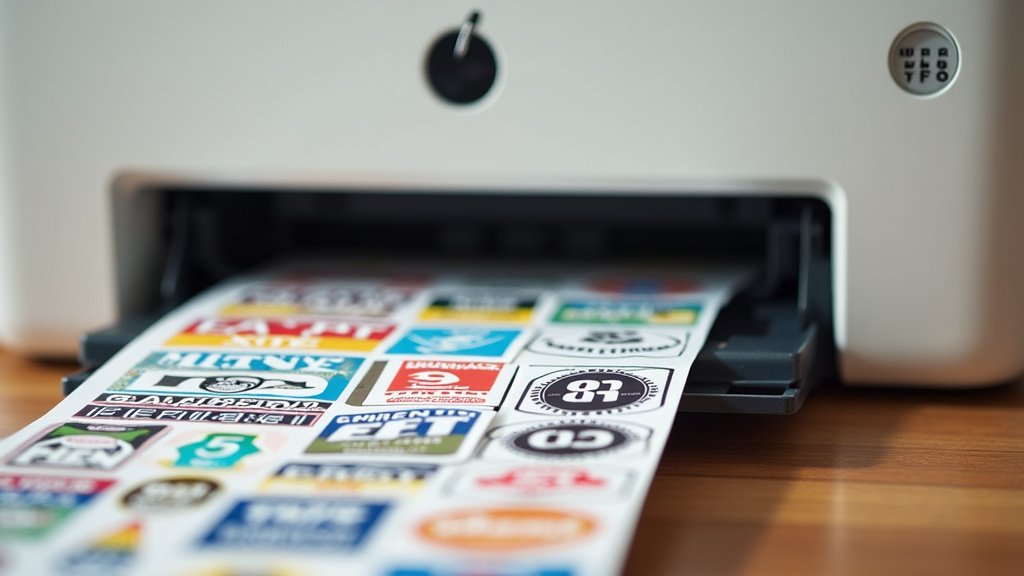
Once you’re happy with the test, load your sticker paper and print away! You’re now on your way to a pile of awesome custom stickers.
Conclusion
You now know that your regular home printer is a powerful tool for sticker making! The key is always to choose the correct sticker paper for your specific printer type—inkjet or laser. We found that paying attention to your design quality and adjusting printer settings makes a huge difference in the final product. No matter if you need vibrant decals or durable labels, your printer can handle it.
So, go ahead and gather your designs, pick out the perfect sticker paper, and start creating! You’re all set to bring your custom sticker ideas to life right from your desk.
Frequently Asked Questions
Can I use regular paper and glue to make stickers?
While you can, it’s not ideal for durable or professional-looking stickers. Regular paper absorbs ink differently and isn’t designed for adhesion. We found that using actual sticker paper gives you far better print quality and a much stronger, longer-lasting stick without the mess of glue.
Does sticker paper jam printers easily?
Sticker paper can be thicker than regular paper, so it has a slightly higher chance of jamming if not loaded correctly. We recommend using your printer’s rear feed slot if it has one. Also, selecting the “heavyweight paper” or “specialty media” setting in your printer properties helps your machine handle it smoothly.
How do I make my printed stickers waterproof?
For better water resistance, especially with inkjet stickers, you have a few options. You can use waterproof inkjet sticker paper, which has a special coating. Another common method is to spray your finished stickers with a clear acrylic sealant or apply a clear laminate sheet over them after printing and drying.
What’s the best software to design stickers?
You have many choices depending on your skill level and needs. Simple designs can be made in programs like Microsoft Word or Canva. For more advanced graphics and precise control, professional software like Adobe Photoshop or Illustrator works best. There are also many free online sticker design tools available.
Can I print on both sides of sticker paper?
Typically, sticker paper is designed with only one printable side and one adhesive backing. Printing on the non-printable side usually results in poor image quality or can even damage your printer. Always check the packaging to confirm which side is meant for printing.