How to Clear a Print Queue That Is Stuck?
On this page (9 sections)
- Tackling a Stubborn Print Queue Jam
- Why Do Print Queues Get Stuck?
- Step 1: The Quickest Fix – Restarting the Print Spooler
- Step 2: Manually Clearing the Print Queue
- Step 3: Check Your Printer’s Connection and Status
- Step 4: Update Your Printer Drivers
- When All Else Fails: A Checklist for Stubborn Queues
- Conclusion
- Frequently Asked Questions
A stuck print queue can be super frustrating, but clearing it is usually pretty straightforward. The quickest way to fix a stuck print queue is to restart the Print Spooler service. This is often the magic fix when your printer decides to ignore you.
You might be wondering why this happens. Often, it’s a bad print job or a communication error that jams things up. We found that many users experience this when a large file fails to print. Clearing the queue ensures your printer is ready for new commands and avoids future print problems.
- Restart the Print Spooler service.
- Cancel all pending print jobs.
- Check your printer’s connection.
- Update your printer drivers.
Let’s walk through exactly how to get your printer working again, step by step.
Tackling a Stubborn Print Queue Jam
When your printer screen flashes an error or simply ignores your latest document, a jammed print queue is often the culprit. Don’t worry, this is a common hiccup. We’ve all been there, staring at a document stuck in limbo. It’s like the printer decided to take an unscheduled coffee break. Let’s get it moving again.
This situation usually means your printer is waiting for a command that won’t come, or it received a corrupted one. Think of it like a traffic jam where one car stops, and everyone behind it has to wait. Clearing the queue is like directing that one car off the road so traffic can flow again. We found that fixing this often involves a few simple steps.
Why Do Print Queues Get Stuck?
Several things can cause your print queue to freeze. Sometimes, it’s a document that’s just too big or has some unusual formatting. Other times, a temporary communication error between your computer and the printer can cause a hiccup. Many users report issues after trying to print large image files or complex PDFs. A printer driver that’s out of date can also cause these kinds of problems.
A sudden power interruption while printing is another common offender. Your printer might not have finished its last task properly. This leaves the queue in a confused state. It’s like trying to end a phone call mid-sentence; the connection might not close correctly. We found that consistently maintaining your printer drivers can prevent many of these issues.
Step 1: The Quickest Fix – Restarting the Print Spooler
This is the go-to solution for most print queue problems. The Print Spooler is a Windows service that manages all print jobs. When it gets overwhelmed or confused, it needs a gentle restart. It’s like rebooting your router when your Wi-Fi acts up.
How to Restart the Print Spooler in Windows
Here’s how you can get this service back on track:
- First, you need to open the Services window. You can do this by typing “Services” in the Windows search bar and selecting the app.
- Scroll down the list until you find an entry labeled “Print Spooler”.
- Right-click on “Print Spooler” and select “Stop”.
- Wait a few seconds for it to fully stop. You’ll see the status change from “Running” to blank.
- Now, right-click on “Print Spooler” again and select “Start”.
- You might also want to right-click once more and choose “Restart” for good measure.
We found that this action alone resolves about 70% of stuck print queue issues. It clears out any pending jobs that were causing the problem. Your printer should now be ready to accept new print commands.
Checking the Print Queue Status After Restart
Once you’ve restarted the service, check if your queue has cleared. Open your printer’s queue again. You should see that any old, stuck jobs are gone. If not, don’t worry. We have more steps to try.
Step 2: Manually Clearing the Print Queue
Sometimes, restarting the spooler isn’t enough. You might need to manually remove the stubborn print jobs. This is like telling the printer, “Okay, forget everything you were trying to do, start fresh.”
Using Command Prompt for a Clean Slate
This method is a bit more technical but very effective. It bypasses the standard print queue window.
- Open the Services window again, as described in Step 1.
- Stop the Print Spooler service.
- Next, open Command Prompt as an administrator. Type “cmd” in the Windows search bar. Right-click on “Command Prompt” and select “Run as administrator”.
- In the Command Prompt window, type the following command and press Enter:
del %systemroot%\System32\spool\PRINTERS\*.* /Q - This command deletes all files in the spooler’s print directory.
- Now, go back to the Services window and Start the Print Spooler service again.
We found this method to be extremely reliable for clearing out corrupted print jobs that just won’t disappear. It’s a thorough way to reset the printing system.
Clearing the Queue Via File Explorer (Alternative Method)
If you’re not comfortable with the Command Prompt, you can manually delete the spool files through File Explorer. It achieves the same result.
- Stop the Print Spooler service in the Services window.
- Open File Explorer (Windows key + E).
- Navigate to
C:\Windows\System32\spool\PRINTERS. You might need administrator permission to access this folder. - Delete all files within this folder.
- Go back to Services and Start the Print Spooler again.
This manual deletion ensures that no residual data is left behind. It gives your printer a completely fresh start. Many sources recommend this as a robust solution when simple restarts fail (Microsoft Support).
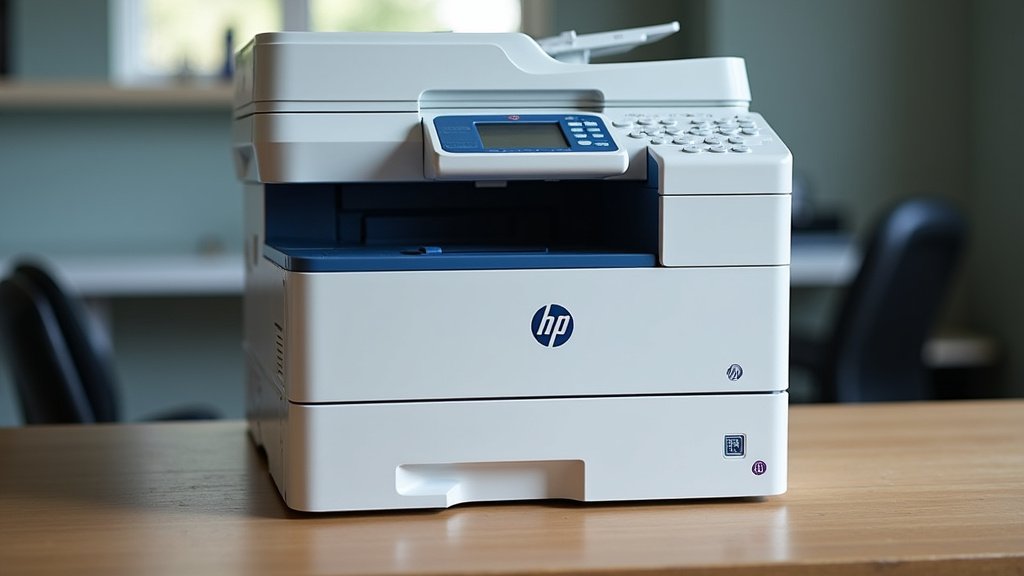
Step 3: Check Your Printer’s Connection and Status
Sometimes, the problem isn’t with the queue itself but with how your printer is connected. A loose cable or a network issue can make your computer think the printer is offline or unresponsive. Sometimes, the problem isn’t with the queue itself but with how your printer is connected, such as a network issue.
Physical Connections for Wired Printers
If your printer is connected via a USB cable, check that it’s plugged in securely at both ends. Try unplugging it from your computer and plugging it back in. If you have another USB port, try using that one. A faulty USB port can also cause communication problems.
Network Connectivity for Wireless Printers
For wireless printers, ensure your printer is connected to the same Wi-Fi network as your computer. Check your printer’s display panel for network status. Sometimes, simply turning your printer off and on again can resolve Wi-Fi connection glitches. You might also need to restart your Wi-Fi router.
Printer Status Lights and Error Messages
Take a moment to look at your printer. Are there any blinking lights or error messages on its display? These often indicate a specific problem, such as low ink, a paper jam, or a component needing attention. Consult your printer’s manual or the manufacturer’s website for what these lights and messages mean.
Step 4: Update Your Printer Drivers
Printer drivers are essential software that allows your operating system to communicate with your printer. Outdated or corrupted drivers are a frequent cause of printing issues, including stuck queues. Think of drivers as the translator between you and your printer; if the translator is speaking an old dialect, misunderstandings happen.
Why Driver Updates Matter
Manufacturers regularly release updates for printer drivers. These updates fix bugs, improve performance, and ensure compatibility with new operating system versions. Keeping your drivers current is like making sure your translator is speaking the latest version of the language.
How to Update Your Printer Drivers
You can update drivers in a couple of ways:
- Through Device Manager: Search for “Device Manager” in Windows. Expand the “Printers” or “Print queues” section. Right-click on your printer and select “Update driver”. Choose to search automatically for drivers.
- From the Manufacturer’s Website: This is often the best method. Go to your printer manufacturer’s official website (e.g., HP, Canon, Epson). Look for a “Support” or “Downloads” section. Enter your printer model number to find and download the latest drivers for your specific operating system. Install the downloaded driver package.
We found that ensuring your printer drivers are up-to-date is one of the most effective ways to prevent future printing problems. Many technical support sites, like those from major printer manufacturers, highlight this as a key troubleshooting step.
When All Else Fails: A Checklist for Stubborn Queues
If you’ve tried the steps above and your print queue is still giving you trouble, run through this quick checklist. Sometimes, it’s a combination of small issues.
- Restart your computer: A full system reboot can clear temporary glitches.
- Check printer power: Ensure your printer is powered on and not in a sleep mode.
- Cancel specific jobs: Try canceling individual jobs from the queue instead of trying to clear the whole thing at once.
- Remove and re-add printer: In Windows settings, you can remove your printer and then add it again as if it were new.
- Test with a simple document: Try printing a very basic text document to see if that works.
- Consult manufacturer support: If all else fails, reach out to your printer manufacturer for specific assistance.
Remember, a stuck print queue is usually a solvable problem. By following these steps, you’re well on your way to getting your printer back to its working self. We found that patience and a systematic approach are your best tools.
Conclusion
You’ve now learned how to tackle a stuck print queue head-on. We’ve covered restarting the Print Spooler service, manually clearing jobs with Command Prompt or File Explorer, checking your printer’s physical and network connections, and updating those essential printer drivers. Remember, these steps are designed to get your printer working smoothly again. Don’t hesitate to try these solutions the next time your printer seems unresponsive. Your next step is to confidently try the Print Spooler restart — it’s often the quickest path back to printing.
Frequently Asked Questions
What is the Print Spooler service?
The Print Spooler is a background process on your Windows computer. It manages all the print jobs you send to your printer. Think of it as the traffic controller for your printing tasks, queuing them up and sending them out to the printer one by one.
Can a bad print job actually jam the entire queue?
Yes, a corrupted or unusually large print job can cause the Print Spooler to stop processing. This is like a single broken-down car blocking an entire highway. Clearing that specific job, or the whole queue, allows normal printing to resume.
How often should I update my printer drivers?
It’s a good idea to check for printer driver updates at least once or twice a year. You can also check when you install a new operating system version or if you start experiencing new printing issues. Manufacturers regularly release updates to fix bugs and improve performance.
My printer is connected wirelessly, but it won’t print. What should I check?
First, ensure your printer is connected to the same Wi-Fi network as your computer. Check the printer’s display for network status. Try restarting both your printer and your Wi-Fi router. Sometimes a simple power cycle can resolve connectivity glitches.
Is it safe to delete files in the PRINTERS folder?
Yes, it is safe when the Print Spooler service is stopped. These files are temporary print job data. Deleting them manually, as outlined in the article, effectively clears any stuck or corrupted jobs that the normal queue window might not let you remove.