How to Clean HP Ink Tank Printheads
Run the printhead cleaning utility from the printer software or control panel first. Check ink levels and follow your HP Ink Tank model's instructions; avoid removing or soaking the printhead unless HP directs you to.
On this page (7 sections)
- How do you clean HP Ink Tank printheads?
- What should you check before running the cleaning cycle?
- How do you run the HP cleaning utility safely?
- Should you remove or soak an HP Ink Tank printhead?
- What if cleaning doesn't fix missing lines or streaks?
- Which paper can you use after cleaning?
- When should you choose an ink tank printer?
Run the printhead cleaning utility from the printer software or control panel first. Check ink levels, print a quality report, and follow the steps for your exact HP Ink Tank model; don't remove or soak the printhead unless HP directs you to.
Ink Tank models can use different printhead arrangements and maintenance menus. A procedure for another HP inkjet or an Epson tank printer may not fit your machine.
How do you clean HP Ink Tank printheads?
Use the built-in cleaning routine, then check a print quality report. The menu names and steps vary by model, so use the printer's on-screen help or HP support instructions for your model.
- Load plain paper and make sure the printer is on and ready.
- Check the ink tanks and confirm each is above its minimum mark.
- Open the printer's maintenance or tools menu, either on the printer or in HP's software.
- Choose the printhead or print quality cleaning option and follow the prompts.
- Print the quality report or diagnostic page the printer offers.
- Compare the result with the original print and repeat only as the model's instructions allow.
A cleaning cycle uses ink, so don't run it repeatedly without checking the result. If the report is unchanged after the permitted cycles, move to model-specific troubleshooting rather than escalating to manual cleaning.
For broader cleaning methods and what differs between printer designs, see How To Clean Inkjet Printer Heads?.
What should you check before running the cleaning cycle?
Check ink, paper, and print settings before cleaning. These simple checks can rule out causes that a printhead cycle will not fix.
Make sure the ink levels are visible and above the low marks. Confirm that you loaded the paper type selected in the print settings, and try plain paper for the diagnostic page.
Inspect the output for a repeatable pattern: missing color blocks, gaps in lines, or streaks. Keep the page as a reference so you can tell whether cleaning changed the result.
Does the paper affect a print quality check?
Use clean, dry plain paper for a basic quality report. Paper that is damp, curled, or unsuitable for the selected setting can make output look poor even when the printhead is working.
Boise X-9 is legal-size 20 lb multipurpose paper, with 5,000 sheets per case. It can suit households that print larger documents, but standard letter paper may be more convenient for routine diagnostics.
If your printer expects letter-size paper, choose the correct size in the settings instead of forcing legal paper into the tray. Use the paper size your model supports.
How do you run the HP cleaning utility safely?
Follow the printer's prompts and let each cycle finish. Keep the printer powered on during the process, and don't open covers or interrupt it unless the screen asks you to.
The utility may offer more than one cleaning level. Start with the normal or first-level option, then print another diagnostic page before considering a deeper cycle.
A cleaning cycle can consume ink and may take several minutes. Use the number of cycles specified in the user guide, not a generic count from advice for another printer.
If the software cannot find the printer, confirm that it's powered on and connected, then try the printer's own menu. For HP-specific inkjet steps that may overlap but aren't universal to tank models, see How To Clean HP Inkjet Printer Heads?.
Should you remove or soak an HP Ink Tank printhead?
Don't remove or soak the printhead unless the instructions for your specific model say to. Ink Tank designs differ, and handling the printhead or its electrical contacts can cause damage.
Avoid paper towels, cotton swabs, solvents, and household cleaners on the printhead. Don't push a needle into nozzles or force ink through tubes.
Some HP printers have user-replaceable printheads, while others use a different arrangement. Confirm your model's manual before touching internal parts or buying a replacement.
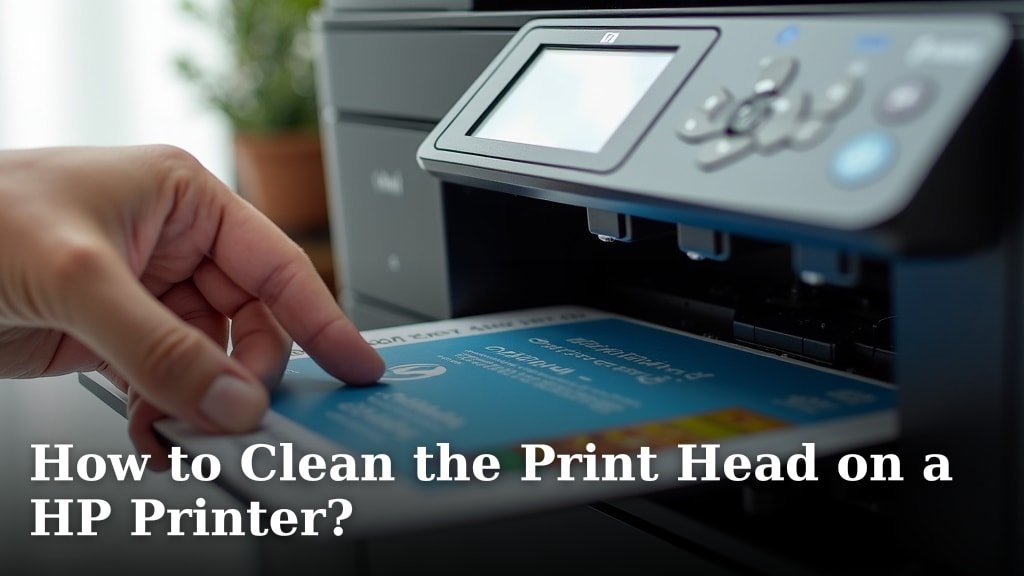
For general HP instructions that aren't limited to tank models, compare How to Clean the Print Head on a HP Printer?. Follow the Ink Tank model's own instructions whenever they differ.
What if cleaning doesn't fix missing lines or streaks?
Stop after the allowed cleaning cycles and use the model's troubleshooting guide. Persistent defects may need a different maintenance step, service, or a printhead replacement approved for that printer.
Print another quality report and note which colors or lines remain affected. Check for warnings on the screen and review the printer's ink path, alignment, and print settings only as directed by the manual.
Don't assume the same fix applies to every tank printer. For a different print-quality symptom, see Epson double-line printing.
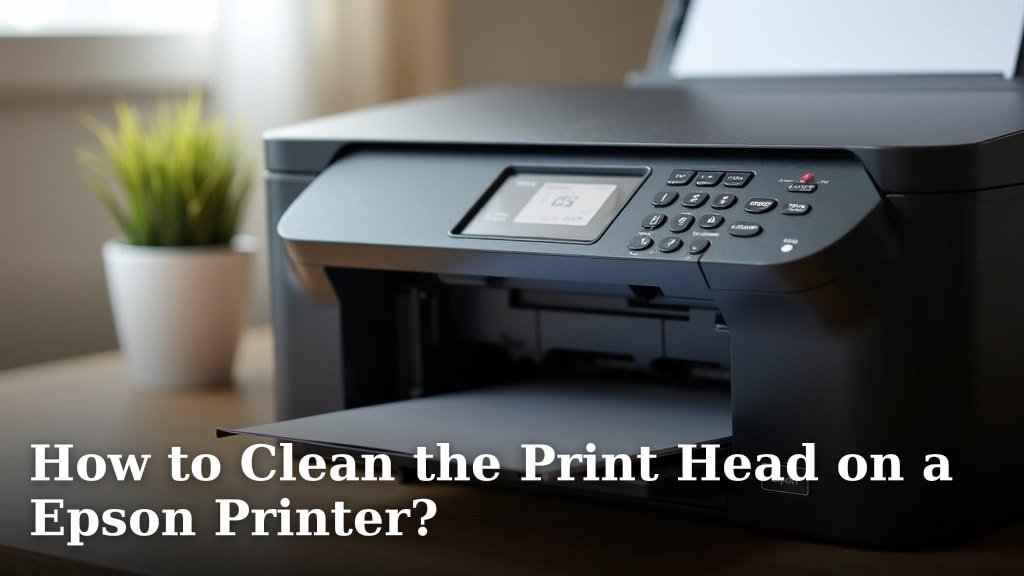
Epson's process differs, as explained in How to Clean the Print Head on a Epson Printer?.
If you are refilling tanks, first confirm that the correct ink is being used and follow the refill directions for the model. This walkthrough covers How to Add Ink to an HP Ecotank Style Tank?.
Which paper can you use after cleaning?
Use paper supported by your printer and the print job. A fresh plain-paper report makes it easier to judge whether cleaning helped; use photo paper only when checking photo output.
Hammermill Printer Paper is white legal-size 20 lb paper with 500 sheets per ream. It can work for larger documents, though you should select legal size in the print settings and confirm your tray accepts it.
If your HP Ink Tank printer accepts only letter-size paper in the tray, use the matching size instead. Paper choice cannot clear a clogged nozzle, but it helps keep the diagnostic comparison consistent.
When should you choose an ink tank printer?
Choose a refillable tank printer when its refill routine and ongoing ink needs fit your printing habits. Cleaning steps remain model-specific, so check the maintenance instructions before choosing a printer.
Compare tank capacity, supported paper sizes, and how the printer handles maintenance. Our guide to the Best Refillable Ink Tank Printer can help you compare options.
For HP Ink Tank head cleaning, start with the built-in utility, check ink and paper, and compare a quality report after each allowed cycle. If defects remain, use the exact model guide or contact HP support instead of trying to flush or soak the printhead.
Frequently asked questions
How do I clean an HP Ink Tank printhead?
Start with the cleaning tool in your printer's software or control panel, then print a quality diagnostic page and repeat only as the manual allows. Check ink levels and use the exact steps for your model.
Don't remove, soak, or touch the printhead contacts unless HP's instructions tell you to.
Can I clean an HP Ink Tank printhead with water?
Don't flush or soak an HP Ink Tank printhead unless the instructions for your exact model direct you to. Liquids can damage electrical parts, and printhead designs differ.
Use the built-in cleaning routine first, then consult the model's support guide if gaps or streaks remain.
Why is my HP Ink Tank printing with missing lines?
Missing lines can come from clogged nozzles, low ink, air in the ink path, or a print setting and paper mismatch. Check ink levels, load plain paper, and run a print quality report.
If cleaning does not help after the permitted cycles, use HP's model-specific troubleshooting steps.
How many times should I run printhead cleaning?
Use only the number of cleaning cycles your HP model recommends, because each cycle uses ink. Print a quality report between cycles to see whether the result changes.
If the same defects remain, stop repeating the routine and check the manual or contact HP support.