How to Fix a Canon Printer Not Responding Error
A Canon printer not responding error usually means the computer cannot communicate with the printer. Check power and connections, clear a stuck print queue, then confirm the selected printer and driver.
On this page (8 sections)
- What should you check first when a Canon printer is not responding?
- Is the Canon printer connected to the computer?
- How do you clear a stuck Canon print queue?
- Is the correct Canon printer selected?
- Could the Canon driver be causing the error?
- When should you restart the printer, computer, or router?
- What should you print to test the fix?
- What should you do if the printer still does not respond?
A Canon printer not responding error usually means the computer cannot communicate with the printer. Check power and connections, clear a stuck print queue, then confirm the selected printer and driver.
Work through the checks in order, testing a small document after each change. This helps you identify whether the problem is the printer, its connection, a queued job, or the computer's setup.
What should you check first when a Canon printer is not responding?
Check that the printer is on, ready, and connected before changing software settings. A loose cable, paused printer, or alert on the printer itself can stop a job before it reaches the device.
- Check the display or indicator lights for an error or setup prompt.
- Confirm the printer is awake and has no open cover or paper alert.
- Check that the computer is sending the job to the intended Canon printer.
- Look for a USB cable that has come loose, or verify the printer's network connection.
- Send a short test page or document.
If the printer shows a specific error code, use Canon's support information for your model to interpret it. The steps below address communication problems that appear as a printer not responding message.
Is the Canon printer connected to the computer?
A Canon printer needs a working USB or network connection to receive print jobs. Confirm the connection type you normally use, then check for interruptions at both ends.
What if you use a USB cable?
Reconnect the cable at the printer and computer, and try a different USB port if one is available. Avoid connecting through a hub while troubleshooting, since it adds another point that can interrupt communication.
If the computer still does not detect the printer, restart both devices with the cable connected. Then check the operating system's printer settings to see whether the Canon appears as available.
What if you use WiFi?
Check the printer's network status and confirm that the computer is connected to the same network. A router restart can help after a network interruption, but first make sure other devices can connect normally.
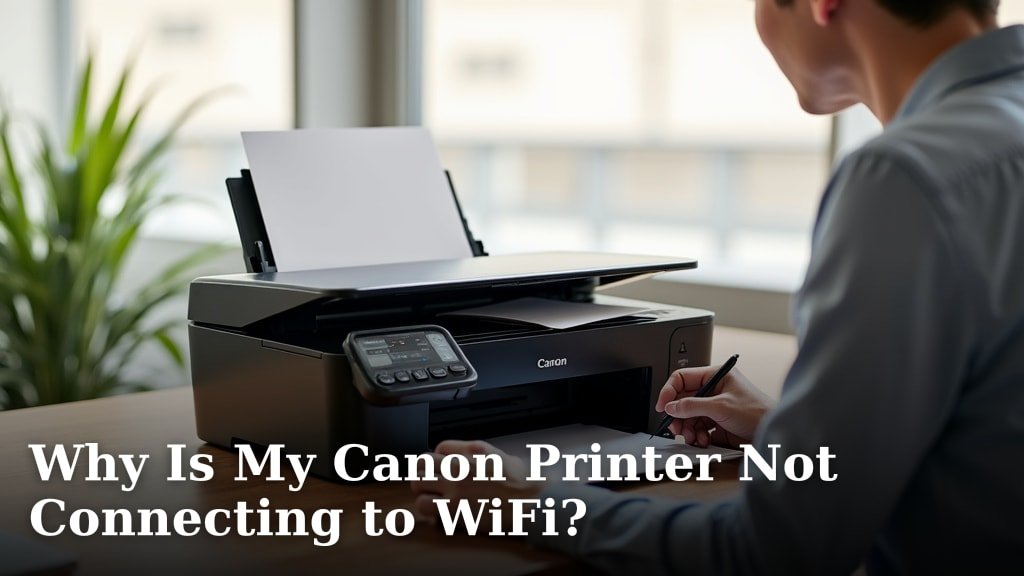
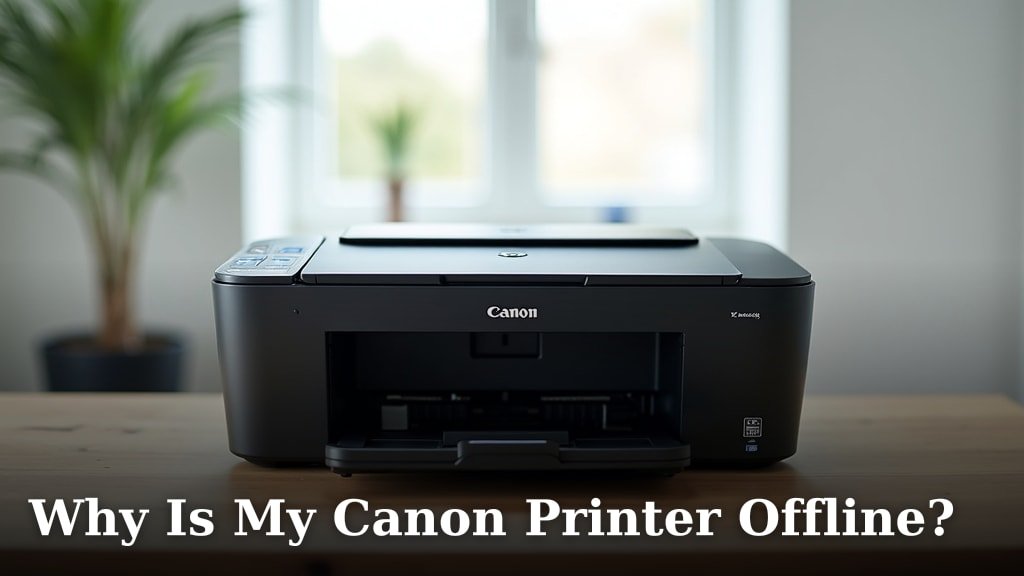
For a connection-specific walkthrough, see Why Is My Canon Printer Not Connecting to WiFi?. If the printer connects but appears offline on the computer, Why Is My Canon Printer Offline? covers that status.
Could the printer be offline or paused?
Make sure the printer is available and not paused in the computer's print settings. Operating systems can retain an offline status after a temporary connection loss.
Open the printer queue or printer settings, select the Canon device you intend to use, and check its status. If it is marked offline or paused, clear that state and send a new small job.
For a broader explanation of offline status across printer brands, read Why Is My Printer Showing Offline?. HP owners can follow how to get an HP Smart Tank printer online.
How do you clear a stuck Canon print queue?
Cancel stalled jobs in the queue, then send one fresh test job. A blocked first job can keep later documents from reaching the printer.
Open the Canon printer's queue on your computer and cancel pending jobs. Wait until the queue is empty before sending a short document, such as a plain-text page.
If a job will not cancel, restart the printer and computer, then check the queue again. Use the operating system's normal controls to remove the job; avoid deleting system files or changing unfamiliar services.
Can paper or supplies make a printer seem unresponsive?
A printer can stop accepting work when it needs attention for paper, ink, or an open cover. Check the printer's display and follow the instructions for the specific alert.
Reload paper in the tray and make sure its guides sit against the stack without bending it. If a sheet is jammed, turn to How to Fix a Paper Jam in an Inkjet Printer? for careful removal steps.
Paper won't repair a communication failure, but a correctly loaded tray helps rule out a basic print interruption. Boise X-9 is legal-size 8.5 x 14 in paper, so choose it only when that size matches the job and printer tray.
Is the correct Canon printer selected?
Select the Canon model you are trying to use, especially if the computer has more than one printer entry. A saved entry for an old device or connection can receive jobs even when the current printer is ready.
Open the print dialog and check the destination before printing. If you see duplicate Canon entries, compare their connection or status in the printer settings, then choose the one that matches your current setup.
Don't remove a printer entry until you know which one is active. If you do remove a stale entry, add the printer again using your operating system's printer setup and Canon's instructions for your model.
Could the Canon driver be causing the error?
Check that the computer has the right Canon driver for the printer model and operating system. A wrong or incomplete driver can stop communication even when the printer is powered on and connected.
Visit Canon's official support site, search for your exact printer model, and follow its driver and setup guidance. Avoid installing a driver for a similar-looking model, since product names can differ by a few letters or numbers.
If you recently changed computers or updated the operating system, check the driver setup again. Remove an obsolete printer entry only after confirming that it is not the one currently connected.
When should you restart the printer, computer, or router?
Restart the printer and computer after checking the connection and clearing the queue. A restart can reset a temporary communication fault without changing your printer setup.
Turn the printer off using its normal power control, wait briefly, then turn it back on. Restart the computer after the printer is ready, and try one small job.
Restart the router only when the printer uses WiFi and other signs point to a network issue. If other devices have internet access and the Canon still cannot join the network, review the printer's network setup before changing router settings.
What should you print to test the fix?
Use one short, plain document to check whether the printer responds. A small job makes it easier to see whether the basic connection works before you retry a large file.
If the test prints, try the original document again. If it does not, check the queue and printer status once more, then confirm the selected device and driver.
When the Canon prints but colors look wrong or missing, that is a separate issue from communication. See Why Is My Canon Printer Not Printing Color? for ink and color checks.
For ordinary legal-size documents, Hammermill Printer Paper comes as one ream of 500 sheets of white 20 lb paper. Its ColorLok feature is described as helping colors appear brighter and ink dry faster, but the printer must support the paper size you choose.
What should you do if the printer still does not respond?
If the Canon remains unresponsive after connection, queue, selection, and driver checks, use Canon support for your exact model. Note the computer's operating system, the connection type, and any displayed error before contacting support.
Those details help narrow the next step without repeating checks at random. Follow Canon's model-specific instructions if they differ from general computer or printer steps.
A printer not responding Canon error often clears after restoring the connection or removing a stuck job. Start with the cable or WiFi status, then check the queue and driver; if none restores communication, use Canon's model support to choose the next step.
Frequently asked questions
Why does my Canon printer say it is not responding?
A Canon printer may show as not responding when the computer cannot reach it, the wrong printer is selected, or a job is stuck in the queue. Check that the printer is on and connected, then clear pending jobs and try a simple test page.
If the issue continues, check the driver and connection settings.
How do I get my Canon printer to respond?
Confirm the printer is powered on and ready, reconnect its USB cable or verify it is on the same WiFi network as the computer, and make sure the correct Canon printer is selected. Remove stalled jobs from the queue, restart the printer and computer, then send a small test document.
Can a printer driver cause a Canon printer not responding error?
Yes, an incorrect, outdated, or damaged driver can prevent a computer from communicating with a Canon printer. Check your operating system's printer settings and Canon's support page for the correct driver for your model.
Remove duplicate or old printer entries if they cause confusion.
Why is my Canon printer not responding over WiFi?
A wireless Canon printer may stop responding if it has lost its network connection or the computer is using a different network. Check the printer's network status and confirm both devices use the same network.
Restart the router only if other network checks point to a connection problem.