
Why Is My Printer Showing Offline?
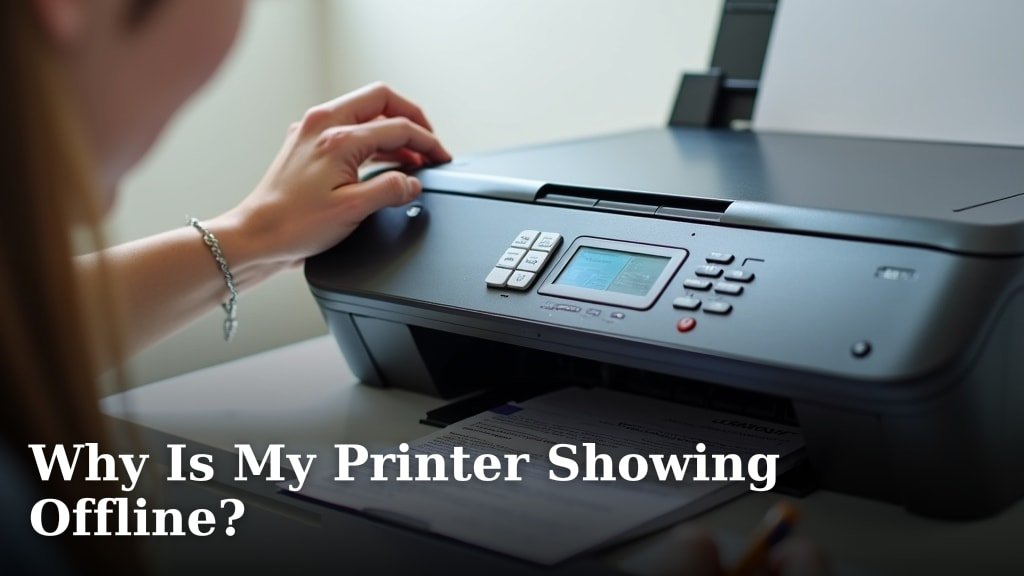
Your printer is showing offline because of connection issues, a driver problem, or a simple settings glitch on your computer. It’s a super common and frustrating hiccup that many people face with their home or office printers.
You’re ready to print something important, and then – boom – your printer acts like it doesn’t even exist. This often means your computer can’t “talk” to your printer, perhaps due to a Wi-Fi hiccup or an outdated driver. We’ve all been there, staring at that dreaded “printer offline” message.
- Printers go offline due to communication problems.
- Common causes include Wi-Fi drops or loose cables.
- Outdated printer drivers can also be the culprit.
- Incorrect printer settings on your computer are a frequent issue.
- Sometimes, a simple restart fixes everything.
Below, we’ll walk you through the most common reasons your printer goes offline and, more importantly, how you can fix it yourself with easy steps.
Understanding Why Your Printer Appears Offline
Printers go offline when they lose the ability to communicate with your computer or device. It’s like having a phone with no signal; even though it’s on, it can’t make calls or send texts.
This communication breakdown can happen for many reasons. We’ll explore the most common ones you’re likely to encounter.
Connectivity Issues: The Most Common Culprit
Think of your printer and computer as two friends trying to chat. If they can’t hear each other, the conversation stops. This “hearing” is all about their connection.
Most offline issues stem from a lost connection. It could be wireless or wired, but the result is the same: no printing.
Wi-Fi Woes: When Your Wireless Connection Drops
Wireless printers are super convenient, right? No messy cables! But they rely heavily on a stable Wi-Fi signal. If that signal drops, even for a moment, your printer can appear offline.
Your Wi-Fi network might be having a moment, or your printer might have lost its connection to the network. This is often an easy fix.
- Router issues: Sometimes your Wi-Fi router just needs a quick reset.
- Signal strength: Is your printer too far from the router? Walls and other electronics can block the signal.
- Network changes: Did you change your Wi-Fi password recently? Your printer won’t know the new one.
Cabled Confusion: Loose or Damaged USB Cables
For those of you with a trusty USB-connected printer, don’t assume you’re immune to connection problems. A physical cable can still cause headaches.
A loose cable is a prime suspect. It might look connected, but not be quite snug enough to work properly. A damaged cable can also prevent communication.
- Check the connection: Make sure the USB cable is firmly plugged into both your printer and your computer.
- Try a different port: Sometimes a USB port on your computer can go bad. Try another one.
- Replace the cable: If you suspect damage, a new USB cable is inexpensive and worth trying.
Printer Status and Power Problems
Sometimes, the issue isn’t with the connection but with the printer itself. Is it truly “on” and ready to receive commands?
A printer that’s off or in a sleep mode won’t print. It’s important to check its physical status first.
Is Your Printer Truly On?
It sounds silly, but is your printer actually powered on? We’ve all been there, hitting print and realizing the power button is off.
Check the power indicator light on your printer. If it’s off, press the power button. Make sure the power cord is securely plugged into both the printer and a working wall outlet.
Printer in Sleep Mode or Offline Manually
Many modern printers have energy-saving sleep modes. While usually harmless, sometimes a printer gets “stuck” in this mode and needs a nudge.
Also, it’s possible someone manually set your printer to offline. This often happens if you’re trying to clear a print queue without deleting individual jobs.
- Wake it up: Press any button on the printer’s control panel to wake it from sleep.
- Check settings: Look for an “Online/Offline” setting on your printer’s display, if it has one.
- Power cycle: Turn the printer off, wait 30 seconds, then turn it back on. This is often called a “reboot.”
Software and Driver Headaches
Even with a perfect connection and a powered-on printer, software can throw a wrench in the works. Your computer needs the right instructions to “talk” to your specific printer model.
These instructions come in the form of drivers and printer settings on your computer.
Outdated or Corrupted Printer Drivers
Think of a driver as the language translator between your computer and your printer. If the translator is speaking an old language, or if they’ve forgotten some words, communication breaks down.
Outdated or corrupted drivers are a very common cause of printers showing offline (Microsoft Support).
- Update your drivers: Visit your printer manufacturer’s website (e.g., HP, Canon, Epson, Brother) and download the latest drivers for your specific model and operating system.
- Reinstall drivers: Sometimes a fresh install is best. Uninstall the old driver first, then install the new one.
Incorrect Printer Settings on Your Computer
Your computer’s operating system has settings for your printer. If these settings are wrong, it can tell your computer to treat the printer as offline, even if it’s perfectly capable of printing.
One common culprit is the “Use Printer Offline” option being accidentally checked.
- Check your print queue: In Windows, go to “Devices and Printers,” right-click your printer, and select “See what’s printing.” Make sure “Use Printer Offline” is unchecked.
- Set as default: Ensure your desired printer is set as the default printer on your computer.
- Remove duplicate printers: Sometimes you might have multiple versions of the same printer installed, confusing your system. Remove the old or unused ones.
Print Queue Problems and Error Messages
Sometimes, the printer itself isn’t the problem, but a backlog of print jobs is. If the print queue is jammed, nothing new can get through.
Also, an actual error message on your printer can give you clues to the real issue.
Stuck Print Jobs in the Queue
Imagine a traffic jam on a highway. If one car breaks down in the middle of the road, all the cars behind it get stuck. Your print queue works similarly.
A corrupted or stuck print job can prevent new jobs from processing, making your printer seem unresponsive (HP Support).
How to clear the print queue:
- Go to “Devices and Printers” (Windows) or “Printers & Scanners” (Mac).
- Double-click your printer icon to open its print queue.
- Cancel all pending print jobs.
- If jobs won’t clear, restart your computer and printer.
Printer Error Messages
Your printer might be trying to tell you something! Check its display panel for any error messages. It might be out of paper, low on ink, or have a paper jam.
These messages are invaluable clues. Address the specific error the printer is reporting. Often, fixing the error will bring your printer back online automatically.
Network Interference and Firewall Issues
Less common, but still possible, are issues related to your network’s security settings. Your firewall might be too strict, or other devices on your network could be causing interference.
This is especially true in office environments or if you’ve recently installed new security software.
Firewall Blocking Communication
Your computer’s firewall is designed to protect you from threats. Sometimes, it gets a little overprotective and blocks your printer from communicating, especially if it’s a network printer.
You might need to adjust your firewall settings to allow your printer to communicate. Check your firewall software’s instructions for how to create an exception.
IP Address Conflicts or Changes
Network printers are assigned an IP address, which is like a unique street address on your network. If this address changes, or if another device gets assigned the same address, your computer can get confused.
This is more advanced, but sometimes resetting your router can clear up IP conflicts. You can also try assigning a static IP address to your printer if you’re comfortable with network settings.
The Ultimate Troubleshooting Checklist
When in doubt, start with the basics. Many problems are solved with simple steps. Here’s a quick checklist to run through when your printer goes offline:
- Restart Everything: Turn off your printer, computer, and Wi-Fi router. Wait 30 seconds, then turn them back on in this order: router, printer, computer.
- Check All Cables: Ensure USB and power cables are firmly connected at both ends.
- Verify Wi-Fi Connection: Make sure your printer is connected to the correct Wi-Fi network and has a strong signal.
- Clear Print Queue: Cancel any pending print jobs on your computer.
- Update Drivers: Install the latest drivers from your printer manufacturer’s website.
- Check Printer Settings: Ensure “Use Printer Offline” is unchecked in your computer’s printer settings.
| Problem Type | Common Symptoms | First Steps to Fix |
|---|---|---|
| Connectivity (Wi-Fi) | Printer light blinking, “No Network” message | Restart router, check Wi-Fi password |
| Connectivity (USB) | Printer not detected, no sound when plugging in | Check cable firmness, try new USB port |
| Printer State | Printer completely unresponsive, no lights | Check power cord, press power button |
| Software/Driver | “Driver Error,” “Offline” despite being connected | Update/reinstall drivers, clear print queue |
| Network/Firewall | New printer won’t connect, sudden loss of connection | Temporarily disable firewall, restart router |
Conclusion
Dealing with a printer that insists on being offline can be a real headache when you’re trying to get things done. But as we’ve covered, most of the time it’s a simple fix, whether it’s a loose cable, a Wi-Fi hiccup, or just an outdated driver. You now have a solid set of steps to troubleshoot common issues and get your printer back online.
Don’t let that “offline” message win! Use the checklist and tips provided to pinpoint the problem. With a little patience, you’ll be printing again in no time. You’ve got this!
Frequently Asked Questions
Why does my printer keep going offline even after I fix it?
If your printer repeatedly goes offline, it might indicate an unstable Wi-Fi connection, an intermittent issue with your USB cable, or a recurring driver problem. Ensure your printer’s firmware is up to date and consider assigning a static IP address for network printers.
Can a low ink cartridge make my printer appear offline?
While low ink usually triggers a specific warning message, not an “offline” status, some printers might halt all functions until the issue is addressed. It’s always a good idea to check your ink levels and any error messages on the printer’s display.
What’s the difference between “offline” and “error” on my printer?
“Offline” typically means your computer can’t communicate with the printer, often due to connection issues. An “error” message, however, indicates a specific problem the printer has identified itself, such as a paper jam, out of ink, or a hardware malfunction.
Will resetting my printer to factory settings fix the offline problem?
Resetting to factory settings can sometimes resolve stubborn issues by clearing all custom settings and network configurations. You’ll need to set up your printer from scratch afterward, including reconnecting to Wi-Fi and reinstalling drivers, so try other troubleshooting steps first.
My wireless printer worked fine yesterday, why is it offline today?
Printers can go offline overnight due to minor network interruptions, a temporary router glitch, or even a system update on your computer. Often, simply restarting your router, printer, and computer in that order will re-establish the connection.
