How to Print from an Iphone to an Inkjet Printer?
On this page (6 sections)
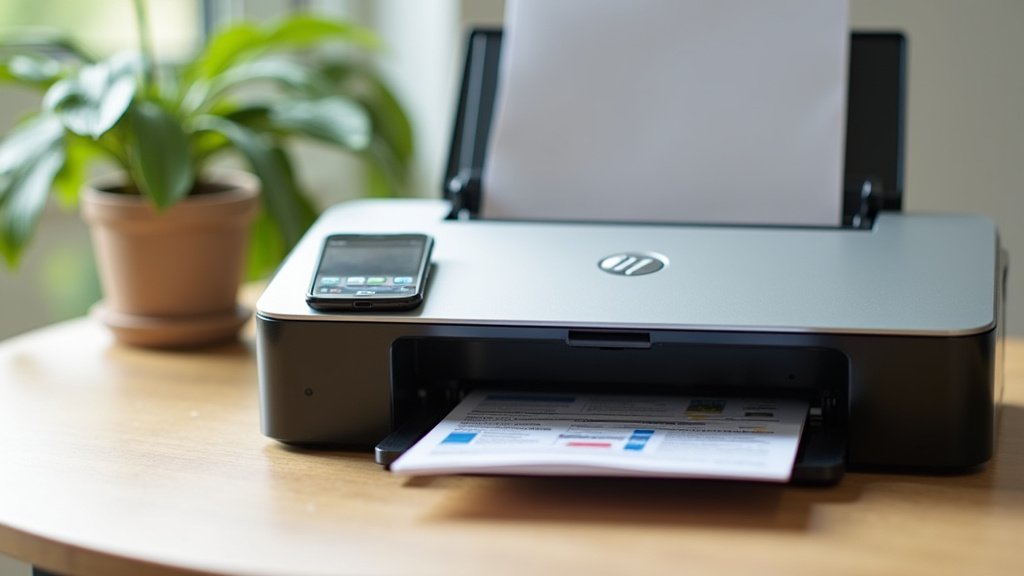
Yes, you can print from your iPhone to an inkjet printer, and it’s usually quite simple. Most modern inkjet printers support Apple’s AirPrint technology, allowing for wireless printing directly from your device.
You don’t always need special apps or complicated setups. We found that many printers connect easily over your home Wi-Fi network. This means you can print documents, photos, or emails without needing a computer. For check printing, see our guide to printing checks with an inkjet and the supplies it requires.
- Print wirelessly from your iPhone to most inkjet printers.
- No extra apps often needed thanks to AirPrint.
- Connect your iPhone and printer to the same Wi-Fi network.
- Print photos, documents, and emails directly.
Ready to get those digital files onto paper? Let’s walk through exactly how to set up and start printing from your iPhone to an inkjet printer, step by step.
Getting Your iPhone and Inkjet Printer to Talk
The first step to printing from your iPhone is making sure your printer and phone are on speaking terms. This usually involves connecting them to the same Wi-Fi network. Think of it like inviting them both to the same party.
Most modern inkjet printers are designed with wireless connectivity in mind. This makes the process much simpler than it used to be. You’ll typically use Apple’s AirPrint technology, which is built right into your iPhone.
Check Printer Compatibility
Before you do anything else, it’s wise to confirm your printer supports AirPrint. Most inkjet printers made in the last decade do. This is a crucial first check.
If your printer is an older model, don’t despair! There might still be a way to print. We’ll cover some alternatives later.
How to Verify AirPrint Support
Checking for AirPrint is straightforward. You can usually find this information in a few places:
- Printer Manual: The quickest way is often to check the manual that came with your printer. Look for “AirPrint” or “iOS printing.”
- Manufacturer’s Website: Visit the printer manufacturer’s support section. Search for your specific model and “AirPrint compatibility.”
- Apple’s AirPrint List: Apple maintains a list of AirPrint-compatible printers. A quick search for “Apple AirPrint printers” will lead you there. We found this list to be quite comprehensive.
Connect to the Same Wi-Fi Network
This is the most common reason people have trouble printing. Your iPhone and your inkjet printer need to be connected to the exact same Wi-Fi network. Not just any Wi-Fi, but the identical one.
Imagine your Wi-Fi network as a local post office. Both your iPhone and printer need to be sending and receiving mail from that same post office to communicate. If one is at a different post office, they won’t find each other.
Connecting Your Printer to Wi-Fi
The process for connecting your printer to Wi-Fi varies by brand and model. Generally, you’ll use the printer’s own control panel or display screen.
- Navigate to the “Setup,” “Network,” or “Wireless” settings.
- Select “Wi-Fi Setup Wizard” or “Wireless Setup.”
- Choose your home Wi-Fi network from the list.
- Enter your Wi-Fi password (the same one you use for your phone or laptop).
- Confirm the connection. Your printer should show a “Connected” message.
If you have a dual-band router (2.4 GHz and 5 GHz networks), ensure both devices are on the same band. We found that printers often prefer the 2.4 GHz network, which offers a longer range.
Connecting Your iPhone to Wi-Fi
You probably already know how to do this! Just make sure it’s the same network as your printer.
- Go to “Settings” on your iPhone.
- Tap “Wi-Fi.”
- Select your home Wi-Fi network.
- Enter the password if prompted.
- A blue checkmark next to the network name means you’re connected.
Double-check that the network name (SSID) on your iPhone matches the network name displayed on your printer’s screen.
Printing from Your iPhone with AirPrint
Once both devices are connected to the same Wi-Fi, the magic of AirPrint can happen! You’re ready to print photos, documents, emails, and more.
AirPrint is designed for simplicity. You won’t need to download special drivers or apps for most modern inkjet printers. This direct approach makes printing very convenient.
The General Printing Process
The steps for printing are quite similar across different apps on your iPhone. You’ll always be looking for the “Share” icon.
We found this method to be consistent whether you’re in Photos, Mail, Safari, or many other applications.
Step-by-Step Guide to Printing
Let’s walk through the typical steps:
- Open the App: Go to the app containing what you want to print (e.g., Photos, Mail, Safari, Notes).
- Select Item: Choose the photo, document, email, or web page you wish to print.
- Find the Share Icon: Look for the Share icon. It looks like a square with an arrow pointing upwards out of it. Tap it.
- Scroll and Tap “Print”: In the share sheet that appears, scroll down and tap “Print.” It might be near the bottom of the list.
- Select Your Printer: On the “Printer Options” screen, tap “Select Printer.” Your AirPrint-enabled inkjet printer should appear here. If it doesn’t, ensure both devices are on the same Wi-Fi and that your printer is on.
- Choose Print Options: You’ll see options like the number of copies, specific pages (for documents), and sometimes color or black & white. Adjust these as needed.
- Tap “Print”: Once you’re happy with the settings, tap “Print” in the top right corner.
Your printer should then whir to life and start printing your item. Pretty cool, right?
Common Items You Can Print
What can you actually print from your iPhone? Quite a lot! Here are some common examples:
- Photos: From your Photos app, select one or multiple pictures. Great for instant snapshots!
- Emails: Open an email in the Mail app, tap the reply arrow, and scroll down to “Print.”
- Web Pages: In Safari, tap the Share icon, then “Print.”
- Documents: Files in apps like Pages, Numbers, Keynote, or even Adobe Reader often have built-in print functions via the Share icon.
- Notes: Your everyday notes from the Notes app can be printed easily.
Many third-party apps also integrate AirPrint functionality. If you see that Share icon, printing is usually an option.
Troubleshooting Common Printing Issues
Sometimes things don’t go perfectly the first time. Don’t worry, a few common fixes often solve most printing problems.
We found that many issues stem from connectivity or simple oversights. Let’s tackle some of the most frequent hiccups.
Printer Not Appearing
This is probably the most common issue. You’re trying to print, but your inkjet printer isn’t showing up in the list.
Think of it like trying to find a friend in a crowded room. Sometimes you need to call out to them or check if they’re even in the right place.
Checklist for Disappearing Printers
Here’s a quick checklist to run through:
- Is your printer turned on?
- Is your printer connected to Wi-Fi? (Check its own display panel).
- Is your iPhone connected to the EXACT SAME Wi-Fi network?
- Are both devices close enough to the Wi-Fi router?
- Try restarting your printer. Turn it off, wait 30 seconds, then turn it back on.
- Try restarting your iPhone. A quick reboot can fix many glitches.
- Check for printer errors on its display (e.g., “Out of paper,” “Ink low”).
Often, a simple restart of one or both devices will re-establish the connection. We found this to be a surprisingly effective fix for many tech problems.
Printing Slow or Not Responding
If your printer appears but seems stuck, or prints at a snail’s pace, there might be other issues at play.
Sometimes the printer’s queue gets clogged, or the Wi-Fi signal might be weak. A clear pathway is important for smooth communication.
Resolving Print Job Problems
Consider these solutions:
- Clear the Print Queue: On your iPhone, double-press the Home button (or swipe up from the bottom on newer iPhones) to open the App Switcher. Look for “Printer Center” or the app you’re printing from. Tap it, then cancel any pending print jobs.
- Move Closer to Router: If your printer is far from your Wi-Fi router, the signal might be weak. Try moving them closer, or repositioning your router.
- Check Printer Ink/Paper: This sounds basic, but it’s a common culprit. Low ink or an empty paper tray will halt printing.
- Update Printer Firmware: Occasionally, a printer’s software (firmware) might be outdated. Check the manufacturer’s website for updates, usually done via a computer.
- Reset Network Settings (iPhone): As a last resort, you can reset your iPhone’s network settings (Settings > General > Transfer or Reset iPhone > Reset > Reset Network Settings). Be aware this will erase all saved Wi-Fi passwords.
When AirPrint Isn’t an Option
What if your inkjet printer is older and doesn’t support AirPrint? Does that mean you’re out of luck? Not necessarily!
While AirPrint is the easiest path, there are alternative routes. These usually involve a little more setup but can get the job done.
Printer Manufacturer Apps
Many printer brands offer their own dedicated printing apps. These apps are designed to work with their specific range of printers, even some that don’t have AirPrint built-in.
These apps often provide more advanced features than AirPrint, such as scanning, ink level monitoring, and custom print settings. For example, brands like HP, Canon, Epson, and Brother all have their own apps (e.g., HP Smart, Canon PRINT Inkjet/SELPHY, Epson iPrint, Brother iPrint&Scan).
How Manufacturer Apps Work
The general steps are:
- Download the App: Search for your printer brand’s app in the App Store.
- Connect to Printer: Open the app and follow its instructions to connect to your printer. This usually involves connecting over Wi-Fi, or sometimes directly via Wi-Fi Direct if your printer supports it.
- Select Item to Print: Within the app, you can often browse your photos, documents, or access cloud storage.
- Print: Use the app’s print function.
We found these apps to be very helpful for non-AirPrint printers, or for users who want more control over their print jobs.
Using Third-Party Printing Apps
Beyond manufacturer-specific apps, there are also generic third-party printing apps available in the App Store. These aim to support a wider range of printers.
Some popular options include PrintCentral Pro or Printer Pro. They act as a bridge between your iPhone and your printer.
Considerations for Third-Party Apps
When considering these apps:
- Cost: Many good third-party printing apps are paid apps.
- Setup: They might require a bit more setup initially to find and configure your printer.
- Features: They often offer a rich set of features, including printing from various cloud services, web pages, and email attachments.
- Compatibility: While aiming for broad compatibility, always check the app’s description to ensure it supports your specific printer model.
These apps are a great solution if your printer is older and lacks AirPrint, and you don’t want to use a computer to print.
So, whether you have a brand-new AirPrint-enabled inkjet or an older model, printing from your iPhone is definitely achievable. With a little setup, you’ll be putting those digital memories and documents onto paper in no time.
Conclusion
You now have all the tools to print from your iPhone to an inkjet printer, whether it’s a modern AirPrint-enabled model or an older device. Connecting your iPhone and printer to the same Wi-Fi network is usually the first crucial step.
From troubleshooting common issues like a disappearing printer to exploring alternatives like manufacturer apps, we’ve covered how to get your documents and photos onto paper. Don’t let your digital files stay trapped on your screen. Give these steps a try and experience the convenience of wireless printing right from your palm!
Frequently Asked Questions
Can I print if my inkjet printer doesn’t have Wi-Fi?
Unfortunately, no. For direct iPhone printing, your inkjet printer needs to be connected to a Wi-Fi network that your iPhone can also access. Without Wi-Fi, the devices can’t communicate wirelessly for printing.
What if my printer uses a different Wi-Fi network than my iPhone?
Your iPhone won’t be able to “see” your printer if they are on different networks. Always ensure both devices are connected to the exact same Wi-Fi network for successful AirPrint or app-based printing.
Can I print directly from my iPhone to a printer via a USB cable?
No, iPhones do not support printing directly to a printer using a USB cable. iPhone printing relies entirely on wireless methods, such as Wi-Fi for AirPrint or dedicated printer apps.
Why does my iPhone say “No AirPrint Printers Found” even when my printer is on?
This usually means your iPhone can’t detect your printer on the network. Double-check that both devices are connected to the identical Wi-Fi network and that your printer is fully powered on and ready. Sometimes restarting both devices helps.
Do I need to pay for an app to print from my iPhone?
Not always. If your printer supports AirPrint, you don’t need any special apps—it’s built into your iPhone. Many printer manufacturers also offer free apps for their specific models. Paid third-party apps are generally for older, non-AirPrint printers or for advanced features.

