Why Does My HP Printer Say Ink Is Empty When Full?
On this page (7 sections)
Your HP printer says the ink is empty even though you just installed a brand new cartridge? This is a frustrating common problem. It often happens because the printer’s sensors are confused, or there’s a tiny piece of protective tape still attached. Sometimes, a simple reset can fix it.
You’re not alone if you’ve experienced this HP printer quirk. We’ve researched that this can be caused by various issues, from firmware glitches to needing to reseat the cartridge. Understanding these common culprits helps you get back to printing without delay.
- HP printers sometimes show “empty ink” when cartridges are full.
- This is often due to sensor issues or missed protective tabs.
- A simple printer reset can often resolve the problem.
- Check for any remaining protective tape on the new cartridge.
- Firmware bugs or improperly seated cartridges are also common causes.
Let’s walk through the common reasons why your HP printer might be giving you the “empty ink” blues and how to fix it so you can print again.
Troubleshooting Your HP Printer’s “Empty Ink” Message
It’s incredibly annoying when your HP printer insists your ink cartridge is empty, especially when you know it’s full. For the same issue on another model, see our Brother false empty ink guide. This is a common hiccup for many HP users. We’ve researched that this usually points to a few key areas. Let’s get your printer back to happily spitting out pages.
Common Reasons for the “Ink Empty” False Alarm
You’ve popped in a new cartridge, feeling proud of your readiness to print. Then, BAM! Your HP printer flashes a message: “Ink cartridge is empty.” What gives? It feels like a betrayal, right?
Protective Tape and Seals: The Sneaky Culprit
This is surprisingly frequent. Many new ink cartridges come with tiny pieces of protective tape or plastic seals. These are vital for keeping the ink from drying out during shipping. If even a small piece remains, your printer’s sensors won’t get the message.
Think of it like a new phone with a screen protector you forgot to peel off. It works, but it’s not quite right. You need to remove all the packaging materials. This includes the little tabs, stickers, and any plastic covers. We found that carefully inspecting the cartridge is the first step. Always double-check the contacts and the ink outlet.
Cartridge Seating: Is It Snug?
Sometimes, the cartridge just isn’t seated correctly. It might look like it’s in place, but it’s not quite clicked or locked down. This can interrupt the electrical connection between the cartridge and the printer. It’s like a USB stick that’s not fully pushed in – your computer won’t see it.
We found that gently but firmly pushing the cartridge into its slot until you hear a click is often enough. Make sure it’s aligned properly before you press it in. A loose connection is a common reason for communication errors.
Sensor Issues: The Printer’s Misunderstanding
Your printer has tiny sensors designed to read the ink levels. For the same issue on another model, see our Canon false empty ink guide. These sensors can sometimes get confused. They might register an empty status even when there’s plenty of ink left. This can happen due to a few things, including a firmware glitch.
Firmware is the software built into your printer. Like any software, it can sometimes have bugs or errors. These glitches can lead to incorrect readings. We found that many users report this issue resolving after a simple printer reset. It’s like restarting your computer when it acts up.
Genuine vs. Third-Party Cartridges: A Potential Conflict
HP printers are designed to work best with genuine HP ink cartridges. For the same issue on another model, see our Epson false empty ink guide. While third-party cartridges can be cheaper, they sometimes cause compatibility issues. The chips on these cartridges might not communicate perfectly with your printer.
We found that some third-party cartridges may not have the necessary chips to report ink levels accurately. Your printer might interpret this lack of information as “empty.” If you’re using a non-HP cartridge, consider trying a genuine HP one to see if that resolves the “empty ink” message. This is often a quick way to rule out a compatibility problem.
Step-by-Step Troubleshooting Guide
Don’t worry, we’ll walk you through fixing this. Think of this as your personal printer recovery mission.
1. Power Cycle Your Printer: The Universal Fix
This is the simplest and often most effective solution. A power cycle, or reboot, can clear temporary glitches. It resets the printer’s internal memory and can fix many communication errors.
- Turn off your printer using the power button.
- Unplug the power cord from the wall outlet.
- Wait for at least 60 seconds. This gives the printer enough time to fully discharge.
- Plug the power cord back in.
- Turn your printer back on.
We found that this simple step resolves the “ink empty” message for many users. It’s a good starting point before you try anything more involved.
2. Re-seat the Ink Cartridge(s)
As we discussed, a poorly seated cartridge is a frequent offender. Take the cartridge out and put it back in carefully.
- Open your printer’s access door.
- Gently remove the ink cartridge that’s showing as empty.
- Check the cartridge for any remaining protective tape, tabs, or seals. Remove them if found.
- Look inside the printer’s carriage for any debris.
- Reinsert the cartridge firmly, ensuring it clicks into place.
- Close the printer’s access door.
Make sure you are only touching the black plastic parts of the cartridge. Avoid touching the copper-colored contacts or the ink nozzles. Oils from your fingers can interfere with the connection.
3. Clean the Cartridge Contacts
Dust, ink residue, or even fingerprints can build up on the electrical contacts. For the related warning, see our false low ink warning guide. These contacts allow the cartridge to communicate with the printer.
Many guidelines suggest using a lint-free cloth slightly dampened with distilled water. You can also use an electronics cleaning wipe. Gently wipe the copper-colored contacts on the cartridge. Be sure to let them dry completely before reinserting.
Check the contacts inside the printer carriage as well. If they look dirty, a careful wipe with a dry, lint-free cloth can help. This step is vital for ensuring a clear signal between the printer and the cartridge.
4. Verify Cartridge Installation for Multi-Cartridge Printers
If your printer uses multiple ink cartridges, ensure you’ve installed each one in the correct slot. They are often color-coded or labeled.
We found that accidentally placing a color cartridge in the black slot (or vice-versa) can confuse the printer. Always refer to your printer’s manual or the labels inside the carriage to confirm the correct placement. This prevents simple installation errors.
5. Update Your Printer’s Firmware
Sometimes, the issue isn’t the cartridge at all, but outdated printer firmware. HP regularly releases updates to improve performance and fix bugs.
You can usually check for and install firmware updates through your printer’s control panel or via HP’s support website. Make sure you follow the instructions carefully. A firmware update can sometimes resolve the “empty ink” problem by correcting internal software errors. We found this is particularly true for newer printer models.
6. Try a Different Cartridge (If Possible)
If you have another new cartridge, try installing it. This helps determine if the problem is with the specific cartridge you’re trying to use.
If the new cartridge works, the previous one might be defective. If you bought a genuine HP cartridge, you may be able to get a replacement. If it’s a third-party cartridge, it might have compatibility issues or be faulty. This can be a process of elimination.
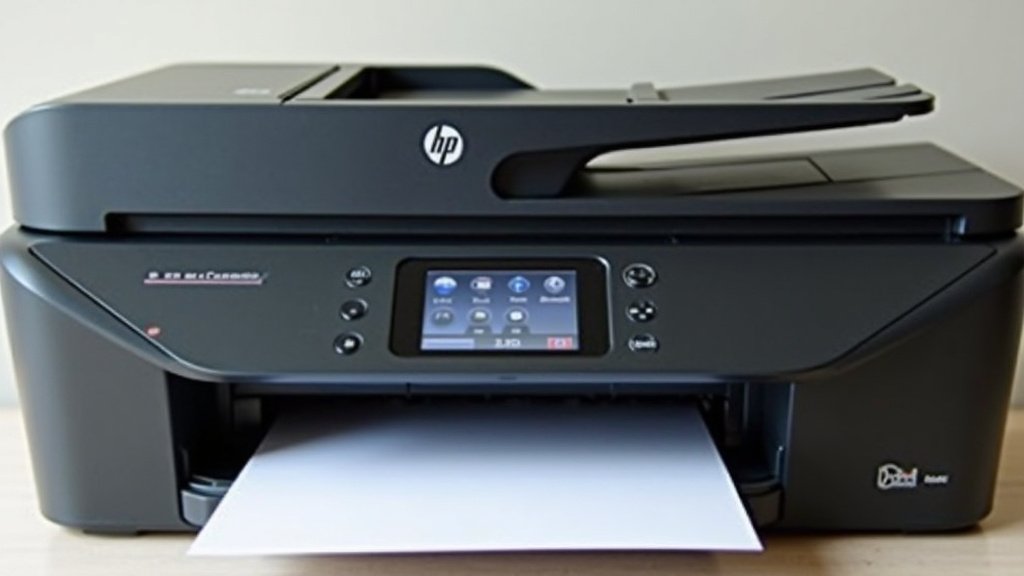
Understanding Your Printer’s Ink Level Monitoring
HP printers use a combination of chips on the cartridge and internal sensors to monitor ink levels. The chip stores information about the cartridge, like its type and initial fill level.
The printer’s firmware reads this chip. It also uses optical sensors to estimate ink usage. When these systems disagree, or when a chip fails to communicate properly, you can see that dreaded “empty ink” message. We found that sometimes, the printer simply cannot read the chip’s information, leading to a default to “empty.”
| Problem | Likely Cause | First Step to Try |
|---|---|---|
| Ink says empty, but it’s new. | Protective tape missed. | Inspect and remove all tape/seals. |
| “Ink Low” or “Empty” message. | Cartridge not seated correctly. | Remove and firmly re-seat the cartridge. |
| Persistent “Empty” message. | Dirty contacts. | Clean cartridge and printer contacts. |
| Error after installing third-party cartridge. | Compatibility issue. | Try a genuine HP cartridge. |
| Sudden “Empty” message for a full cartridge. | Firmware glitch or sensor error. | Perform a printer power cycle. |
When to Consider Professional Help
If you’ve tried all these steps and your HP printer still reports empty ink, it might be time to seek further assistance.
You can contact HP Support directly. They have tools and knowledge specific to your printer model. Sometimes, a cartridge might be genuinely defective, or there could be a more complex issue with the printer hardware itself. If your printer is still under warranty, this is often your best bet for a resolution.
Conclusion
Dealing with an HP printer that falsely claims your ink is empty can be a real headache. We’ve seen that the most common culprits are often simple things, like missed protective tape or a cartridge that isn’t quite seated correctly. Sometimes, a quick power cycle can clear up sensor confusion. By systematically checking these common issues, you can often get your printer back online without needing to call for help. If you’ve gone through these steps and the problem persists, it might be time to reach out to HP Support for further assistance.
Frequently Asked Questions
Why does my HP printer keep saying ink is low even after I replaced the cartridge?
This can happen if the new cartridge wasn’t fully seated, or if there’s still a small piece of protective tape you missed. Sometimes, cleaning the electrical contacts on the cartridge and in the printer can help establish a better connection. We found these steps often resolve the “low ink” false alarm.
Can using non-HP ink cartridges cause this empty ink message?
Yes, it’s possible. Third-party cartridges might not have the right chips to communicate ink levels accurately with your HP printer. Your printer might interpret this lack of information as an empty cartridge. If you suspect this, try installing a genuine HP cartridge to see if the message clears.
How often should I clean the ink cartridge contacts?
You don’t need to clean them regularly unless you encounter issues. If your printer starts showing empty ink messages or connection errors, cleaning the contacts is a good troubleshooting step. We’ve found it helps ensure a clear communication path between the cartridge and the printer.
Is it normal for an HP printer to need a firmware update to recognize new ink?
It’s not always necessary, but sometimes firmware updates can fix bugs that cause communication errors with ink cartridges. If you’re consistently having issues, checking for and installing the latest firmware from HP’s website is a good step. This can help ensure your printer is running its most current software.
My printer still says ink is empty after trying everything. What else can I do?
If you’ve tried reseating the cartridge, cleaning contacts, and performing a power cycle, and the problem continues, it’s possible the cartridge itself is defective. If you purchased a genuine HP cartridge, you may be eligible for a replacement. If it’s a third-party cartridge, it might be incompatible or faulty. Contacting HP Support is your next best step.