
Why Is My Printer Printing Too Light?
Your printer printing too light is often caused by low ink or toner. It can also happen due to incorrect print settings or a dirty print head. Don’t worry, this is usually a fixable problem!
This common printing issue can be frustrating. But usually, a few simple checks can get your printer working perfectly again. We’ll look at the most frequent culprits that make your prints faint. Understanding these will help you troubleshoot effectively.
- Low ink or toner is the most common reason.
- Check your printer’s print settings.
- A dirty print head can cause light prints.
- Ensure you’re using the correct paper type.
- Sometimes, a simple restart can help.
Let’s walk through the common reasons why your printer might be giving you faint prints and how to fix them.
Understanding Your Printer’s Light Prints
Your printer producing faint or light text can be quite a puzzle. You expect crisp, clear documents, not something that looks like it’s fading away. This is a common printing frustration. Fortunately, the reasons are usually quite straightforward to identify and fix. Let’s dive into what might be causing those light prints and how you can get your documents looking their best again.
Troubleshooting Faint Printer Output
Is Your Ink or Toner Low?
This is the most frequent offender for light prints. Think of your ink or toner cartridge like a fuel tank. When it gets low, your printer simply doesn’t have enough material to lay down a bold, dark image. It’s like trying to draw with a pencil that’s almost worn down. You’ll get faint lines instead of solid ones. Most printers have a way to check their ink or toner levels. You can usually find this information in your printer’s software on your computer or directly on the printer’s small screen, if it has one.
Checking Ink Levels on Your Computer
Most printer manufacturers provide utility software. This software often includes a status monitor. It shows you exactly how much ink or toner is left in each cartridge. You’ll typically find this by searching for your printer model in your computer’s settings or by looking for a printer icon in your taskbar or system tray. Clicking on it should bring up options like “Printer Properties” or “Maintenance.” Within those menus, you should see an option for “Ink Levels” or “Toner Status.”
Checking Toner Levels on the Printer Itself
For laser printers, the toner level indicator is often found on the printer’s control panel. Some models might show a percentage. Others might use a graphic like a bar or a series of bars. If your printer doesn’t have a screen, you might need to consult your printer’s manual to see how it indicates low toner. Sometimes, the printer will even display a message on your computer screen warning you that the toner is low.
What to Do When Levels Are Low
If your check reveals low ink or toner, the solution is simple: replace the cartridge. It’s always best to use cartridges recommended by your printer’s manufacturer. Third-party cartridges can sometimes cause issues, though many work perfectly fine. Replacing a cartridge is usually a straightforward process. Open the printer’s access door, remove the old cartridge, and insert the new one. Your printer’s manual will have specific instructions for your model.
Print Settings Might Be Off
Sometimes, your printer isn’t out of ink; it’s just set to print lighter. This can happen accidentally. Perhaps you changed a setting previously to save ink, and forgot to change it back. Or maybe a software update reset your preferences. Let’s look at where you can find these settings.
Adjusting Print Quality Settings
When you go to print a document, you’ll typically see a “Print” or “Print Dialog” box. Within this box, look for a button labeled “Properties,” “Preferences,” or “Settings.” Clicking this opens up a more detailed menu. Here, you can adjust various print settings. You’ll want to find the “Print Quality” or “Print Density” setting. Make sure it’s set to “Best,” “High,” or a similar option that indicates the highest quality. Avoid settings like “Draft” or “Economy” if you want dark, crisp prints.
EconoMode and Ink Saving Features
Many laser printers have a feature called “EconoMode” or a similar ink-saving mode. This mode uses less toner to print. While it can save money on supplies, it will definitely result in lighter prints. Make sure this feature is turned OFF. You’ll usually find this setting within the same “Properties” or “Preferences” menu we just discussed. It might be under a tab like “Advanced” or “Printing Options.”
Paper Type Settings
Did you know that the paper type setting can affect print darkness? If your printer has an option to select the type of paper you’re using (like plain paper, photo paper, or cardstock), make sure it matches what you have loaded. If you select “Plain Paper” but have thicker cardstock in the tray, the ink or toner might not adhere as well, leading to lighter results. Most of the time, setting it to “Plain Paper” is correct for everyday documents.
A Dirty Print Head or Roller
For inkjet printers, clogged or dirty print heads are a common culprit. The print head is what sprays the ink onto the paper. If it’s blocked with dried ink, it can’t deliver the ink effectively, leading to gaps or faint lines. For both inkjet and laser printers, dirty rollers can also cause issues. Smudges or dust on the rollers can transfer to the paper, making the print appear lighter or smudged.
Running a Print Head Cleaning Cycle
Most inkjet printers have a built-in function to clean the print heads. You can usually access this through the printer’s software on your computer. Look for options like “Printer Maintenance” or “Head Cleaning.” You might need to run the cleaning cycle a couple of times. It’s like clearing a clogged nozzle on a spray can. Some printers also offer a “Deep Cleaning” or “Power Cleaning” option, which uses more ink but can be more effective for stubborn clogs.
Manual Cleaning (Use Caution!)
If an automatic cleaning cycle doesn’t work, you might consider manual cleaning. Always consult your printer’s manual before attempting this. Generally, you’ll need a lint-free cloth slightly dampened with distilled water. Gently wipe the print head nozzles. For laser printers, check for dust or debris on the rollers. Be very careful not to touch any delicate electronic components. We found that many users have success with gentle wiping, but rushing the process can cause more harm than good.
The Type of Paper Matters
You might be surprised, but the paper itself can influence how dark your prints look. If you’re using very thin, absorbent paper, the ink might soak into the fibers and appear lighter. Conversely, very glossy or coated paper might not allow the ink or toner to adhere as well, especially if the printer isn’t set for that specific paper type. For the best results, try using a good quality, standard 20 lb. weight copier paper. We found that using the paper recommended by your printer manufacturer often yields the best and darkest results.
Is Your Printer Just Old?
Sometimes, older printers can simply start to lose their punch. Components wear out over time. Ink cartridges might not dispense ink as effectively. Laser printer drums can degrade. If your printer is quite old and you’ve tried all the other troubleshooting steps, it might just be nearing the end of its lifespan. It’s a bit like an old car that’s starting to sputter – it’s done good work, but it’s time to consider a replacement.
A Simple Restart Can Sometimes Help
This sounds almost too simple, right? But often, a quick restart can resolve temporary glitches in your printer’s or computer’s system. Sometimes, processes get stuck, or memory gets filled up, causing unusual behavior. Powering down both your printer and your computer, waiting about 30 seconds, and then powering them back up can clear these minor issues.
Restarting Your Printer Properly
Don’t just turn your printer off and on again. It’s best to unplug it from the power source. Wait for at least 30 seconds to allow any residual power to dissipate. Then, plug it back in and turn it on. This ensures a complete reset of the printer’s internal components.
Restarting Your Computer
Similarly, a full restart of your computer is more effective than just closing and reopening programs. This clears out temporary files and refreshes the operating system, which can often fix communication issues between your computer and printer.
Check the Connection
A loose or faulty cable can sometimes cause printing problems, including light output. If you’re using a USB cable, try unplugging it from both the printer and the computer and then plugging it back in securely. If you’re printing wirelessly, ensure your Wi-Fi connection is strong and stable. A weak signal can interrupt data transfer, potentially leading to incomplete or faint prints.
Here’s a quick checklist to get your printer printing darker:
- Check your ink or toner levels.
- Verify your print quality settings are on “High” or “Best.”
- Ensure “EconoMode” or ink-saving features are turned OFF.
- Run a print head cleaning cycle (for inkjet printers).
- Confirm the paper type setting matches the paper loaded.
- Try restarting both your printer and computer.
Conclusion
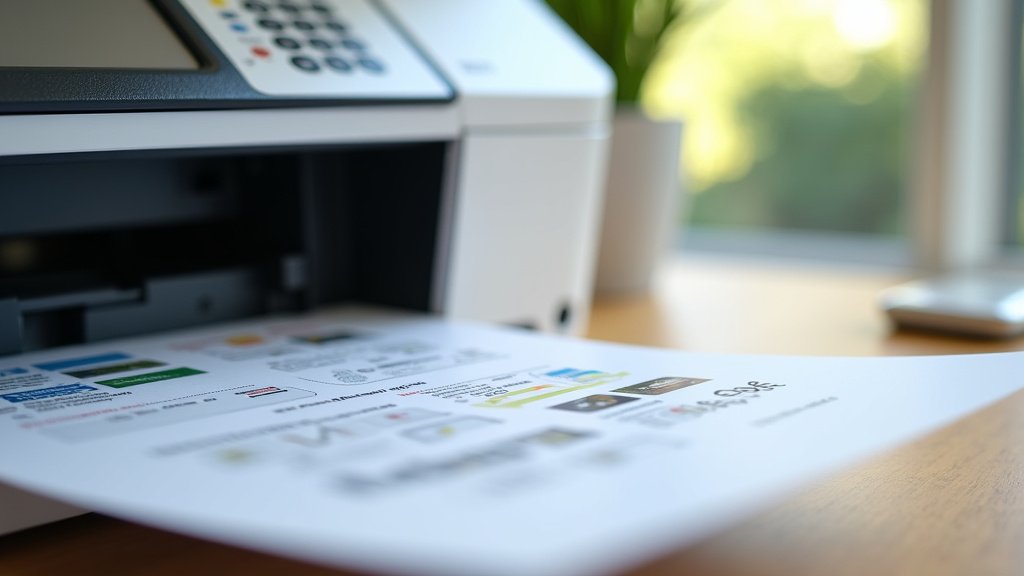
Seeing faint prints from your printer can be a real headache, but as you’ve seen, it’s usually a fixable issue. We’ve covered the most common culprits, from low ink or toner to simple settings adjustments and a dirty print head. Remember to check your ink levels first, then look at your printer’s settings, especially any ink-saving modes. For inkjet users, a print head cleaning is often the key. Don’t forget that paper type and even a simple restart can make a difference.
If you’ve tried these steps and your printer is still being stubborn, it might be time to consider its age or consult your printer’s manual for model-specific advice. Keep these tips handy, and you’ll be back to printing crisp, clear documents in no time!
Frequently Asked Questions
How often should I run a print head cleaning cycle?
You generally only need to run a print head cleaning cycle when you notice print quality issues, like faded text or missing lines. Running it too often can waste ink. Most printer manufacturers suggest running it only when needed, or if your printer prompts you to. It’s a good first step if you see light prints on your inkjet printer.
Can using third-party ink or toner cause light prints?
Yes, sometimes third-party ink or toner cartridges can be the cause of light prints. While many work perfectly, some may not be formulated to the same standards as manufacturer cartridges. This can affect the density and quality of the print. If you’ve recently switched to a new cartridge and started seeing light prints, consider trying a different brand or the manufacturer’s own brand.
My printer is still printing light after replacing the ink. What else could it be?
If you’ve replaced the ink or toner and prints are still light, double-check your printer’s settings. Ensure that “Draft” or “EconoMode” is turned off and that the print quality is set to “Normal” or “Best.” For inkjet printers, the print head might need cleaning even with new ink. Also, confirm you have the correct paper type selected in your print settings.
What does “EconoMode” or an ink-saving feature do?
EconoMode, or similar ink-saving features, deliberately use less ink or toner when printing. This is great for saving money on supplies over time and reducing waste. However, it comes at the cost of print darkness and vibrancy. If you need dark, crisp text for important documents, you should disable this feature in your printer’s preferences.
Can the type of paper I use really make my prints look lighter?
Yes, the paper type can influence how dark your prints appear. Very thin, absorbent paper can cause ink to spread or soak in, making the print look lighter. On the other hand, some coated or glossy papers might not allow ink or toner to adhere properly if the printer isn’t set for that specific finish. Using standard, good-quality copier paper usually provides the most consistent and dark results.
