How to Print on Both Sides Manually?
On this page (8 sections)
- A Step-by-Step Guide to Manual Double-Sided Printing
- Preparing Your Document for Manual Duplex
- The First Pass: Printing Odd-Numbered Pages
- The Critical Step: Reloading Paper for Even Pages
- The Second Pass: Printing Even-Numbered Pages
- Final Review and Troubleshooting Tips
- Conclusion
- Frequently Asked Questions
To print on both sides manually, you’ll generally print your odd-numbered pages first, then flip the stack over and feed them back into the printer to print the even-numbered pages on the blank reverse side. This technique is often called duplex printing manually and it’s a handy skill to master when your printer doesn’t have an automatic two-sided option.
You know, sometimes your printer lacks that fancy automatic duplex feature. That’s okay! We found that you can still save paper and make your documents look more professional with just a few simple steps. It really helps when you want to print handouts, booklets, or just reduce paper waste at home or the office.
TL;DR:
- Print odd pages first.
- Reload paper correctly.
- Print even pages.
- Save paper with manual duplex.
- It’s easy when you know how.
Let’s walk through exactly how this works step by step, so you can start printing on both sides like a pro, even without an automatic setting.
A Step-by-Step Guide to Manual Double-Sided Printing
Printing on both sides manually involves a simple, two-pass process. First, you print all the odd pages. Then, you flip the paper stack and print all the even pages on the blank reverse side. This method makes sure your document comes out in the correct order, ready for reading.
Understanding Your Printer’s Paper Tray
Before you print anything, it’s wise to get to know your printer’s paper tray. How paper loads and exits is key to successful manual duplex printing. We’ve found that this understanding prevents most common printing errors.
Input and Output Tray Orientation
The biggest challenge with manual duplex printing is knowing how to reinsert your paper. Does your printer feed from the top or bottom? Does it print face up or face down? These details really matter. We find that a quick test print helps clarify things.
- Top-loading printers often print face down. This means the first page you print will be at the bottom of the output tray.
- Bottom-loading printers often print face up. The first page will be at the top of the output stack.
Don’t worry if it sounds a bit confusing. You’ll get the hang of it quickly with a little practice.
Preparing Your Document for Manual Duplex
Before hitting “print,” a little setup in your document’s print settings can save you a lot of hassle. This preparation step ensures your pages print in the right sequence, making the re-feeding process much smoother.
Setting Up Print Options in Your Software
Most common software applications, like Microsoft Word or Google Docs, offer options for manual two-sided printing. You’ll typically find these settings within the “Print” dialog box. Look for choices like “Print Odd Pages” or “Manual Duplex.”
Choosing to Print Odd Pages First
This is the first critical step. In your print dialog, you will select the option to print only the odd-numbered pages. This sends pages 1, 3, 5, and so on, to your printer. We recommend confirming this setting before you click print.
Many programs have a checkbox for “Print on Both Sides Manually” or a “Pages to Print” dropdown where you can choose “Odd Pages Only.” We’ve found this feature makes the process much more straightforward than guessing.
The First Pass: Printing Odd-Numbered Pages
Once you’ve selected “odd pages only,” go ahead and print. Your printer will then output all the odd pages of your document. Keep a close eye on the printed stack; it’s your guide for the next step.
Gathering and Inspecting the Printed Stack
After the odd pages have printed, carefully remove the stack from the output tray. Check the order of the pages. Are they in ascending or descending numerical order? This observation is key to knowing how to reload them.
- Are pages 1, 3, 5, etc., in the correct order? Make sure no pages are stuck together.
- Are they facing up or down? This affects how you flip them.
A quick glance can confirm everything is as it should be. We’ve certainly had moments where pages printed out of order, and a quick check saved a lot of frustration!
The Critical Step: Reloading Paper for Even Pages
This is often where people get stuck. Reloading the paper correctly determines if your even pages print on the blank side, or upside down on the wrong page. Take a deep breath; we’ll break it down.
Understanding Your Printer’s Feeding Mechanism
The way your printer pulls paper in is super important. There are generally two main types: printers that feed from the top (like many inkjet printers) and those that feed from the bottom (common for laser printers).
For most top-loading printers (paper goes in flat, from the top of a tray):
- Turn the entire stack over, so the printed side is now facing up.
- Flip the stack from top to bottom, so page 1, which was at the bottom (face down), is now at the top (face up) of the stack.
- Place the stack back into the input tray, printed side up. The leading edge (the top of the page) should be facing the direction it originally entered.
For most bottom-loading printers (paper goes in from a cassette underneath):
- Turn the entire stack over, so the printed side is now facing down.
- Flip the stack from top to bottom, so page 1, which was at the top (face up), is now at the bottom (face down) of the stack.
- Place the stack back into the input tray, printed side down. The leading edge should be facing the direction it originally entered.
It sounds like a riddle, doesn’t it? The goal is to get the blank side of page 1 ready to receive page 2, the blank side of page 3 ready for page 4, and so on.
A Simple Test to Avoid Errors
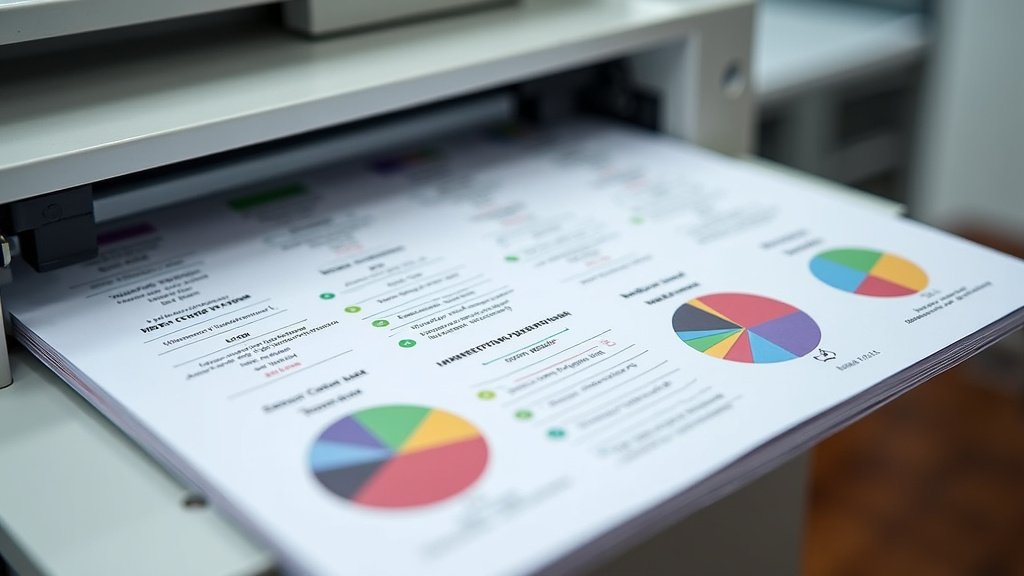
Not sure? We found that printing just one page with an arrow drawn on it is a great test. Print an odd page (say, page 1) with an arrow pointing up on one side. Note how it comes out. Then, reload it based on your guess for manual duplex. Print the even page (page 2) on the other side. Did the arrow on page 1 print in the correct orientation relative to page 2? This small trick saves a lot of wasted paper (HP Support).
The Second Pass: Printing Even-Numbered Pages
With the paper reloaded correctly, you’re ready for the final print job. This pass will complete your two-sided document.
Selecting and Printing Even Pages
Go back to your print dialog box. This time, choose the option to print only the even-numbered pages. Most programs will have a “Even Pages Only” selection. Hit print, and watch your printer work its magic.
Often, after you print the odd pages, a prompt will appear asking you to reload the paper and then click “OK” to print the even pages. This helps guide you through the process.
Final Review and Troubleshooting Tips
Once all pages are printed, take a moment to review your work. Check that all pages are in the correct order and are printed on both sides as intended. Did your manual duplex adventure go smoothly?
Common Issues and How to Fix Them
Sometimes things don’t go perfectly, and that’s okay! We’ve all been there.
| Problem | Likely Cause | Solution |
|---|---|---|
| Pages are upside down. | Reloaded paper incorrectly (wrong end first, or upside down). | Review your printer’s input/output. Try the arrow test. Flip the stack top-to-bottom before inserting. |
| Pages are out of order. | Stack shuffled during reloading or initial output. | Ensure the odd page stack is perfectly ordered before reloading. Some printers output pages face up, others face down. Adjust accordingly. |
| Blank pages or printing on wrong side. | Selected wrong “pages to print” option or incorrect paper orientation. | Double-check “Odd Pages Only” vs. “Even Pages Only.” Ensure the blank side is targeted for the second pass. |
Your Manual Duplex Printing Checklist
To make sure you’ve covered all your bases, here’s a quick checklist:
- Confirm your printer’s paper path (face up/down, top/bottom feed).
- Select “Odd Pages Only” in your print settings.
- Print the odd pages and remove the stack carefully.
- Orient the stack correctly based on your printer model.
- Reload the paper into the input tray.
- Select “Even Pages Only” in your print settings.
- Print the even pages.
- Inspect your beautifully double-sided document!
With these steps, you’ll be a manual duplex master in no time. You’re saving paper and creating professional-looking documents without needing a fancy printer. Good job!
Conclusion
You’ve seen that manual duplex printing is a practical skill for anyone without an automatic two-sided printer. By understanding your printer’s paper path and carefully managing the odd and even page passes, you can consistently produce professional, double-sided documents. It takes a little focus, especially with the paper reloading step, but the payoff is worth it. You’re not just saving paper; you’re also proving that you don’t need the latest tech to be resourceful. Now, go give it a try and transform your printing habits!
Frequently Asked Questions
What’s the main difference between manual and automatic duplex printing?
Automatic duplex printing happens all inside the printer without your intervention. For manual duplex, you have to physically remove the printed odd pages, flip them, and reinsert them into the printer for the even pages to print on the other side.
Can I manually duplex print from any program, like a web browser?
Yes, most print dialog boxes, including those accessed from web browsers or PDF viewers, will offer options to print “odd pages only” or “even pages only.” This functionality is usually part of your operating system’s print settings, not just specific applications.
My printer doesn’t have an “odd pages only” or “even pages only” option. What do I do?
If your print dialog lacks these specific options, you can often manually specify page ranges. For example, to print odd pages, type “1,3,5,7,…” in the “pages to print” box. Then, after reloading, type “2,4,6,8,…” for the even pages.
How can I tell which way to flip the paper for my specific printer model?
The best way to figure this out is to perform a test. Print a single page with a distinct mark or arrow on one side. See how it comes out and note its orientation. Then, practice reloading that single page based on whether your printer is top or bottom-loading, and faces up or down.
Does manual duplex printing save ink as well, or just paper?
Manual duplex printing primarily saves paper by utilizing both sides. It does not directly save ink, as the same amount of ink is used to print the content on each side. However, by reducing the number of physical pages, you might perceive less overall ink usage for a given document.