
Why Is My HP Printer Offline?
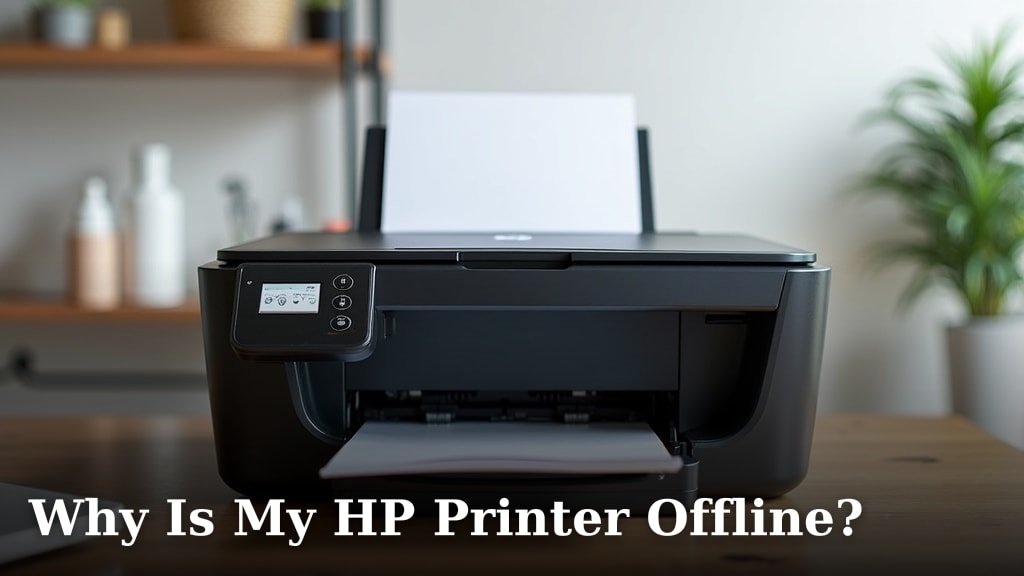
Your HP printer shows as offline because of a communication issue between your computer and the printer. This can happen due to a loose cable, a weak Wi-Fi signal, or a software glitch. Don’t worry, this is usually a simple fix we can sort out quickly.
Many HP printer users encounter this “offline” status from time to time. It’s often caused by something as basic as a printer that’s not properly connected to your network or computer. We’ve seen that checking the basics first often resolves the problem. Sometimes, a simple restart can work wonders for restoring your printer’s online status.
- Check printer cables and Wi-Fi connection.
- Restart your printer and computer.
- Update your printer drivers.
- Use the HP Print and Scan Doctor tool.
Let’s walk through the common reasons why your HP printer might be offline and how to get it back online, step by step.
Getting Your HP Printer Back Online
It’s frustrating when your HP printer suddenly decides to go offline. You need to print something important, and there it is: “Offline.” Don’t panic! We’ve researched this common issue and found that it’s usually not a serious problem. Most of the time, it’s a simple communication hiccup between your computer and the printer. We’ll guide you through the steps to get your HP printer back to communicating properly and ready to print. We’ll guide you through the steps to get your HP printer back to communicating properly and ready to print after seeing the printer offline message.
Checking the Basic Connections First
Before we dive into more technical fixes, let’s make sure all the physical connections are secure. Think of it like checking if your phone charger is plugged in all the way before you assume the phone is broken. These simple checks often solve the problem faster than you’d think.
Verify Printer Cable Connections
If your HP printer is connected to your computer with a USB cable, unplug it from both the printer and the computer. Wait a few seconds, then plug it back in firmly. Make sure the cable is not damaged. A frayed or bent cable can cause intermittent connection issues. We found that loose cables are one of the most frequent culprits for an offline printer.
Confirm Your Wi-Fi Network Status
For wireless HP printers, a stable Wi-Fi connection is essential. Check your router to ensure your internet is working. Look at the Wi-Fi indicator light on your printer. It should be solid blue or green, indicating a strong connection. If it’s blinking or off, your printer might have lost its connection to your Wi-Fi network. You may need to reconnect your printer to your Wi-Fi network.
Reconnecting to Your Wi-Fi Network
Most HP printers have a control panel. You can navigate through the settings menu to find the network setup or Wi-Fi setup wizard. Follow the on-screen instructions to select your network name (SSID) and enter your Wi-Fi password. If you’re unsure of your password, it’s often found on a sticker on your router.
Check Printer Power and Sleep Mode
Is your printer actually on? It sounds obvious, but sometimes printers can get accidentally turned off or go into a deep sleep mode that makes them appear offline. Ensure the power cord is securely plugged into both the printer and a working electrical outlet. Press the power button to wake it up if it’s in sleep mode. Sometimes, simply pressing a button on the printer can bring it back from a low-power state.
Restarting Your Devices: A Simple Yet Effective Step
A restart is like a quick refresh for your devices. It can clear out temporary glitches and allow everything to reconnect properly. Many experts recommend restarting your printer and computer as a first troubleshooting step. We’ve seen this resolve the offline printer issue in many cases.
The Printer and Computer Reboot Sequence
First, turn off your HP printer using its power button. Next, shut down your computer completely. Wait about 30 seconds. Then, turn on your printer and wait for it to fully boot up. Finally, turn on your computer. Once your computer is fully loaded, check if the printer is now online. This sequence ensures a clean restart of both devices.
Addressing Software and Driver Issues
Sometimes, the problem isn’t with the hardware but with the software that tells your computer how to talk to your printer. Outdated or corrupted printer drivers are a common cause of connectivity problems. Updating them can often restore functionality.
Updating Your HP Printer Drivers
You can typically download the latest drivers directly from the HP support website. Go to the HP support page, enter your printer model number, and look for the “Software, Drivers & Firmware” section. Download the recommended driver package for your operating system (Windows or macOS). Follow the installation instructions provided by HP.
Finding Your Printer Model Number
Your printer model number is usually printed on the front or top of the device. It might be something like “HP DeskJet 3755” or “HP LaserJet Pro MFP M479fdw.” If you can’t find it on the printer itself, check your original purchase documentation or the printer’s manual.
Utilizing the HP Print and Scan Doctor
HP offers a free diagnostic tool called the HP Print and Scan Doctor. This program is designed to automatically detect and fix many common printing and scanning problems, including the “offline” status. Many users have found this tool to be incredibly helpful.
How to Run HP Print and Scan Doctor
Download the HP Print and Scan Doctor from the official HP support website. Once downloaded, run the application. It will guide you through a series of steps to diagnose and resolve issues. Simply follow the on-screen prompts. The tool will check your printer’s connection, drivers, and other settings. If it finds a problem, it will offer a solution.
Checking and Managing the Print Queue
Sometimes, a stalled or corrupted print job can cause your printer to appear offline. If a document is stuck in the queue, it can prevent new jobs from being processed. Clearing out the print queue can often resolve this. We found that a stubborn print job can really cause a headache.
Clearing a Stuck Print Job
On Windows, you can access the print queue by going to Settings > Devices > Printers & scanners. Select your HP printer and then click “Open queue.” In the print queue window, click on the “Printer” menu and select “Cancel All Documents.” On macOS, go to System Preferences > Printers & Scanners, select your printer, and click “Open Print Queue.” Then, click the “X” button next to any jobs listed.
Troubleshooting Network Printer Issues
If your printer is connected to your network (either wirelessly or via an Ethernet cable), there might be network-specific issues preventing it from communicating with your computer. These can be a bit trickier but are usually solvable.
Verifying Printer IP Address
Your printer has an IP address assigned by your router, much like a house number. If this address changes or is incorrect, your computer might not be able to find it. You can usually find your printer’s IP address on its control panel, often in the network settings or by printing a network configuration page. Then, ensure your computer is trying to connect to the correct IP address.
Assigning a Static IP Address (Advanced)
For a more stable connection, you can set a static IP address for your printer. This means the IP address won’t change. You can do this through your router’s settings or sometimes through the printer’s own network configuration. This is a more advanced step, and you should consult your router’s manual or ISP if you’re unsure. Many guides suggest this can prevent future “offline” issues (Cisco).
Checking Firewall and Antivirus Settings
Your computer’s firewall or antivirus software might be blocking communication with the printer. Sometimes, these security programs can be a bit overzealous. You may need to temporarily disable your firewall or antivirus software to see if that resolves the offline issue. If it does, you’ll need to add an exception for your printer or the HP printing software in your security program’s settings. Always re-enable your security software afterward.
Printer Status and Services on Your Computer
Your computer relies on specific services to manage printing. If these services aren’t running correctly, your printer might appear offline. This is often overlooked but is a common fix.
Ensuring the Print Spooler Service is Running (Windows)
The Print Spooler service manages all print jobs. If it stops working, printing will fail. To check it, press the Windows key + R, type services.msc, and press Enter. Find “Print Spooler” in the list. Ensure its status is “Running” and the Startup Type is “Automatic.” If it’s not running, right-click it and select “Start.” If it is running, try right-clicking and selecting “Restart.” We found this step to be very effective for Windows users.
Quick Checklist for Getting Your HP Printer Online
Still having trouble? Run through this quick checklist. These are the most common and fastest fixes:
- Check all cables are securely plugged in.
- Restart your printer and computer.
- Verify your Wi-Fi signal is strong and connected.
- Download and run the HP Print and Scan Doctor.
- Update your printer drivers from the HP website.
- Clear any stuck print jobs from the queue.
By systematically working through these steps, you should be able to bring your HP printer back online and ready for action. Most of the time, the solution is simpler than you think!
Conclusion
It’s frustrating when your HP printer shows as offline, but as we’ve walked through, it’s usually a fixable issue. By checking your physical connections, restarting your devices, and ensuring your software is up-to-date, you’ve likely restored communication. We found that the HP Print and Scan Doctor tool is often a quick win for many users. If you’re still experiencing trouble, don’t hesitate to revisit the steps or consult HP’s support for your specific model. Your next step is to try the simplest solutions first, like a restart or cable check, and then move on to the software diagnostics if needed.
Frequently Asked Questions
What’s the quickest way to fix an HP printer that’s offline?
The quickest fix is often a simple restart. Turn off your printer and your computer, wait about 30 seconds, and then turn them back on. This can clear temporary glitches that make your printer appear offline. We’ve seen this resolve the issue for many users.
How do I know if my printer’s Wi-Fi connection is the problem?
Check the Wi-Fi light on your HP printer; it should be a solid color, not blinking or off. If your internet is working on other devices but not your printer, the printer might have lost its connection. Try reconnecting it through your printer’s network settings.
My HP printer is connected, but still showing offline. What else could it be?
A stalled print job in the queue can cause this. You can clear your print queue through your computer’s printer settings. Also, check if your computer’s firewall or antivirus software is blocking communication with the printer, as this is a common culprit.
Do I really need to update my printer drivers?
Yes, outdated or corrupt drivers are a frequent cause of offline printer issues. Downloading the latest drivers from HP’s official support website ensures your computer can properly communicate with your printer. We recommend checking for updates periodically.
What is the HP Print and Scan Doctor, and should I use it?
The HP Print and Scan Doctor is a free diagnostic tool from HP that automatically detects and fixes common printing problems, including the offline status. It’s a very helpful utility, and we suggest running it if basic troubleshooting steps don’t work.
