Why Is My Printer Jamming Constantly?
On this page (7 sections)
Your printer jams constantly because of a few common culprits. It often happens due to If your printer jams, learn how to fix a paper jam with this guide.paper issues like using the wrong type or size, or simply having too much paper loaded. A clogged or dirty paper path is another frequent offender.
These paper jams can be incredibly frustrating. They interrupt your workflow and make you wonder if your printer is working against you. We found that understanding the root cause makes troubleshooting much easier. It’s usually a fixable problem, not a sign your printer is doomed.
- Paper jams are usually caused by wrong paper type or too much loaded.
- Dirty or clogged paper paths are common reasons for printer jams.
- Check your paper tray and roller alignment regularly.
- Remove any small scraps of paper left behind from previous jams.
Let’s walk through the most common reasons your printer might be jamming and how to fix them, so you can get back to printing smoothly.
Navigating Common Printer Paper Jams
It’s incredibly frustrating when your printer decides to have a paper jam party. You just need a document printed, and suddenly, it’s holding your paper hostage. We’ve all been there, staring at the blinking lights and feeling your patience drain away. The good news is that most printer jams stem from a few common and fixable issues.
Let’s break down why your printer might be jamming so often and how you can put a stop to it. Understanding these culprits is the first step to a smoother printing experience. Think of it like figuring out why your car is making a funny noise – once you know the cause, you can often find a simple solution.
Paper Problems: The Usual Suspects
The paper you’re using is often the main character in the printer jam drama. It might seem like all paper is created equal, but that’s not quite true for your printer’s delicate machinery. Using the wrong kind of paper can easily lead to jams.
Paper Type and Weight Matters
Printers are designed for specific paper weights and types. If you try to print on cardstock when your printer only likes plain copy paper, you’re asking for trouble. Thicker paper can get stuck in the rollers. Likewise, some specialty papers, like glossy photo paper, might require a different feeding mechanism. Always check your printer’s manual for the recommended paper specifications.
We found that using paper that is too thin can also cause problems. It can crumple easily, leaving tiny scraps behind. These small pieces can build up over time and cause future jams. It’s like trying to build a wall with flimsy bricks – it’s not going to hold up.
Too Much Paper in the Tray
It seems counterintuitive, right? More paper means less refilling, but overloading the paper tray is a major cause of jams. When the tray is too full, the paper stack can become misaligned. This can cause the printer to grab too many sheets at once, or for the paper to feed in crooked.
Most paper trays have markings or a guide to show you the maximum fill line. Respect that line! We recommend filling the tray only up to the indicated limit. It might mean refilling slightly more often, but it’s a small price to pay for jam-free printing.
Curled or Damaged Paper
Have you ever tried to flatten a piece of paper that’s been sitting in a humid room or bent during transport? It’s a struggle. Curled or creased paper doesn’t feed through your printer smoothly. The edges can catch on internal parts, leading to jams.
Before you load paper, take a quick look. Is it perfectly flat? If not, fan the stack gently to loosen the sheets. If a sheet is significantly creased or torn, it’s best to remove it from the stack. Keeping your paper stock in a dry, flat place can also help prevent these issues.
Improperly Loaded Paper
This is a big one! Even if you have the right paper and the right amount, how you place it in the tray makes a difference. If the paper isn’t seated correctly, or if the guides aren’t adjusted properly, the printer can’t grab it evenly.
Make sure the paper stack is aligned neatly. Adjust the paper guides on the tray so they are snug against the edges of the paper, but not so tight that they crease the paper. We’ve found that double-checking this before hitting ‘print’ can save you a lot of headaches.
A Dirty Paper Path is a Jam Waiting to Happen
Think about how much paper has gone through your printer over its lifetime. It’s a lot! Over time, dust, tiny paper fragments, and general gunk can accumulate inside. This build-up can interfere with the paper’s smooth journey.
The Role of Rollers
Your printer uses small rubber rollers to grab and move the paper. If these rollers are dirty, worn out, or clogged with paper dust, they lose their grip. This means the paper might not feed consistently, leading to jams or skewed prints.
Many manufacturers recommend cleaning the rollers periodically. You can often do this yourself with a slightly damp, lint-free cloth. Some printers even have a built-in cleaning cycle you can run. Check your printer’s manual for specific instructions on how to clean your printer’s rollers.
Tiny Paper Scraps Linger
Those small, annoying scraps left behind after a jam? They don’t just disappear. If you don’t remove them completely, they can cause future jams. Imagine a small pebble in a shoe – it might not stop you completely, but it’s going to be annoying and could lead to a bigger problem.
After every jam, take a moment to carefully inspect the paper path. Use a flashlight if needed. Gently remove any small pieces of paper you can see. This is one of the most overlooked steps, but it’s incredibly important for preventing repeat jams.
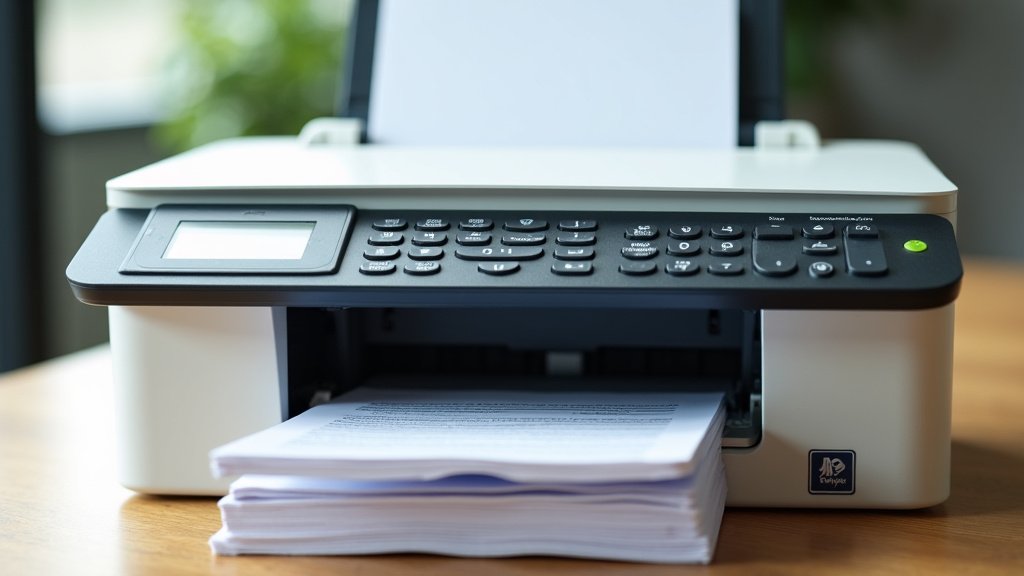
Checking Your Printer’s Mechanics
Sometimes, the issue isn’t just the paper or the dirt. It can be a mechanical problem with your printer itself. These are less common but still possible reasons for constant jamming.
Misaligned Parts
Over time, or perhaps after a minor bump, internal printer parts can become slightly misaligned. This can affect how the paper is guided through the printer. Even a small misalignment can cause paper to catch.
If you suspect a mechanical issue, it’s often best to consult your printer’s manual or contact the manufacturer. Trying to force misaligned parts back into place could cause more damage. Many experts suggest that for mechanical issues, professional help is the best route (Consumer Reports).
Worn-Out Components
Like any machine, printers have parts that wear out with use. Feed rollers can become smooth and lose their traction. Fuser units, which apply heat to toner, can also experience issues. If your printer is older, it might simply be reaching the end of its lifespan for certain components.
We found that if your printer is consistently jamming despite your best efforts, and it’s an older model, it might be time to consider a replacement. However, before you make that decision, try the simple fixes first!
Quick Jam-Fix Checklist
Need a quick reminder of what to check? Here’s a handy list to help you troubleshoot your next printer jam:
- Inspect and use the correct paper type and weight.
- Don’t overfill the paper tray; check fill line markings.
- Ensure paper is flat, not curled or creased.
- Load paper neatly and adjust tray guides snugly.
- Gently clean rollers with a lint-free cloth if needed.
- Thoroughly remove ALL small paper scraps after jams.
Conclusion
You’ve learned that printer jams aren’t usually a sign of a broken machine. Most often, the culprit is simple: paper type, overfilling the tray, or a bit of dust. By regularly checking your paper and keeping the inside of your printer clean, you can prevent many of these frustrating interruptions.
Take a moment to clean your rollers and carefully remove any lingering paper scraps after each jam. These small steps can make a big difference in getting your printer to run smoothly again. Your next step is to apply these easy fixes the next time you notice your printer acting up.
Frequently Asked Questions
How often should I clean my printer’s paper rollers?
We recommend cleaning your printer’s paper rollers at least once every few months. If you notice paper feeding issues or smudges on your prints, it’s a good time to clean them. A slightly damp, lint-free cloth usually does the trick.
Can using any type of paper cause a jam?
Yes, using the wrong type or weight of paper is a common cause of jams. Printers are designed for specific paper specifications, often listed in your manual. Using cardstock or very thin paper when not recommended can easily lead to feeding problems.
What should I do if I can’t find the jammed paper?
When you can’t locate the jammed paper, use a flashlight to look inside the paper path and output tray. Sometimes small pieces get lodged deep within. If you still can’t find it, try printing a test page; the movement might dislodge it. Always power off the printer before reaching inside.
Is it normal for an older printer to jam more often?
It’s not uncommon for older printers to experience more frequent jams. Components like the feed rollers can wear down over time, losing their grip. If your printer is quite old and jams persist after trying all the fixes, it might be nearing the end of its lifespan.
Why does my printer jam immediately after I cleared a jam?
This often happens if a small piece of paper was left behind or if the paper wasn’t reloaded correctly. Double-check that all torn bits are removed and ensure the paper stack is seated properly and the guides are snug. A slight misalignment can cause an instant jam.