Cricut Joy Xtra Review: Worth It? (November 2026)
The Cricut Joy Xtra is a compact smart cutting machine for stickers, cards and everyday crafts. It suits small-space crafters who want Print-Then-Cut with an inkjet printer, and it works with 50+ materials including vinyl, iron-on HTV and cardstock.
On this page (12 sections)
- Cricut Joy Xtra at a glance
- Who the Cricut Joy Xtra suits
- Sticker, card and vinyl projects in daily use
- Specs that matter for everyday crafting
- Setup steps and first cuts
- Care, cleaning and keeping cuts clean
- Print-Then-Cut with an inkjet printer
- Digital content, Design Space and Cricut Access
- Which Joy Xtra bundle fits your first projects
- Trade-offs and honest limits
- Alternatives to compare before you buy
- Verdict: which Cricut Joy Xtra should you buy
The Cricut Joy Xtra is a compact smart cutting machine for stickers, cards and vinyl crafts. Cricut Joy Xtra reviews often focus on its small footprint, and the key question is which bundle gives you the tools and content you actually need first.
For a model comparison, see Cricut Joy vs Maker.
Our score weighs specs, features and buyer feedback against what you are shopping for. We have researched the specs for the machine and the two bundles, and the notes below explain where each one fits.
Cricut Joy Xtra at a glance
The Joy Xtra cuts, draws and foils with 50+ materials, including vinyl, iron-on HTV, cardstock and stickers. It is built for popular projects like full-color stickers, custom cards, T-shirts and vinyl decals.
Cricut Joy Xtra: Best for digital content bundles

- Works with 50+ materials
- Print-Then-Cut with most inkjet printers
- Fine-Point Blade and Fine Point Pen included
- 30 bonus images in Design Space
- Free trial subscription to Cricut Access for new subscribers
The core Joy Xtra bundle for buyers who want digital content and the basic tools to start cutting, drawing and foiling.
Pros
- Includes blade, pen, mini weeder, USB cable and power adapter
- Print-Then-Cut for full-color stickers
- Design Space free library has 3,000+ images and 100+ fonts
Cons
- Full library needs optional paid Cricut Access subscription
- No cutting mat or vinyl sampler in this bundle
This bundle includes the machine, a Fine-Point Blade, a Fine Point Pen, a Mini Weeder, a Welcome card, a USB cable, a power adapter and materials for a practice cut. It also includes a free trial subscription to Cricut Access for new subscribers and 30 bonus images in the Design Space app.
The machine connects through the free Design Space app on desktop and mobile. The free content library includes 3,000+ images and 100+ fonts, and Cricut says the full library with an optional paid Cricut Access subscription grows to more than 1.5 million images.
Who the Cricut Joy Xtra suits
The Joy Xtra suits small-space crafters who make stickers, cards and decals at home. Its compact size means it can sit on a desk, craft table or shelf without taking over the room.
It also suits beginners who do not want to learn design software from scratch. Design Space has guided flows and templates, and the free library gives you images and fonts to use right away.
It may suit sellers of small personalized items who need repeatable cuts. The Print-Then-Cut workflow helps you print a design on an inkjet printer first, then cut it to shape on the machine.
It is a weaker fit if you mainly want large-format cutting. Check the active cutting area and material size for your projects before you buy, and look at larger craft cutting machines if your projects need more width.
Sticker, card and vinyl projects in daily use
For stickers, Print-Then-Cut is the main reason to choose this machine. You print the design on a compatible inkjet printer, load the printed sheet, and let the machine cut around the design.
For cards, the machine cuts cardstock and can draw or foil details. That makes it useful for layered cards, names, borders and small decorative elements.
For vinyl, the machine cuts vinyl for decals and can work with iron-on HTV for T-shirts. The vinyl starter bundle adds transfer tape, which helps move a cut design from its backing to a surface.
Draw and foil functions add variety without a separate tool. A pen can write names or outlines, and foiling can add a metallic finish to cards and tags.
Buyers often mention that the small size makes setup and storage easier. The trade-off is that you may need to cut larger designs in parts or choose projects that fit the machine.
Specs that matter for everyday crafting
The Joy Xtra has automatic operation and works with computers, tablets and smartphones. That means you can design on the device you already use and send the cut from there.
It is compatible with most inkjet printers for Print-Then-Cut. If you do not have an inkjet printer, you can still cut solid-color vinyl, cardstock and other materials without printing first.
Cricut provides a 1-year Manufacturer Warranty on the machine. Keep your receipt and model information, and check the warranty terms for service and coverage details.
The digital content bundle is model 8002490, and the vinyl starter bundle is model 8002286. The model number matters if you need support, replacement parts or warranty help later.
Material choice matters more than hidden settings. Vinyl, cardstock, stickers and HTV each need the right cut setting, and testing a small piece first helps you avoid wasted material.
Setup steps and first cuts
Setup starts with registering the machine and opening Design Space. Cricut says bundle content becomes available in the app after machine registration.
Plug in the power adapter, connect by USB cable or wireless connection as directed, and follow the prompts in the app. For an Explore model, follow this Cricut Explore Bluetooth setup guide.
Load the Fine-Point Blade or pen before your first project. Use the included practice materials for a first cut to learn how material loads and how the finished piece looks.
If you want a step-by-step walkthrough, our guide to how to use Cricut Joy Xtra covers the basics in plain order. Set up a clean, flat work surface near your computer or tablet for weeding vinyl and applying transfer tape.
Care, cleaning and keeping cuts clean
Care is mostly light cleaning and careful handling. Wipe the exterior with a soft, dry cloth and keep dust and scraps away from moving parts.
Clear tiny vinyl or paper bits from the blade and pen area after each project, as they can affect the next cut.
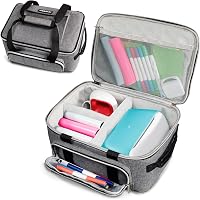
Store the machine in a dry place where it will not be knocked or covered in dust. A carrying case helps if you move it between rooms or take it to a class.
Use the right mat for the material, as the vinyl starter bundle includes a StandardGrip Machine Mat to hold material in place. Check mats, blades and tools as you use them, and for vinyl see blades for cutting vinyl.
A worn mat or dull blade can cause uneven cuts, so compare replacement blades for Cricut Joy when needed.
Print-Then-Cut with an inkjet printer
Print-Then-Cut lets you print a full-color design first, then cut it precisely. That is useful for stickers and labels that need color beyond what a single vinyl sheet can give.
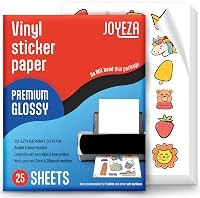
The machine works with most inkjet printers, according to Cricut. You still need paper or sticker material that suits your printer and your project.
Follow the registration marks and alignment prompts in Design Space. Misalignment is a common cause of off-center cuts, so check the printed sheet before you load it.
Printing adds steps compared with a simple vinyl cut, so plan extra time for sticker batches. If you are deciding between printer types, see Is a Wireless Printer Worth the Extra Cost? and Is a Duplex Printer Worth the Extra Money? before you buy a printer mainly for Print-Then-Cut.
Digital content, Design Space and Cricut Access
Design Space is free to use and includes 3,000+ images and 100+ fonts. That library is enough for many first projects, including cards, labels and simple decals.
The digital content bundle adds 30 bonus images and a free trial subscription to Cricut Access for new subscribers. The trial is a good way to test the larger library before you decide whether to pay.
With a paid Cricut Access subscription, Cricut says the library grows to more than 1.5 million images, 1,000+ fonts and 100,000+ projects. That larger library can help if you make many different designs.
Do not pay for a subscription until you have used the free library. Make a few projects first, note what you wish you could use, and then decide if the paid library solves a real gap.
The vinyl starter kit does not list the same digital content. If digital images matter more than vinyl supplies, the content bundle may be the better starting point.
Which Joy Xtra bundle fits your first projects
Choose the digital content bundle if you want more images and a pen. It includes the Fine-Point Blade, Fine Point Pen, Mini Weeder, USB cable, power adapter, Welcome card and practice materials.
Choose the vinyl starter kit if you want to cut vinyl right away. It includes a StandardGrip Machine Mat, Smart Vinyl Sampler Pack, transfer tape and a 5-piece tool set.
The content bundle is better for cards, drawing and foiling projects. The vinyl kit is better for decals, labels and HTV projects where you need a mat and transfer tape from the start.
You can add missing items later in most cases. The bigger question is what you want to make in your first week, since that choice affects both the bundle and your first material purchases.
If you want to compare bundles side by side, the best Cricut Joy Xtra bundle guide breaks down the contents in more detail.
Trade-offs and honest limits
The main trade-off is compact size versus cutting width. A small machine is easier to store and move, but it limits the size of projects you can cut in one piece.
Print-Then-Cut adds flexibility, but it also adds a printer step. You need a compatible inkjet printer, suitable paper and time for printing and alignment.
The free Design Space library is helpful, but the full library needs a paid subscription. That cost is optional, yet it matters if you want specific premium images or fonts.
Bundle contents differ, so do not assume every box has the same tools. One bundle has a pen and practice materials, while the other has a mat, sampler vinyl, transfer tape and more tools.
The Cricut Joy vs Joy Xtra: Which Fits Your Projects? comparison helps if you are choosing between the smaller Joy and this larger Xtra model.
Alternatives to compare before you buy
Carrying case option
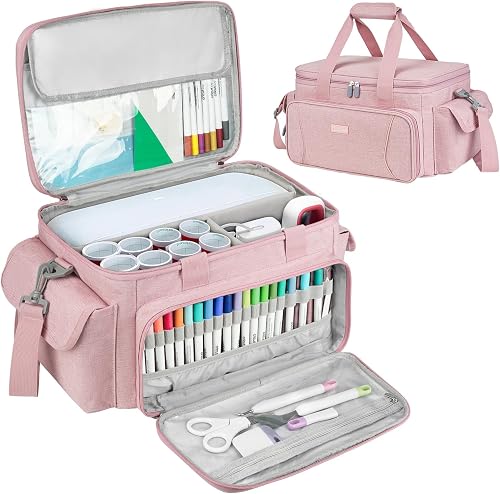
The LEFOR·Z case measures 15 in L x 10 in W x 8.2 in H and weighs 2.1 lb. It has removable dividers for the main compartment and a transparent pocket that fits 8.5 in x 12 in items.
The front pocket has a transparent zipper pocket and 20 elastic loops for tools and pens. Two side pockets and one back pocket hold other personal items.
The bag uses tear-resistant polyester that is water-resistant, scratch-resistant and wear-resistant. Thick foam padding helps protect the machine and tools during transport.
It also fits other items such as vinyl rolls, pens, weeding tools, cutting mats and heat press pads. The handle and detachable, adjustable shoulder strap make it easier to carry to class, work or storage.
Vinyl starter kit option
This bundle suits buyers who want vinyl supplies in the box. The transfer tape roll helps move designs from vinyl to a surface, and the mat holds light materials during cutting.
It includes the same core cutting, drawing and foiling functions, plus Print-Then-Cut with most inkjet printers. The free library has 3,000+ images and 100+ fonts.
The trade-off is that this bundle does not list the 30 bonus images or the practice materials in the digital content bundle. If you want content first, choose the other bundle.
If you own a Cricut Joy 2
If you already use a Joy 2, compare the workflow and features before you add a second machine. Our guide to how to use Cricut Joy 2 helps you see what you already know.
The Xtra may still make sense if you want a larger cutting area or Print-Then-Cut for stickers. It makes less sense if your current machine already handles your regular projects.
You should also check Silhouette Cameo 5 Alpha reviews if you want to compare a different brand before you commit to the Cricut system.
Verdict: which Cricut Joy Xtra should you buy
Pick the digital content bundle if you want images, a pen and practice materials. It is the better start for cards, drawing, foiling and sticker projects with Print-Then-Cut.
Pick the vinyl starter kit if you want a mat, sampler vinyl, transfer tape and tools. It is the better start for decals, HTV and vinyl projects.
Add a carrying case if you move the machine often or store it with tools and mats. The case helps keep the machine, mats and small tools organized in one place.
Cricut Joy Xtra reviews point to the same decision rule: buy for the projects you will make first. Start with the bundle that matches those projects, use the free Design Space library, and add Cricut Access only if you need the larger library.
Frequently asked questions
What can the Cricut Joy Xtra cut?
Cricut says the Joy Xtra works with 50+ materials, including vinyl, iron-on HTV, cardstock and stickers. It also draws and foils, and its Print-Then-Cut feature works with most inkjet printers for full-color designs.
Choose materials based on the project you plan to make most often.
Is the Cricut Joy Xtra good for stickers?
It suits stickers because you can print a full-color design on an inkjet printer and then cut around it with Print-Then-Cut. That workflow fits planners, labels and small decals.
Check the sticker paper you plan to use and follow the Design Space settings for that material.
Which Joy Xtra bundle should I buy?
Buy the digital content bundle if you want 30 bonus images, a fine-point pen and a practice cut. Buy the vinyl starter kit if you want a StandardGrip mat, Smart Vinyl sampler, transfer tape and a 5-piece tool set.
Your first projects should decide the bundle.
Do I need Cricut Access for the Joy Xtra?
No, you can start with the free Design Space library, which includes 3,000+ images and 100+ fonts. Cricut Access is an optional paid subscription that adds a larger library.
The digital content bundle includes a free trial for new subscribers, so check the terms before it renews.