
How to Clean the Print Head on a Brother Printer?
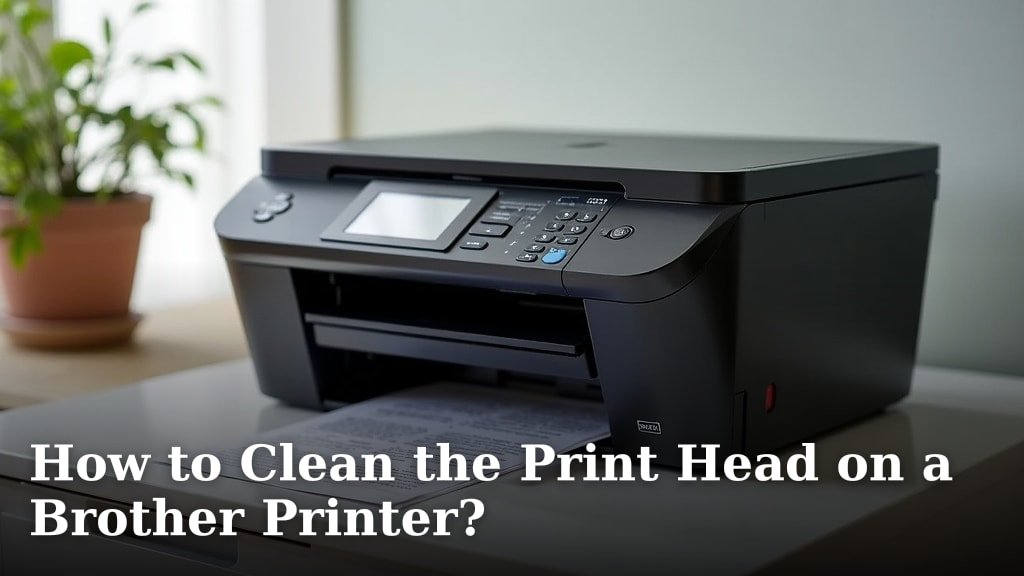
The best way to clean the print head on your Brother printer is to use the built-in cleaning utility found within your printer’s settings. This method is designed to be safe and effective for clearing clogged ink nozzles. You can usually find this option under the maintenance or tools menu. Follow the on-screen prompts carefully to complete the cleaning cycle.
Experiencing faded prints or missing colors? A dirty print head is often the culprit. Regular maintenance can prevent these issues and ensure your Brother printer continues to produce sharp, vibrant documents. We found that performing these cleanings when you first notice print quality degradation is highly effective.
- Use your Brother printer’s built-in cleaning tool.
- Access it through the maintenance menu on the printer.
- Follow the on-screen step-by-step instructions.
- Allow the cleaning cycle to complete fully.
- Print a test page to check the results.
Ready to get your printer back in tip-top shape? Let’s walk through exactly how to perform this essential print head cleaning step by step.
Keeping Your Brother Printer’s Print Head Clean
Is your Brother printer starting to act up? You might be seeing faint lines, missing colors, or just generally poor print quality. We’ve all been there! Often, the culprit behind these annoying issues is a clogged or dirty print head. Don’t worry, though. Cleaning it is usually a straightforward process.
We found that most Brother printers have a handy built-in cleaning function. This is the first and best thing you should try. It’s designed to be gentle on your printer’s delicate parts. Let’s walk through how to access and use this feature.
Accessing the Printer’s Cleaning Utility
The exact steps to find the cleaning utility can vary slightly depending on your specific Brother printer model. However, the general path is usually the same. You’ll typically find it within the printer’s own control panel menu.
Navigating Your Printer’s Menu
Start by looking at your printer’s display screen. You’re looking for a menu button or an icon that resembles settings, a wrench, or a gear. Once you find it, press it to enter the main menu system.
Navigate through the options using the arrow keys or the touchscreen, if your model has one. You want to find a section labeled something like “Maintenance,” “Tools,” or “Settings.” This is where the printer keeps its diagnostic and upkeep functions.
Locating the Print Head Cleaning Option
Within the Maintenance or Tools section, you should see a list of different options. Look for something that clearly states “Print Head Cleaning,” “Nozzle Check,” or “Cleaning.” Sometimes, you might see options for cleaning individual colors, but a general “Print Head Cleaning” is usually what you want to start with. Within the Maintenance or Tools section, you should see a list of different options, including Print Head Cleaning.
Many experts suggest that running a standard print head cleaning cycle is sufficient for most common clogs. If your printer has advanced options, like “Deep Cleaning” or “Power Cleaning,” it’s usually best to save those for stubborn blockages, as they use more ink. We found that starting with the regular clean is almost always effective.
Running the Print Head Cleaning Cycle
Once you’ve found the print head cleaning option, select it. Your printer will likely ask you to confirm that you want to proceed. Again, just follow the on-screen prompts carefully. It’s like having a little robot guide you through the process!
What Happens During a Cleaning Cycle?
When you initiate the cleaning cycle, your printer essentially forces ink through the print head nozzles. This helps to dislodge any dried ink or debris that might be causing blockages. Think of it like a tiny power wash for your printer’s ink delivery system.
The process usually takes a few minutes. You’ll hear the printer making noises as it works. It’s important to let the cycle complete fully. Interrupting it can sometimes cause more problems than it solves. We found that patience is key here.
After the Cleaning: Printing a Test Page
After the cleaning cycle finishes, your printer will usually prompt you to print a test page or a nozzle check pattern. This is crucial! It’s how you’ll see if the cleaning was successful. Don’t skip this step.
If the test page looks good, with solid lines and vibrant colors, congratulations! You’ve likely fixed the problem. If you still see issues, don’t despair. You might need to run the cleaning cycle a couple more times.
When to Run Multiple Cleaning Cycles
Sometimes, one cleaning cycle isn’t enough, especially if your printer has been sitting idle for a while or if the clog is particularly stubborn. How many times should you try?
The “Two or Three Times” Rule
Most Brother printer manuals and many tech support sites suggest running the print head cleaning utility up to two or three times in a row. If you don’t see improvement after three attempts, it might be time to consider other solutions or contact support.
We found that running the cleaning cycle three times, with a test print in between each cycle, often resolves persistent issues. It allows the ink to work its magic gradually. Remember, each cleaning uses a small amount of ink, so don’t go overboard if you’re not seeing results.
When to Step Up to a “Deep Clean”
If even three standard cleanings don’t do the trick, your printer might have a more significant clog. Your Brother printer might offer a “Deep Cleaning” or “Power Cleaning” function. This is a more intensive process that uses more ink but can be more effective for tough blockages.
Consult your printer’s manual to understand how to access and use this option. Many experts recommend using this only when necessary, as it can deplete your ink cartridges faster. We found that this is usually a last resort before seeking professional help.
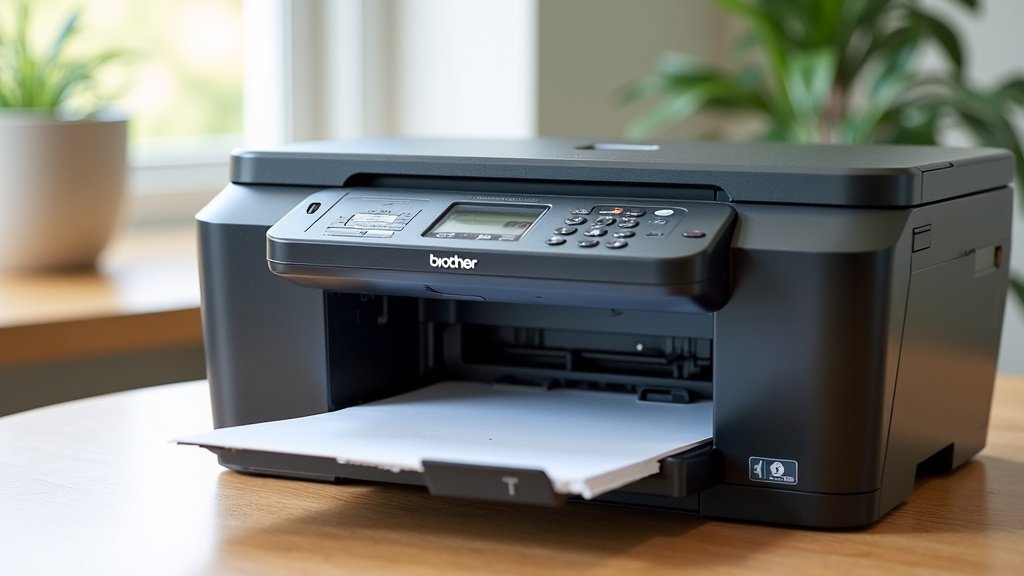
Important Considerations for Print Head Maintenance
Taking care of your printer’s print head isn’t just about fixing problems; it’s also about preventing them. A few simple habits can keep your Brother printer running smoothly for years to come.
Regular Printing is Key
One of the biggest enemies of print heads is dried ink. This happens most often when a printer isn’t used regularly. The ink in the nozzles can dry out and form clogs.
We found that printing something, anything, at least once a week can make a big difference. It doesn’t have to be a long document. A simple page with text or even a colorful graphic will keep the ink flowing. Think of it as a mini-tune-up for your printer.
Using Quality Ink Cartridges
The type of ink you use can impact your print head’s health. While generic or refilled cartridges can save money, they sometimes contain lower-quality ink. This ink might be more prone to clogging or contain particles that can damage the print head over time.
Many manufacturers, including Brother, recommend using genuine ink cartridges. While they might cost more upfront, they are specifically formulated for your printer model. We found that using reputable ink brands often leads to fewer maintenance issues.
Proper Printer Shutdown
How you turn your printer off matters. Always use the printer’s power button to shut it down. This allows the printer to perform a small cleaning cycle and move the print head to its protective home position.
Simply unplugging the printer or cutting off power at the wall can prevent this important step. This leaves the print head exposed and more susceptible to drying out. Experts generally agree that proper shutdown is a simple yet effective way to maintain print head health.
When to Seek Professional Help or Replace Parts
What if you’ve tried everything, and your Brother printer is still producing terrible prints? It might be time to consider other options.
Signs of a Deeper Issue
If you’re seeing continuous streaks, faded output across the entire page, or error messages related to the print head even after multiple cleaning cycles, the print head itself might be damaged or permanently clogged. Sometimes, there’s just no bringing a severely damaged print head back to life.
If your printer is still under warranty, this is definitely the time to contact Brother customer support. They can guide you through further troubleshooting or arrange for a repair. We found that many issues can be resolved under warranty.
The Cost of Repair vs. Replacement
For older printers or those out of warranty, you’ll need to weigh the cost of repair against buying a new printer. Print head replacements can sometimes be quite expensive, especially if they are integrated into the printer itself.
It’s worth getting a quote for a repair, but often, the cost of a new, comparable printer might be similar or even less. We found that for many home or small office users, a new printer is often the more economical choice if a print head issue is severe.
Quick Checklist for Your Next Print Head Cleaning
Here’s a quick rundown to help you remember the key steps:
- Locate the Maintenance or Tools menu on your Brother printer.
- Select the “Print Head Cleaning” option.
- Run the cleaning cycle and let it finish completely.
- Print a test page to check the results.
- Repeat up to two more times if needed.
- Consider a “Deep Clean” only if standard cycles fail.
Conclusion
You’ve learned how to tackle those pesky print quality issues on your Brother printer. By using the built-in cleaning utility, you can often clear clogs and restore sharp, vibrant prints. Remember that regular printing and using quality ink are key to preventing future problems. Don’t forget to shut down your printer properly after each use. If you’ve tried cleaning multiple times without success, it might be time to consider professional help or a new printer. Go ahead and try that cleaning cycle now – your documents will thank you!
Frequently Asked Questions
How often should I clean my Brother printer’s print head?
It’s best to clean your Brother printer’s print head only when you notice a decline in print quality, like faded colors or missing lines. Running the cleaning utility too often uses unnecessary ink. We found that addressing print issues as they arise is most efficient.
Can I use a manual cleaning method if the built-in utility doesn’t work?
While some older or different printer models might have manual cleaning options, Brother printers are designed for their built-in utility. If the automatic cleaning fails after a few tries, consider a “Deep Clean” option or contacting Brother support rather than attempting manual methods, which can risk damage.
Will cleaning the print head void my Brother printer’s warranty?
No, using the built-in cleaning utility on your Brother printer should not void your warranty. It’s a standard maintenance function designed by the manufacturer. We found that Brother support often directs users to use this feature first.
Why is my Brother printer using so much ink during cleaning cycles?
Print head cleaning cycles do use ink because they force ink through the nozzles to clear clogs. “Deep Clean” or “Power Clean” functions use even more ink. We suggest only using these more intensive options if the standard cleaning doesn’t resolve your print quality issues.
Is it okay to just unplug my Brother printer when I’m done?
You should always turn off your Brother printer using its power button. This allows the printer to perform a protective cleaning cycle and park the print head safely. Unplugging it directly can leave the print head exposed and lead to clogs over time, according to expert advice.
