How to Print on Cardstock without Jamming?
On this page (5 sections)
The easiest way to print on cardstock without jamming is to choose the right printer, use the correct paper settings, and load the paper carefully. We found that many common jams happen because the printer isn’t set up for thicker paper. Adjusting these few things can make a big difference for your projects.
You know the struggle: you’re trying to print a beautiful invitation or a sturdy craft project, and your printer just isn’t cooperating. It grabs the cardstock, then crinkles it, or worse, gives you that dreaded “paper jam” error. This often happens because cardstock is thicker and stiffer than regular paper, which many printers aren’t designed to handle without a little help.
- Use a printer designed for thicker media.
- Select the correct paper type and weight in your printer settings.
- Load cardstock carefully, often one sheet at a time.
- Clean your printer rollers regularly.
- Feed cardstock through a manual feed slot if available.
Don’t worry, you don’t have to give up on your cardstock dreams. We’ll walk you through simple steps to make printing on cardstock a smooth, jam-free experience.
Prepping Your Printer for Cardstock Success
Setting up your printer correctly is the first step to avoiding frustrating jams. For more guidance, see printing on thick cardstock. It’s all about helping your machine understand it’s dealing with something a little thicker than usual.
Choosing the Right Printer for Thicker Media
Not all printers are created equal when it comes to cardstock. Some are simply better equipped for the task.
Inkjet vs. Laser for Cardstock
When you’re trying to print on cardstock, the type of printer you have matters a lot. We found that inkjet printers often handle cardstock better than laser printers, especially for very thick or textured paper. Inkjets simply spray ink onto the paper, which works well with absorbent cardstock.
Laser printers use heat to fuse toner onto the page. This heat can sometimes cause cardstock to curl or even jam if it’s too thick or not designed to withstand the temperature. However, many newer laser printers do offer excellent cardstock support.
Printer Specifications to Look For
When you’re buying a new printer, or just checking your current one, look at its specifications. You want to find out the maximum paper weight it can handle. This is usually listed in “gsm” (grams per square meter) or “lb” (pound).
For cardstock, you’ll generally want a printer that can handle at least 65 lb (176 gsm) to 110 lb (297 gsm). Anything less, and you’re asking for trouble. We always recommend checking the manufacturer’s official documentation for your specific model (HP support).
Optimizing Printer Settings for Cardstock
Once you have the right printer, the next crucial step is telling it what kind of paper you’re using. This is where many jams start, we found.
Selecting Paper Type and Weight
This is arguably the most critical setting. In your printer’s software, you’ll usually find an option for “Paper Type” or “Media Type.” Don’t just leave it on “Plain Paper.”
You should select an option like “Cardstock,” “Heavyweight Paper,” “Glossy Cardstock,” or “Thick Paper.” This tells your printer to adjust its rollers, feed rate, and sometimes even the drying time for ink.
Often, there’s also a “Paper Weight” setting. Choose the one that most closely matches your cardstock. If your cardstock is 80 lb, pick 80 lb or the closest heavier option if 80 lb isn’t available.
Adjusting Print Quality
Sometimes, opting for a “Normal” or “Draft” print quality can help prevent jams. Why? Because higher quality settings might cause the rollers to pull the paper slower or apply more pressure, increasing the risk of misfeeds with stiff cardstock.
Experiment a little. You might find that a slightly lower print quality is still perfectly acceptable for your project and significantly reduces jams.
Smart Loading Techniques to Prevent Jams
Even with the best printer and settings, how you load the cardstock makes a huge difference. Think of it like carefully guiding a delicate item – you wouldn’t just toss it in.
Using the Manual Feed Slot (if available)
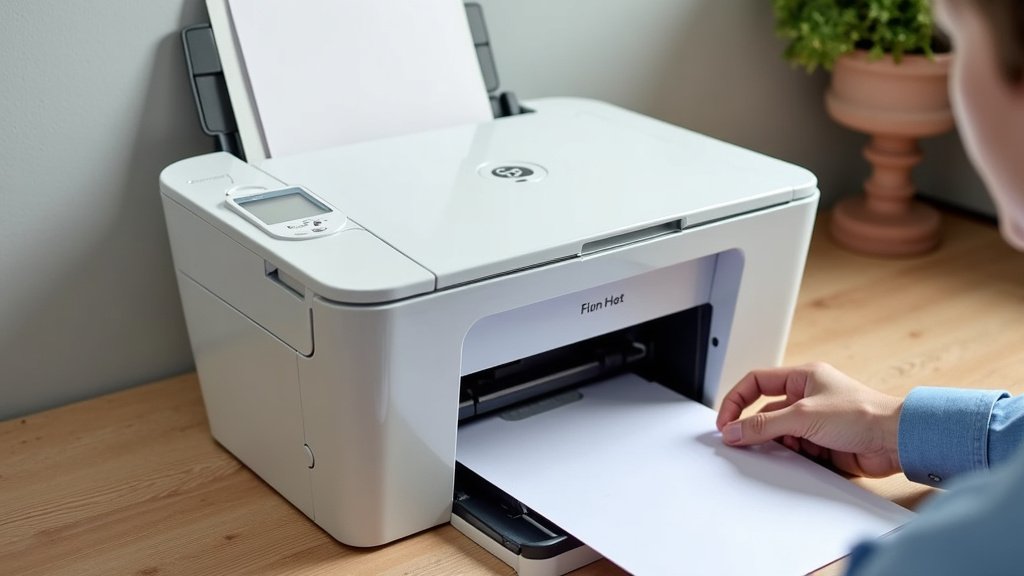
If your printer has a manual feed slot, use it! This is often the single most effective way to print on cardstock without jamming. We’ve seen this trick save countless projects.
A manual feed slot usually means a straighter, shorter paper path. This reduces the amount of bending and turning the cardstock has to do inside the printer, which is where jams most frequently occur. Many professional models include this feature for specialty media (Brother Support).
Loading One Sheet at a Time
When using the manual feed, or even the main tray with cardstock, it’s best to load only one sheet at a time. This prevents multiple sheets from being pulled through simultaneously, which is a common jam culprit with thicker media.
Take your time. Feed each sheet carefully and ensure it’s properly aligned in the slot or tray guides before sending the print command.
Optimizing Tray Loading
If you don’t have a manual feed slot, you’ll be using your printer’s main paper tray. There are still smart ways to load cardstock here.
Adjusting Paper Guides
Always, always, always adjust the paper guides in the tray so they are snug against the edges of your cardstock. But don’t make them too tight! They should hold the paper securely without bending or buckling it. This keeps the cardstock from skewing as it feeds, preventing jams.
Avoiding Overloading the Tray
It might be tempting to load a stack of cardstock, especially if you have many items to print. However, with cardstock, this is a bad idea. We recommend loading only a few sheets, or ideally, no more than 10-15 sheets at a time, even if the tray looks like it can hold more. This reduces the risk of misfeeds and jams.
Remember that cardstock takes up more space than regular paper. What looks like a small stack of cardstock might be equivalent to a much larger stack of plain paper to your printer’s sensors.
Troubleshooting and Maintenance Tips
Even with all the right preparations, sometimes jams still happen. Regular maintenance and knowing what to do when a jam occurs can save your project and your sanity.
Dealing with Jams When They Occur
So, the dreaded jam light is flashing. Don’t panic. Here’s what we found to be the most effective approach.
Gentle Removal of Jammed Paper
When a jam happens, the first rule is to be gentle. Never rip or force the paper out. This can damage internal printer components or leave small pieces of paper inside, leading to more jams down the line.
Most printers have specific access points to clear jams (e.g., rear door, top cover). Consult your printer’s manual for the exact steps. Slowly and carefully pull the cardstock in the direction of the paper path. If it resists, try opening another access panel or gently wiggling it until it frees up.
We’ve learned that a patient approach pays off. Don’t be afraid to take a breath and restart the process if you feel frustrated.
Regular Printer Maintenance
A well-maintained printer is a happy printer, especially when dealing with specialty media like cardstock.
Cleaning Printer Rollers
Over time, the paper pickup rollers in your printer can get dirty or lose their grip. This is especially true when feeding thicker, sometimes dustier, cardstock. Dirty rollers can cause misfeeds and jams.
We suggest cleaning your printer’s rollers regularly. You can often do this with a lint-free cloth lightly dampened with water or isopropyl alcohol. Check your printer’s manual for specific instructions on how to access and clean these rollers (Epson support).
When to Replace Rollers
If your printer continues to jam frequently, even after cleaning the rollers and following all other advice, it might be time to replace the rollers. Rollers wear out over time, losing their ability to grip paper effectively.
This is a less common issue, but it’s worth considering if you have an older printer or print a lot of heavy media. Replacing worn rollers can give your printer a new lease on life for cardstock projects.
Cardstock Jam Prevention Checklist
Here’s a quick reminder of the key steps to keep your cardstock printing smooth and jam-free:
- Check Printer Specs: Does your printer handle the weight of your cardstock?
- Select “Cardstock” Setting: Always tell your printer what you’re feeding it.
- Use Manual Feed: The shortest, straightest path is often best.
- Load One Sheet: Prevent multiple sheets from being pulled at once.
- Adjust Guides Snugly: Keep cardstock from skewing in the tray.
- Clean Rollers: Maintain good paper grip and prevent misfeeds.
| Action | Why It Helps | Impact on Jamming |
|---|---|---|
| Choosing “Heavyweight” Paper Setting | Adjusts roller pressure and feed speed for thicker paper. | Significantly reduces misfeeds and jams. |
| Using Manual Feed Slot | Provides a straighter, less obstructive paper path. | Greatly minimizes paper bending and jamming. |
| Loading One Sheet at a Time | Prevents multiple sheets from entering the printer together. | Eliminates common multi-sheet jams. |
| Cleaning Pickup Rollers | Restores roller grip, preventing paper slippage. | Reduces jams due to poor paper feeding. |
| Checking Cardstock Weight (gsm/lb) | Ensures cardstock is within printer’s mechanical limits. | Prevents jams from overly thick or stiff paper. |
Conclusion
You now have the knowledge to conquer cardstock printing without those frustrating jams. By choosing a suitable printer, optimizing your settings, and using smart loading techniques, you’ll find the process much smoother. We’ve seen how these small adjustments make a big difference for your projects.
Remember, patience and proper preparation are your best friends here. Don’t let a tricky material stop your creativity. Go ahead, apply these tips, and start printing your beautiful cardstock creations with confidence!
Frequently Asked Questions
Can I print on thick cardstock with a standard home printer?
It depends on your specific printer model. Many standard home printers can handle lighter cardstock (up to 65-80 lb) if you adjust the settings correctly. However, for very thick cardstock (100 lb and above), you might need a printer with a dedicated manual feed or higher paper weight capacity.
What is the ideal cardstock weight (gsm or lb) to avoid jamming?
The “ideal” weight depends entirely on your printer’s specifications. Always check your printer’s manual for the maximum paper weight it can handle. Generally, staying within the manufacturer’s recommended range, often 65 lb (176 gsm) to 110 lb (297 gsm) for many home printers, will minimize jams.
Why does my cardstock curl after printing, especially with a laser printer?
Cardstock often curls in laser printers due to the heat used to fuse the toner. Thicker paper can absorb more heat and change shape. To reduce curling, ensure you’ve selected the correct “heavyweight” or “cardstock” setting, as this can sometimes adjust the fuser temperature or paper path.
My printer doesn’t have a “cardstock” setting. What should I choose?
If “Cardstock” isn’t an option, look for alternatives like “Heavyweight Paper,” “Thick Paper,” “Glossy Photo Paper” (if your cardstock is glossy), or “Label Stock.” Choose the setting that most closely matches the paper weight of your cardstock. Experiment to see which works best.
How do I know if my printer rollers need cleaning or replacement?
If your printer frequently misfeeds paper, pulls multiple sheets at once, or leaves streaks, your rollers likely need cleaning. If cleaning doesn’t resolve these issues, or if the rollers appear visibly worn, cracked, or hardened, it’s probably time to replace them for optimal performance.