Cricut Explore vs Explore Air: What Is the Difference? (November 2026)
Cricut Explore vs Explore Air comes down to speed and workflow, not basic cutting ability. The original Explore and the Explore Air 2 both cut 100+ materials, but the Air 2 cuts up to 2x faster and adds Bluetooth, so it suits larger or repeat jobs.
On this page (11 sections)
- Cricut Explore vs Explore Air side by side
- How fast is each machine in daily use?
- Does Bluetooth change how you cut?
- What materials can Explore and Explore Air cut?
- Which mats work best with each machine?
- How do tools differ between Explore and Explore Air?
- Who should buy the original Cricut Explore?
- Who should buy Explore Air or Explore Air 2?
- Should new buyers consider a newer Explore bundle instead?
- What setup and care help either machine cut better?
- Final verdict on Cricut Explore vs Explore Air
Cricut Explore vs Explore Air comes down to speed and workflow, not basic cutting ability. For a generation comparison in the Maker line, see Cricut Maker vs Maker 3.
The original Explore and the Explore Air 2 both cut 100+ materials, but the Air 2 cuts up to 2x faster and adds Bluetooth, so it suits larger or repeat jobs.
We compared the machines around cut speed, tools, mats and materials. The choice matters most when you cut in multiples, work from a phone or tablet, or use 12 x 24 in material often.
Our score weighs specs, features and buyer feedback against what you're shopping for. Both machines handle vinyl, iron-on, card stock and printable materials, so your project volume should drive the pick.
This guide explains where the original Explore and Explore Air differ, where they overlap, and which accessories help either machine do better work. It also points you to the next step for setup and care.

 Best for grip variety
WORKLION Cutting Mat 12x24 Compatible With Explore
Cricut Explore vs Explore Air side by side
The Explore Air 2 is the faster, wireless option; the original Explore is the simpler option for occasional cuts. Both use Design Space and both cut 12 in wide material on a 12 x 24 in mat.
| Point | Cricut Explore (original) | Cricut Explore Air 2 |
|---|---|---|
| Cut speed | Standard speed | Up to 2x faster than Explore |
| Connection | USB focused workflow | Bluetooth plus USB |
| Cut width | 12 in | 12 in |
| Materials | 100+ materials with right tools | 100+ materials with right tools |
| Mats | 12 x 12 in and 12 x 24 in | 12 x 12 in and 12 x 24 in |
| Best for | Occasional small projects | Repeat, larger or wireless jobs |
The table shows the core split. The Air 2 name in most current listings means Explore Air 2, not the first Explore Air.
Check that exact name before you buy mats, blades or a bundle.
Speed is the clearest gap. Cricut says the Air 2 cuts up to 2x faster than the original Explore.
That means less waiting on long vinyl cuts, repeated decals and card batches.
Connection is the second gap. The Air 2 adds Bluetooth, so you can cut from a laptop, tablet or phone without a cable tether.
The original Explore relies more on a wired setup.
Otherwise, the machines share the same craft logic. Keep replacement blades for Cricut Explore on hand as blades wear.
Both need the right mat grip, the right blade for the material, and a clean, flat surface for accurate cuts.
How fast is each machine in daily use?
Explore Air 2 is the pick if waiting between cuts slows you down. The original Explore still cuts well, but long jobs take longer to finish.
We checked the specs for speed claims. Cricut says Explore Air 2 cuts up to 2x faster than Explore.
That gap shows on 12 x 24 in vinyl, layered cards and projects with many small pieces.
For a single decal or one card, the gap may not matter. You spend more time loading the mat, choosing settings and weeding than waiting for the cut.
For multiples, the gap grows. A batch of labels, party favors or shirt designs means repeated loads.
Faster cuts save minutes across a session and keep you moving.
The original Explore suits a crafter who cuts a few times a week. If you sell, gift or make for a group, the Air 2 speed is worth a close look.
Does Bluetooth change how you cut?
Yes, Bluetooth on Explore Air 2 makes placement and device choice more flexible. You can work from a phone, tablet or computer without running a cable across the table.
The original Explore is tied more closely to a wired connection. That works fine at a fixed desk, but it limits where you can set the machine and the device.
Wireless also helps with shared spaces. You can place the machine on a sturdy side table and keep the laptop elsewhere, as long as the Bluetooth signal stays clear.
It does not change cut quality by itself. Cut accuracy still depends on mat grip, blade condition, material and the setting you choose in Design Space.
If you already work at a desk with a laptop beside the machine, Bluetooth is a nice extra. If you move between rooms or use a tablet, it becomes a real daily benefit.
Our guide to how to use Cricut Explore Air 2 walks through that wireless workflow step by step.
What materials can Explore and Explore Air cut?
Both families cut 100+ materials, so tools and settings matter more than the machine name. Vinyl, iron-on, card stock and printable materials are the core group.
The original Explore and Explore Air 2 both work with the same broad material range. The difference comes when you move to thicker or specialty materials that need a special blade.
A Deep Cut blade or Deep Cutting Tool helps with thicker materials. Cricut Explore 5 notes that a Deep Cutting Tool is sold separately for thicker materials like foam and rubber, and the same logic applies when you choose tools for older Explore machines.
Card stock cutting depends on grip as much as blade. A strong grip mat holds thick card stock flat, while a light grip mat suits thin or delicate material that can tear on removal.
Printable materials add one more step. You print with a home printer, then the machine cuts around the printed design.
For an all-in-one print-and-cut setup, compare printer and cutter combo options.
That workflow works across Explore machines with the right settings.
Our craft cutting machines guide explains how cut width, tools and mats work together across the full range.
Which mats work best with each machine?
Match mat grip to material weight, not to the machine name. Light, standard and strong grip mats each solve a different problem on Explore and Explore Air machines.
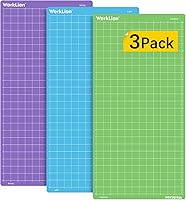
The WORKLION Cutting Mat 12x24 Compatible With Explore is a 3-pack with light, standard and strong grip in 12 x 24 in. That size suits larger vinyl and card stock on Explore One, Air, Air 2 and Maker machines.
Use light grip for thin vinyl, vellum and light card stock. Use standard grip for vinyl, iron-on, card stock and printable paper.
Use strong grip for thick card stock, faux leather and heavier material that needs a firmer hold.
The EVISWIY 6PCS Cutting Mats Compitable with Explore adds more spares, including fabric grip and blades in the bundle. That bundle suits heavy users who rotate mats and want replacements ready.
Cover the mat with its clear film when you store it. Dust and scraps kill grip faster than cutting does, and a covered mat stays ready for the next job.
Our picks for best cutting mats for Cricut break down grip choice by material, so you can match the mat before you load it.
How do tools differ between Explore and Explore Air?
Tool choice matters more than the Explore vs Air label for most projects. Pens, scoring tools, foil tools and blades each add a function the machine alone cannot do.
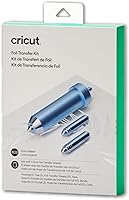
The Cricut Foil Transfer Kit shows how accessories extend an Explore machine. It includes 12 foil sheets in gold and silver at 4 x 6 in, three interchangeable tips and one tool housing.
That kit works with Cricut Maker and Cricut Explore machines, including Explore Air models. It adds foil shine to cards and invites with pressure, not heat.
Fine, medium and bold tips let you choose line weight. Fine tips suit thin lines and small text, medium tips suit everyday card designs, and bold tips suit larger shapes that need a stronger foil line.
Swap tips in the same housing instead of buying three separate tools. That keeps the kit compact and makes it easier to store with your card supplies.
For a new-crafter bundle, the Cricut Explore® 5 Essential Bundle + Digital includes tools and materials to start. It covers decals, apparel, stickers and cards, with 25 premium images and 1 font with purchase.
Who should buy the original Cricut Explore?
Buy the original Explore if you cut occasionally and want the simplest machine that still cuts 100+ materials. It suits small batches, cards, decals and hobby projects.
You do not need Air 2 speed if you make one or two projects at a time. A wired setup at a desk works fine, and you can still use 12 x 24 in mats for larger pieces.
The original Explore also suits a buyer who finds a good used machine or a bundle at a budget price. Spend the savings on mats, blades and materials, which you will replace more often than the machine.
Check blade condition before you judge the machine. A dull blade makes any Explore machine look worse than it is, and a fresh blade often restores clean cuts on thin vinyl and card stock.
If you later want wireless use, you can plan for an upgrade path. For now, the original Explore covers the core craft tasks without extra features you may not use.
Our guide to how to use Cricut Explore 3 helps if you are comparing newer Explore models alongside these older machines.
Who should buy Explore Air or Explore Air 2?
Buy Explore Air 2 if you cut often, make multiples or want Bluetooth. Speed and wireless use are the two reasons to choose it over the original Explore.
Explore Air 2 suits sellers, teachers, party planners and anyone who cuts 12 x 24 in material on a regular schedule. Faster cuts add up when each session includes several loads.
Bluetooth suits tablet and phone users. You can design on a couch, then send the cut from a nearby device without moving a laptop to the machine.
It also suits shared craft rooms. One person can design while another loads the mat, as long as both follow the same project settings and material choices.
If you are choosing between Explore Air and Explore Air 2, check the exact model name. Our Cricut Explore Air vs Air 2 comparison explains that smaller step in detail.
Should new buyers consider a newer Explore bundle instead?
A newer Explore bundle can be smarter for a first purchase than an older Explore Air. You get current features, a warranty path and tools and materials in one box.
The Cricut Explore® 5 Essential Bundle + Digital is a 12 in machine in Taupe that cuts 100+ materials. It includes Smart Vinyl, Smart Iron-On, Value Cardstock, Insert Card Sets and Printable Vinyl.
That bundle includes supplies for 65 projects in the Essential Bundle, plus 25 premium images and 1 font with purchase. It helps a new crafter start without buying every basic material separately.
Our best Cricut Explore bundle guide compares bundle contents, so you can see what each box actually includes before you choose.
Compare bundle value by project type, not only by box count. If you mostly make cards, card stock and insert sets matter more than extra vinyl.
If you make apparel, iron-on and printable vinyl matter more.
What setup and care help either machine cut better?
Clean mats, check blades and match settings before you blame the machine. Most Explore and Air cut problems come from grip, blade wear or material choice.
Start each session with the right mat. Check that the mat holds material flat without lifting at the edges, and that you can peel material off without tearing it.
Cover mats after use. A clear film cover keeps dust and scraps off the adhesive.
Most mats last longer when you store them flat and covered.
Replace blades when cuts look ragged or material scraps instead of cutting clean. Keep a spare blade in your supply box, since a dull blade ruins a full sheet of material.
Use the correct material setting in Design Space. A setting that is too light leaves cuts unfinished, while a setting that is too heavy can tear thin material or wear the mat faster.
Keep the machine on a flat, sturdy surface. Vibration or a wobbly table can shift a 12 x 24 in mat during a long cut, especially with strong grip material.
Final verdict on Cricut Explore vs Explore Air
Pick Explore Air 2 for speed and Bluetooth, and pick the original Explore for simple occasional cuts. Your volume and device use matter more than the name on the machine.
If you cut multiples, sell items or work from a tablet, the Air 2 is the better buy. If you cut small projects at a desk a few times a month, the original Explore still covers vinyl, iron-on, card stock and printable materials.
For a first purchase, compare a newer Explore bundle with Air 2 as well. A bundle with tools, materials and digital content can save separate purchases and get you started faster.
Whichever machine you choose, budget for mats and blades. Mat grip and blade condition affect every cut, on any Explore model, more than most buyers expect.
Start with the machine that matches your routine, then add the mat grip and tool that match your main material. That order keeps the first projects clean and the setup simple.
Frequently asked questions
What is the main difference between Cricut Explore and Explore Air?
The Explore Air 2 is faster than the original Explore and adds Bluetooth, while both cut similar materials including vinyl, iron-on and card stock. The original Explore suit buyers who cut occasionally, while Explore Air 2 suits repeat or larger jobs where speed matters.
Is the Explore Air 2 worth it over the original Explore?
Explore Air 2 is worth it if you cut often, make multiples or value wireless use from a phone or tablet. If you cut small projects occasionally and already own an original Explore, new mats or blades may improve results more than a new machine.
Do Explore and Explore Air use the same mats and tools?
Many accessories work across Explore One, Explore Air, Explore Air 2 and Maker machines, including 12 x 24 in mats and foil tools. Check the grip level and size for your material, and confirm tool compatibility before you order for a specific machine.
Can the original Explore cut the same materials as Explore Air?
Both families cut 100+ materials such as vinyl, iron-on, card stock and printable materials. Tool choice and material thickness matter more than the Explore name, and thicker materials may need a Deep Cut blade or Deep Cutting Tool.
Should a new buyer choose Explore Air 2 or a newer Explore bundle?
A new buyer who wants current features and a bundle to start may prefer a newer Explore bundle, while an Air 2 buyer may prefer proven speed and Bluetooth workflow. Compare included tools, materials and digital content, not only cut width.