Cricut Maker vs Explore Air 2: Which Fits Your Crafts? (November 2026)
Pick Cricut Maker if you want more materials and more tools; pick Explore Air 2 if you mainly cut vinyl, cardstock and iron-on. In this Cricut Maker vs Cricut Explore Air 2 comparison, tool versatility is the main dividing line.
On this page (10 sections)
- Cricut Maker vs Explore Air 2 side by side
- Material range: the biggest difference
- Tool versatility: engraving, debossing and perforating
- Cutting mats: tack level matters more than brand
- Print-Then-Cut and inkjet printers
- Cricut Maker vs Explore: the wider family picture
- Who should buy the Cricut Maker?
- Who should buy the Explore Air 2?
- Setup, Design Space and first projects
- Verdict: Maker for range, Explore Air 2 for core crafts
Pick Cricut Maker if you want more materials and more tools; pick Explore Air 2 if you mainly cut vinyl, cardstock and iron-on. In this Cricut Maker vs Cricut Explore Air 2 comparison, tool versatility is the main dividing line.
The Maker line works with more materials and more functions, while Explore Air 2 covers the most common craft projects with fewer choices to manage.
Our score weighs specs, features and buyer feedback against what you're shopping for. We compared the materials, tools and accessories in this post with the projects each machine suits best.
No machine wins for every crafter, so your project list matters more than a single spec.
This post looks at two machines through the tools and supplies you will actually use with them. The Cricut Maker in this post is the Maker 4 bundle, and the Explore Air 2 is the earlier Explore model that many crafters still use.
That age gap matters, because newer Maker bundles include more in the box and support newer tools.


Cricut Maker vs Explore Air 2 side by side
The Maker wins on range; the Explore Air 2 wins on simplicity for common crafts. Use this table to see where the gap is real and where both machines overlap.
| Point | Cricut Maker | Cricut Explore Air 2 |
|---|---|---|
| Material range | 300+ materials in the Maker 4 bundle | Vinyl, cardstock, iron-on and other common materials |
| Extra functions | Cut, draw, foil, score, engrave, deboss, perforate | Cut, draw and score with Explore tools |
| Foil transfer | Yes, with a foil kit | Yes, with a compatible foil kit |
| Pen drawing | Yes, with compatible pens | Yes, with compatible pens |
| Print-Then-Cut | Yes, with most inkjet printers | Yes, with compatible printers and materials |
| Best fit | Mixed materials and tool variety | Vinyl, cards, stickers and iron-on |
The table shows overlap on everyday tasks and a clear gap on specialty tools. If you only cut vinyl and cardstock, the overlap may be all you need.
If you want engraving or debossing, only the Maker side offers it.
Material range: the biggest difference
The Maker works with 300+ materials; the Explore Air 2 covers the core craft materials. That gap decides the choice for many buyers.
Cricut says the Maker 4 works with leather, wood, vinyl, iron-on HTV, cardstock, stickers and more. It also cuts materials that need more force or specialty blades.
The bundle includes a materials sampler with Smart Vinyl, matless vinyl, Smart Iron-On, matless heat transfer vinyl, cardstock and transfer tape.
Explore Air 2 crafters usually work with vinyl, cardstock, iron-on and sticker materials. Those materials cover t-shirts, mugs, signs, cards and labels.
You do not need a Maker if that list matches your usual projects.
What 300+ materials means in daily use
A larger material list means you can try leather gifts, wood signs and thicker materials without changing machines. It also means more blades, mats and settings to learn.
Each material needs the right blade, mat and pressure setting.
Start with the sampler in the Maker bundle before you buy extra material. Cut small test pieces and keep notes on blade, mat and setting.
That habit saves material and keeps results consistent.
When Explore Air 2 is enough
Explore Air 2 is enough when your projects stay with vinyl, cardstock and iron-on. Those materials are easy to find and easy to replace.
You can still make cards, party decor, labels and shirt designs.
Our broader guide to craft cutting machines helps you compare machine types before you focus on one brand. Read it if you are still deciding between brands.
Then return here with your project list in hand.
Tool versatility: engraving, debossing and perforating
Only the Maker line offers engraving, debossing and perforating in this comparison. Tool versatility is the main reason to pay more for a Maker.
Cricut says the Maker 4 cuts, draws, foils, scores, engraves, debosses and perforates. Those functions open projects such as metal tags, leather details, folded card details and perforated pages.
Explore Air 2 tools focus on cutting, drawing and scoring.
Foil transfer on both machines
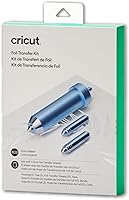
Foil transfer is one place where both machines can overlap. The Cricut Foil Transfer Kit includes 12 foil sheets in gold and silver, 3 interchangeable tips and a tool housing.
It uses pressure, not heat, to move foil onto cardstock.
The kit works with Cricut Maker and Cricut Explore machines. That means Explore Air 2 owners can add foil to cards without moving to a Maker.
Tip choice matters, since fine, medium and bold tips suit different line weights.
Drawing with pens on both machines
Drawing is another overlap area. Both machines can hold pens and draw designs from Design Space.
Pen choice, paper and mat tack decide how smooth your lines look.
The Xinart set has water-based ink and dual tips for cards, invitations and coloring projects. Fine tips suit small details, while 1.0 tips suit bolder lines and fills.
Test pens on scrap paper first, since paper texture changes line quality.
Cutting mats: tack level matters more than brand
Use light tack for paper, standard for vinyl and cardstock, strong for heavy materials and a fabric mat for fabric. The right mat helps cuts release cleanly and keeps material in place.
The HTVRONT 6 pack includes 3 standard mats, 1 light mat, 1 strong mat and 1 fabric mat. That mix suits crafters who switch between paper, vinyl, heavy materials and fabric.
Color coding helps you sort them at a glance.
Our guide to the best cutting mats for Cricut explains tack levels in more detail. Keep mats covered after use to block lint and dust.
Wipe with a damp lint-free cloth and let them air dry fully.
Store mats flat and covered
Store mats flat with the clear protective film on. That habit protects the adhesive and keeps grit off the surface.
A dirty mat can let material shift during a cut.
Use the free scraper to remove small cut pieces after a project. You can also use a spatula to lift cut images with care.
Clean mats last longer and hold material more evenly.
Print-Then-Cut and inkjet printers
Both machines can use Print-Then-Cut, but the Maker bundle states inkjet compatibility more clearly. Cricut says the Maker 4 works with most inkjet printers for full-color stickers and designs.
Print-Then-Cut means you print first, then let the machine cut around the design. It suits stickers, labels and full-color cards.
Paper type, printer settings and mat tack all affect the final cut.
If stickers are a main goal, plan your paper and printer settings before you buy a machine. Our post on whether you can print labels without a label maker helps you sort label workflows.
It covers home printing options and limits.
For shrink film crafts, printing quality matters even more. Our guide to the best inkjet printer for printing shrink film crafts explains printer choices for that niche.
A cutting machine alone will not print your designs.
Stickers, labels and cards
Stickers need clean registration between printing and cutting. Test with a small sheet first and check corners for drift.
If the cut misses, adjust the calibration before you run a full sheet.
Cards need a mat that holds cardstock firm without tearing it on release. Standard tack suits most cardstock in this comparison.
Light tack suits thinner paper and vellum.
Cricut Maker vs Explore: the wider family picture
The Maker vs Explore choice is really a choice between specialty tools and core tools. The broader Cricut Maker vs Explore comparison puts these two lines in context.
Read it if you want the family overview before you narrow to Air 2.
Explore Air 2 is an older Explore model, so newer Explore machines may change the balance. Our comparison of Cricut Explore Air 2 vs Explore 3 covers that step.
It helps if you are deciding between two Explore models rather than between families.
The Maker side also has newer steps to check. Our Cricut Maker vs Explore 5 post compares the Maker line with a newer Explore model.
That check matters if you want current models rather than the Air 2 generation.
Maker vs Joy for small spaces
The Maker vs Explore Air 2 choice is not the only path. If space is tight, a smaller machine may fit better.
Our Cricut Maker vs Cricut Joy post covers that trade-off.
Joy suits small cuts and single projects where storage matters. Maker suits wider material variety and more tool functions.
Explore Air 2 sits between them for common crafts.
Who should buy the Cricut Maker?
Buy the Maker if you craft with many materials and want more tools in one machine. It suits crafters who sell gifts, make leather or wood projects and try new materials often.
The Maker 4 bundle includes a fine-point blade, materials sampler, fine point pen, light grip mat, weeder and 30 bonus images in Design Space. That sampler helps you test Smart Vinyl, iron-on and cardstock without a separate first purchase.
The bundle also includes digital content that you access after you register the machine.
The Maker also suits crafters who want engraving, debossing and perforating. Those functions add project types that Explore Air 2 cannot match.
If you will use them, the higher cost is easier to justify.
Skip the Maker if your projects stay with vinyl, cardstock and iron-on. A simpler machine covers those tasks with fewer tools to buy and learn.
You can add foil kits and pen sets to either machine.
Who should buy the Explore Air 2?
Buy the Explore Air 2 if you mainly cut vinyl, cardstock, iron-on and stickers. It suits card makers, shirt makers and party decor crafters who want a focused setup.
Explore Air 2 can still draw with pens and add foil with the right kit. That keeps cards and invites varied without moving to a Maker.
You can also use standard 12 x 12 in mats for most projects.
Skip the Explore Air 2 if you want engraving, debossing or perforating. Those tools are a Maker strength, not an Explore Air 2 strength.
You would need a different machine for those project types.
Explore Air 2 with foil and pens
Pair an Explore Air 2 with a foil kit if you make cards and invites. The foil kit adds shine without heat and uses 3 tip sizes.
Test tip size on scrap cardstock before you foil a finished card.
Pair it with dual-tip pens if you draw or write on cards. Fine tips suit small text, while bolder tips suit outlines and fills.
Keep a scrap sheet for test lines.
Setup, Design Space and first projects
Both machines use Design Space, so learn the software once and reuse those skills. Design Space connects to Cricut cutting machines and helps you set up cuts, draws and scores.
Cricut says Design Space includes 3,000+ free images and 100+ fonts. The Maker bundle adds 30 bonus images in the app.
An optional Cricut Access subscription opens more images, fonts and projects.
Set up for your first cut
Open Design Space and follow the prompts for your machine. Load the correct mat, material and blade for the project.
Run a small test cut before you use full sheets.
Keep the test piece and note the settings that worked. That note helps you repeat results and spot errors faster.
Label mats by tack level so you grab the right one next time.
Care habits that help both machines
Wipe mats, clean blades with care and store tools in a dry place. Keep paper, vinyl and fabric away from dust and direct sun.
Clean work space helps mats hold material evenly.
Replace dull blades and worn mats before they ruin a project. A worn mat can let material shift, and a dull blade can tear fine details.
Small upkeep saves material on larger runs.
Verdict: Maker for range, Explore Air 2 for core crafts
Pick Cricut Maker if you want 300+ materials and tools like engraving, debossing and perforating; pick Explore Air 2 if you mainly cut vinyl, cardstock and iron-on. That rule settles the Cricut Maker vs Cricut Explore Air 2 choice for most buyers.
Your material list should come first, then your tool list. If both lists stay with common crafts, Explore Air 2 is enough.
If either list grows, the Maker earns its place.
Next, check the Cricut Maker vs Explore overview to confirm the family choice. Then compare mats and pens in this post before you order supplies.
That order keeps your machine, tools and materials in sync.
Frequently asked questions
Is a Cricut Maker better than an Explore Air 2?
A Maker is better if you want more materials and more tools, including engraving, debossing and perforating. An Explore Air 2 is better if you mainly cut vinyl, cardstock and iron-on and want a simpler setup.
Your material list should decide first.
Can an Explore Air 2 do foil transfer?
Yes, with a compatible foil kit and tool housing. The Cricut Foil Transfer Kit in this post works with Cricut Maker and Cricut Explore machines.
Check the exact kit and tool for your machine before you order.
Can both machines use the same cutting mats?
The HTVRONT 12 x 12 in mats in this post are made for Cricut Maker and Explore machines, including Explore Air 2. Mat tack still matters, so use light for paper, standard for vinyl and cardstock, strong for heavy materials and fabric mat for fabric.
Can you draw with both machines?
Yes, both can draw when you add compatible pens. The Xinart pens in this post have 0.4 and 1.0 dual tips for fine and bold lines.
Paper choice and mat tack affect how clean the lines look.
Which machine fits t-shirts and stickers?
Both can cut iron-on for t-shirts and vinyl for stickers, and the Maker can use Print-Then-Cut with most inkjet printers. If you print full-color sticker designs at home, check our guide on whether you can print labels without a label maker.