Cricut Maker vs Maker 4: Is It Worth Upgrading? (November 2026)
The Cricut Maker 4 is worth it for original Maker owners who cut often, but the original Maker still suits light crafters. In this Cricut Maker vs Maker 4 guide, speed, bundle contents and your current tool collection decide the upgrade.
On this page (12 sections)
- Cricut Maker vs Maker 4 at a glance
- Speed and cut accuracy in daily use
- Materials: what each machine handles
- Tools and tasks beyond cutting
- Print-Then-Cut and inkjet printers
- Design Space and digital content
- How to use Cricut Maker 4 compared with Maker 3
- Which Maker 4 bundle should you pick?
- Who should buy the original Maker?
- Who should buy Cricut Maker 4?
- Setup, care and ongoing costs
- Cricut Maker vs Maker 4: final verdict
The Cricut Maker 4 is worth upgrading to if your original Maker is slow or you want more tools and materials. For light crafters who mainly cut vinyl and cardstock, the original Maker can still handle the job.
This Cricut Maker vs Maker 4 comparison looks at speed, materials, tools, bundles and long-term cost. We checked the specs and compared each bundle by what is included and what it lets you make.
Our score weighs specs, features and buyer feedback against what you are shopping for. That helps separate a basic machine from a bundle that actually gets you cutting on day one.

 Best for a wider material range
Cricut Maker® 5 Essential Bundle + Digital
Cricut Maker vs Maker 4 at a glance
Maker 4 is the newer, faster machine; the original Maker is the lower-cost path if yours still works. The gap shows most in speed, bundle choices and specialty tasks.
Cricut says Maker 4 cuts up to 2X faster than the previous model. It also works with 300+ materials, plus cutting, drawing, foiling, scoring, engraving, debossing and perforating.
| Point | Original Maker | Cricut Maker 4 |
|---|---|---|
| Best for | Owners who cut lightly and already own tools | New buyers and frequent cutters |
| Materials | Wide Cricut range by model and tool | 300+ materials in these bundles |
| Speed | Slower than Maker 4 | Up to 2X faster than previous model |
| Design app | Design Space | Design Space with bonus images in bundles |
| Print-Then-Cut | Depends on model and setup | Compatible with most inkjet printers |
| Upgrade signal | Keep if cuts stay clean | Upgrade for speed and specialty tools |
The original Maker is not obsolete for basic projects. It becomes harder to justify when you add engraving, debossing or frequent large batches.
Speed and cut accuracy in daily use
Maker 4 wins on speed, and that matters most for repeat cuts and batch work. Cricut says it delivers speed, precision and accuracy, cutting up to 2X faster than the previous model.
For a single birthday card, the difference may feel small. For shop orders, classroom sets or layered card projects, 2X speed changes how long you spend at the table.
Accuracy also matters for layered designs. A small drift shows up in cardstock layers, stencil bridges and fine vinyl weeding.
If your original Maker tears fine details or struggles with thicker cardstock, check blade condition first. Fresh cutting tools and clean mats can fix problems that look like a machine issue.
Our best Cricut Maker replacement blades guide helps you match a fresh blade to the material you cut most. That is often a smarter first spend than a new machine.
Materials: what each machine handles
Maker 4 covers 300+ materials, including leather, wood, vinyl, iron-on HTV, cardstock and stickers. That range is the core reason the Maker line sits above simpler cutting machines.
The basic Maker 4 bundle includes a sampler with Smart Vinyl, matless vinyl, Smart Iron-On, matless heat transfer vinyl, cardstock and transfer tape. You can test several material types before you buy larger packs.
Smart Materials matter because they allow longer continuous cuts without a mat. One bundle description notes cuts up to 12 ft with Smart Materials.
Fabric, leather and wood veneer are where tool choice and material thickness matter. Test thick materials with small cuts first and check the tool setting before a full project.
If you mostly cut cardstock, vinyl and iron-on, either machine covers the basics. The Maker 4 is easier to justify when your project list keeps growing into leather, engraving or debossing.
Browse our craft cutting machines guide to place Maker 4 against other cutting types. It helps you see whether you need a dedicated cutter or a machine that also writes and scores.
Tools and tasks beyond cutting
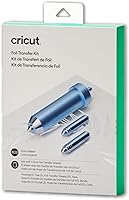
Maker 4 supports a wider task list, including drawing, foiling, scoring, engraving, debossing and perforating. Cricut lists 13 compatible tools in one bundle description.
That means the machine can do more than cut shapes. It can write with pens, score fold lines, foil accents, engrave metal or acrylic, deboss leather and perforate paper projects.
Specialty tools are sold separately in several bundles. Budget for the tool you actually want before you buy the machine, or the feature will sit unused.
The basic Maker 4 bundle includes a Fine-Point Blade, Fine Point Pen, Light Grip Mat and a weeder. That set covers vinyl, iron-on, cardstock and simple drawn details.
The card bundle adds a Card Mat 2x2 and card supplies. The heat press bundle adds an EasyPress 2 (SE), pressing mat and tote blank for apparel.
A best Cricut Maker bundle comparison can help you match the box to your first project. The cheapest bundle is not always the best value if you must add a heat press later.
Print-Then-Cut and inkjet printers
Maker 4 works with most inkjet printers for Print-Then-Cut stickers and full-color designs. You print first, then the machine cuts around the printed image.
That workflow suits stickers, labels and layered paper designs where color matters. It is different from cutting solid vinyl, where the color comes from the material itself.
Print quality, paper choice and registration marks all affect the result. Test one small sticker sheet before you print a full page.
If you are choosing a printer for stickers, our Is It Worth Buying a Printer with a Scanner? guide can help you weigh the extra features. A scanner may help with printable vinyl or paper crafts, but it is not required for basic Print-Then-Cut.
Sublimation is a different process from Print-Then-Cut. Our Is a Sublimation Printer Worth It? guide explains when a dedicated sublimation printer makes more sense than inkjet stickers.
Design Space and digital content
Both machines use Design Space, and the bundle you pick decides how much content you get at the start. Design Space is the free app that connects to Cricut cutting machines.
The basic Maker 4 bundle includes 30 bonus images in Design Space. The heat press bundle also includes 30 digital images, while the larger bundle includes 25 premium images and 1 font.
Cricut says the free library includes 3,000+ images and 100+ fonts. An optional Cricut Access subscription expands the library, but it is not required to start cutting.
Digital content is available after you register the machine. It is not a physical disc or sheet, so check that your account and device can access Design Space before you plan a project around bonus images.
If you are new to the app, our how to use Cricut Maker 4 guide walks through setup and first cuts. It is useful even if your first project is only a name decal.
How to use Cricut Maker 4 compared with Maker 3
Maker 4 is an easier upgrade for Maker 3 owners than a full jump for some original Maker owners. The workflow stays in Design Space, but speed and bundle content change the value.
Our Cricut Maker vs Maker 3 post compares the prior step in the line. Read it if you are deciding between a discounted Maker 3 and a newer Maker 4 bundle.
For Maker 3 owners, the upgrade question is narrower. You already know the app, mats and tools, so focus on speed, included materials and whether your current tools transfer.
For original Maker owners, the question is broader. You may gain speed, newer bundles and Print-Then-Cut support, but you also pay for a machine that overlaps with what you already own.
The how to use Cricut Maker 3 guide is still useful for setup habits and material settings. Many basic steps carry over, even when the machine is newer.
Which Maker 4 bundle should you pick?
Pick the bundle by your first project, not by the longest list of extras. A heat press, card mat or extra supplies each solve a different problem.
The basic Cricut Maker bundle with score 9.6 suits new buyers who want the machine, a blade, mat and sampler. It is the cleanest way to test vinyl, iron-on and cardstock.
The Cricut Maker® 5 Essential Bundle + Digital with score 9.5 suits buyers who want thicker materials up to 3 mm and supplies for up to 65 projects. It is a bigger step beyond Maker 4, so check whether you need that range.
The Cricut Maker 4 Cutting Machine Bundle Ultimate with score 9.3 suits card makers. Its Card Mat 2x2 and card supplies make invitations and layered cards easier from the start.
The other Cricut Maker bundle with score 9.2 suits apparel makers. It adds an EasyPress 2 (SE), pressing mat and tote blank, which helps if iron-on shirts are your main goal.
Who should buy the original Maker?
Keep the original Maker if it still cuts cleanly and your projects are simple. Vinyl decals, basic cardstock shapes and occasional iron-on designs do not always need a new machine.
Check your blade, mat and material settings before you decide to upgrade. A dull blade or worn mat can cause more trouble than the machine itself.
You should also check whether your tools still work with your usual projects. If you only use a fine-point blade and pens, a new machine may add less than you expect.
Buying a discounted original Maker can make sense for a first machine. You get the Design Space workflow and a wide material range without paying for the newest speed.
Skip the original Maker if you want engraving, debossing or frequent batch cuts. Those tasks are where Maker 4 earns its place.
Who should buy Cricut Maker 4?
Buy Maker 4 if you cut often, sell finished items or want specialty tasks. Speed, 300+ materials and newer bundles give it a clear edge for active crafters.
It suits sticker makers who use Print-Then-Cut with an inkjet printer. It also suits card makers who layer cardstock and need clean fold scores.
Apparel sellers should look at the heat press bundle first. The press, mat and tote blank turn a cutting machine into a one-shirt test project.
New buyers should start with the basic bundle unless they already know their first project. Extra mats, pens and materials are easier to add once you know what you use.
If you already own a working original Maker and cut only a few times a month, wait. Put that money toward blades, mats or materials first.
Setup, care and ongoing costs
Setup is simplest when you register the machine, connect Design Space and run a small test cut. Do that before you load expensive leather, wood or large vinyl sheets.
Keep the machine on a flat, stable surface with room for mats to load and unload. The basic Maker 4 measures 7.1 x 22.1 x 6.2 inches, so measure your table before it arrives.
Clean mats, replace worn blades and store Smart Materials flat and dry. Those habits matter more than fancy add-ons for cut quality.
Ongoing costs include blades, mats, pens, vinyl, iron-on, cardstock and optional Cricut Access. Specialty tools cost extra, so plan for the engraving tip or scoring tool you actually want.
If you cut fabric or leather often, confirm the right tool and material setting each time. A small test cut can save a larger piece of material and a lot of cleanup.
Cricut Maker vs Maker 4: final verdict
Choose Cricut Maker 4 for speed, newer bundles and specialty tasks; keep the original Maker for light use. That is the clearest rule from this Cricut Maker vs Maker 4 comparison.
Pick the basic Maker 4 bundle if you want a clean start with vinyl, iron-on and cardstock. Pick the card bundle for paper crafts, the heat press bundle for apparel, or the larger bundle for thicker materials.
Keep your original Maker if it still cuts cleanly and your projects stay simple. Upgrade when batch work, engraving or debossing becomes part of your routine.
Next, compare the bundle that matches your first project and check your table space before you order. That choice matters more than chasing every extra in the box.
Frequently asked questions
Is the Cricut Maker 4 bigger than the original Maker?
The Maker 4 in these bundles measures 7.1 x 22.1 x 6.2 inches, so check your craft table depth and width before you buy. The machine cuts with a 12 inch performance in comparable Cricut models, but the cabinet still needs clear space around it for loading mats and Smart Materials.
Can the Maker 4 use tools from my original Maker?
Tool fit depends on the exact tool and holder, so check compatibility for each blade, pen and scoring tip before you move it over. The Maker 4 works with 13 compatible tools in one bundle description, and Cricut says select tools are sold separately, which means a changeover is not automatic.
Does Maker 4 cut more materials than Maker?
Cricut says Maker 4 works with 300+ materials, including leather, wood, vinyl, iron-on HTV, cardstock and stickers. It also cuts, draws, foils, scores, engraves, debosses and perforates, so the practical gain is more project types from one machine rather than a new craft category.
Is Print-Then-Cut different on Maker 4?
Maker 4 supports Print-Then-Cut with most inkjet printers for full-color stickers and similar designs. You print the design first, then let the machine read the registration marks and cut around the printed shapes, which suits labels and stickers more than plain vinyl decals.
Should I keep my original Maker if it still works?
Keep it if it cuts cleanly, your tools still fit your projects and you mainly cut vinyl, cardstock and iron-on. Upgrade when cuts are slow, you want engraving or debossing, or you plan to add a heat press and larger material projects in the next year.