What to Look for in a Vinyl Printer Cutter Combo
A vinyl printer cutter combo is worth choosing when you need printed color and a cut outline from one workflow: compare print size, cut force, registration, media handling and software before you buy. A separate cutter set is often better if you mainly cut plain vinyl.
On this page (13 sections)
- What does a vinyl printer cutter combo do in one job?
- How do print size and cut size differ in a combo?
- What cut force and speed should you look for?
- How accurate is print then cut registration?
- Which media types should a combo support?
- How does software affect a vinyl printer cutter combo?
- What size and footprint fit your workspace?
- How do a combo and separate machines compare on cost?
- What features help with stickers and labels?
- When should you choose a separate cutter instead?
- What setup and care keep print and cut quality steady?
- How should you compare integrated printing and cutting requirements?
- Which vinyl printer cutter combo should you choose?
A vinyl printer cutter combo suits you when one design needs printed color and a matching cut shape. Compare print size, cut size, registration and media support before you choose, because those specs decide what you can actually make.
Our craft cutting machines guide gives the wider buying context. This guide focuses on combo machines and the trade-offs they bring.
What does a vinyl printer cutter combo do in one job?
A combo machine prints a design and cuts around it in one workflow. You load one sheet, print the artwork, then let the cutter follow the outline.
That flow works well for stickers, labels, decals, tags and short-run packaging. You avoid printing on one machine, moving the sheet, and hoping it lines up on another.
A combo is not the same as a printer next to a cutter. The key point is integrated handling, so the sheet stays put between print and cut.
The workflow also changes how you plan a design file. Printed color, cut lines and registration marks need to be set before the first pass starts.
For plain shapes with no printed color, the printing part of the combo adds no value. A dedicated cutter can move straight to cutting and can often use rolls or wider sheets more simply.
Choose a combo for repeat print and cut jobs. Choose separate tools if most of your work is plain vinyl cutting.
How do print size and cut size differ in a combo?
Print size and cut size are two separate limits on the same machine. Print size is the largest image area, and cut size is the largest design the blade can trace.
A machine may print a wide sheet but cut a smaller usable area. Mats, rollers and margins can reduce the practical size.
Check both numbers against your largest sticker sheet, label roll or card project. Leave room for margins and alignment marks.
The usable cut area is often smaller than the sheet you load. Grip strips, mat edges and roller paths can narrow the area where a blade can safely work.
Card projects show this clearly. A blank card may fit on the mat, yet the printable and cuttable design area must still sit inside the machine limits.
Print and cut size for vinyl printer cutter combo buyers
Start with your largest finished item. A 12 in wide sheet needs headroom for borders, cutting mats and grip areas.
If you make full-bleed stickers, registration marks also take space. A design that looks small on screen can need a much larger sheet.
Measure the finished piece, then add space for margins, marks and the mat. That total is the size your machine must handle.
Buy for your largest planned sheet, not your average design. That rule keeps you from replacing the machine too soon.
What cut force and speed should you look for?
Cut force is the pressure the blade can apply through material. Speed is how fast the design is cut once the force is set.
Thick vinyl, card stock and layered materials need more force. Fine lettering and small details need control more than raw power.
A high force rating does not fix a dull blade or poor settings. Test cuts still matter for clean edges.
Force and speed work as a pair. Higher speed with high force can work for simple outlines, while fine curves often need a slower pass for steadier tracking.
We compared specs across cutter types and checked how force, blade type and material guidance are presented. Compare that with a vinyl cutter with arms if you need stronger tracking on long cuts.
Card stock is a useful reference point for thickness. The Cricut Foil Transfer Kit lists card stock as print media, which shows why a combo must be checked against card thickness rather than flat vinyl alone.
Match force to your thickest media. Extra force you never use is not worth paying for.
How accurate is print then cut registration?
Registration is how closely the cut follows the printed image. It matters most for borders, text and full-color stickers.
Look for printed alignment marks, optical sensors and software that corrects small shifts. Ask whether the machine can re-check alignment after printing.
Paper stretch, rolled vinyl and uneven feeding can all move the outline. A test sheet with marks shows the real result on your media.
Small shifts matter more as details get smaller. A border around a large label can hide a tiny error, while the same error can ruin small text or a thin outline.
Foil accents make registration more visible. The Cricut Foil Transfer Kit uses interchangeable tips and tape to hold sheets during transfer, which shows why alignment matters even when heat is not used.
The foil kit includes 12 sheets at 4 by 6 in, split between gold and silver. It also includes three interchangeable tips in fine, medium and bold sizes, plus one tool housing and tape for holding the sheet and card together.
That tip choice is a practical lesson for combo buyers. Fine tips suit small detail, while medium and bold tips suit wider lines and larger accents.
Run a registration test on every new media type. Do not trust a single test sheet for all materials.
Which media types should a combo support?
A combo should support the exact media you plan to print and cut. Check vinyl, transfer tape, card stock, sticker paper, printable labels and heat transfer vinyl.
Some machines print on media but cut only certain thicknesses. Others need a mat for small sheets and handle rolls differently.
Also check ink type and drying time. A print that smears during cutting will not give clean edges.
Media support also includes weight and finish. Glossy, matte, metallic and adhesive backed sheets can all feed and cut in different ways.
Vinyl, paper and heat transfer vinyl in one machine
Plain vinyl is often cut only, while sticker paper and printable vinyl need both steps. Card stock adds thickness and stiffness.
Heat transfer vinyl for shirts needs print settings, cutting depth and weeding space. Test a small design before a full shirt run.
Printable media needs a surface that holds ink, then allows clean cutting and weeding. If ink sits on top or the backing splits during cutting, the finish will suffer.
If you expect to use a sticker printer cutter machine, compare sheet size and adhesive backing support first.
List your three main media types before you shop. Buy a machine that handles all three without workarounds.
How does software affect a vinyl printer cutter combo?
Software controls design, printing, cutting, alignment and material settings. A strong machine with weak software will still slow you down.
Check whether you can import common file types, set cut lines, add registration marks and save material presets. Also check whether the software works offline or needs a subscription.
Look for clear prompts for print then cut steps. Good prompts reduce errors when you switch media.
Software also affects repeat work. Saved presets for material, force, speed and registration can make a second run faster and more consistent than the first.
Check how the software handles layers. A design may need separate layers for print color, cut outline and foil or score lines, and each layer must be assigned correctly.
Software prompts for print then cut work
The Cricut Foil Transfer Kit description notes that users follow Design Space prompts on Cricut Maker and Explore machines. That prompt based flow is a good model to look for in combo software.
Clear prompts should tell you when to load, print, scan or confirm alignment, and cut. They should also warn you before you change a mat or remove a sheet.
For another cutting workflow, how to use silhouette cameo 5 shows how software steps shape the final cut.
Choose software you will actually use each week. A simple workflow you understand beats a long feature list.
What size and footprint fit your workspace?
A combo needs space for the machine, mats, media and finished work. Measure length, width, height and the space needed when the tray or mat extends.
Compact machines suit desks and shared rooms. Larger machines may need a dedicated table with room to feed sheets straight in.
Also plan storage for ink, blades, mats and spare vinyl. A tidy setup makes alignment and loading easier.
Workspace planning should include the path of the sheet. A machine that feeds toward you needs clear space in front, while a rear feed path needs space behind it.
Storage size gives a useful scale check. The VIGEGARI case for a Joy machine measures 13.5 by 5.5 by 10 in, with a removable divider and front and top pockets.
The VIGEGARI case has thick padding and a soft lining, with handles and straps for carrying. Its compact size suits daily storage rather than large mats or rolls.
Its construction uses nylon polyester with a zipper closure, two compartments and a removable strap. Those details help you judge whether a compact setup fits a desk, shelf or travel bag.
Measure the full working footprint, not just the machine. Leave space for mats and sheets to move freely.
How do a combo and separate machines compare on cost?
A combo costs more upfront but saves space and sheet handling. Separate machines cost more in total yet let you upgrade each part alone.
Think about ink, blades, mats and replacement parts. Those running costs matter more over a year of regular use.
A combo may share one power supply, one control panel and one software system. That can simplify setup for a small workspace.
It can also mean one repair stops both printing and cutting. Separate machines keep at least one function working.
Running cost checks should be specific. Ask how often blades, mats, ink cartridges and cutting strips need replacement for your media types.
Buy a combo for workflow, not just price. If you print and cut together weekly, the saved handling time is real value.
What features help with stickers and labels?
Sticker work needs accurate borders, clean curves and reliable sheet feeding. Small errors show fast on round or detailed shapes.
Look for fine cutting control, a stable mat grip and settings for kiss cuts. A kiss cut should cut the top layer without cutting the backing.
Also check how the machine handles printed sheets with adhesive backing. Curl can affect registration and feeding.
Sheet feeding matters for labels in rows and grids. Each label must release cleanly without tearing the backing or leaving rough edges.
For sticker-specific advice, see best vinyl cutter for stickers. That guide helps you compare cutters when print quality is less important.
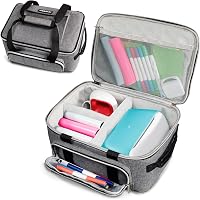
This LEFOR·Z case fits a Joy Xtra and has a top transparent pocket for mats and smart vinyl sheets. Its polyester shell and foam padding suit travel, while removable dividers let you separate accessories by size.
This case measures 15 by 10 by 8.2 in and has five compartments. It includes a transparent zipper pocket, two side pockets and one back pocket, plus 20 elastic loops for tools such as spatulas, weeders, scrapers and pens.
The top pocket fits cutting mats at 8.5 by 12 in, which is a useful reminder to check mat size before you buy storage. A case that fits the machine may still fail if mats, tools and sheets have nowhere to sit.
Choose storage that fits your mats and tools. A case that is too small will not protect the items you carry most.
When should you choose a separate cutter instead?
Choose a separate cutter when you cut more than you print. Plain vinyl, stencils and large decals often need width, force and speed first.
A dedicated cutter can also handle longer runs without waiting for printing. That matters for signs, banners and bulk vinyl orders.
Separate machines also give you more choice on print quality. You can pair a photo printer with a cutter built for vinyl.
Compatibility is another factor. The foil kit is described as compatible with Cricut Maker and Cricut Explore machines, including Explore, Explore One, Explore Air and Explore Air 2.
A separate cutter choice should be checked the same way.
If you need a small tool for quick touch-ups, a best vinyl cutter hand tool can help. It will not replace a combo for printed work.
Pick separate machines when cutting is your main job. Pick a combo when print and cut happen together.
What setup and care keep print and cut quality steady?
Good setup starts with clean rollers, sharp blades and the right mat. Check mat grip before each print then cut run.
Store vinyl flat and away from dust. Curled media can shift during printing and cutting.
Clean the cutting strip area, check blade depth on test cuts, and replace dull blades early. Small tests cost less than ruined sheets.
Care routines should match the media. Card stock can leave dust, adhesive backed sheets can leave residue, and foil work can leave small flakes in the work area.
Tool storage also supports steady quality. The foil kit uses a tool housing with interchangeable tips, which shows how keeping tips organized helps you switch between fine, medium and bold work without damage.
For home office buyers, Best Printer Scanner Combo For Home Use covers a different combo category. It is useful if documents and photos matter more than vinyl.
Test after every blade, mat or media change. Steady habits keep edges clean and alignment reliable.
How should you compare integrated printing and cutting requirements?
Compare print size, cut size, force, registration, media list and software side by side. That list shows whether a combo fits your real projects.
Write down your largest sheet, thickest media and most detailed design. Then check each candidate against those three points.
Also note running costs for ink, blades and mats. A lower purchase price can cost more over time.
Add storage and workspace to the comparison. A combo that fits a desk may still need space for mats, rolls, spare blades and printed sheets that are drying.
Use product details as a checklist model. The foil kit lists exact sheet size, tip sizes, housing and tape, while the cases list dimensions, pockets, dividers and materials.
Apply that same exactness to combo specs.
If photos are your main print job, Best Printer Scanner Combo For Photos may point you to a better fit. Vinyl work needs different media and cutting support.
Shortlist only machines that pass your three hard limits. Price and extras come after size, media and registration.
Which vinyl printer cutter combo should you choose?
Choose a vinyl printer cutter combo that matches your largest sheet and main media first. Then compare registration, software and running costs.
Pick a combo for stickers, labels and printed decals you make each week. Pick separate machines for heavy plain vinyl cutting or wide-format work.
Before you buy, run through size, force, media, software, workspace and storage checks in this guide. That process helps you buy once for the work you actually do.
Frequently asked questions
Is a vinyl printer cutter combo better than separate machines?
A combo is better when you print and cut the same design in one repeatable workflow, such as stickers or labels. Separate machines are better when you cut plain vinyl often, need stronger cutting power, or want to upgrade one part later.
Compare integrated printing and cutting requirements before choosing.
What should I check first in a vinyl cutter and printer combo?
Start with print and cut size, media thickness, cutting force, registration accuracy and software compatibility. Check whether the machine prints and cuts one sheet without moving it and whether you can replace blades, ink and mats at a reasonable cost.
Those points affect daily use more than extra features.
Can a combo machine replace a larger cutter?
It can replace a larger cutter only if its cutting width, force and media support match your largest jobs. Smaller desk machines suit cards, labels and short decals, while larger work needs a wider bed and stronger cutting system.
Measure your largest design before you decide.
Do I still need print then cut alignment tools?
Yes, alignment marks and test cuts help you confirm registration before you run a full sheet. Print a test page, cut a simple outline, and inspect edges before adding color or foil effects.
Good alignment saves vinyl, ink and time on every later job.