Photo Scanners: The Complete Buying Guide
The best scanner for pictures depends on what you need to digitize and how many photos you have. Choose a flatbed for careful, one-at-a-time scans, a photo feeder for batches, or a dedicated film scanner for slides and negatives.
On this page (9 sections)
- What type of photo scanner should you choose?
- Which scanner features matter most for photos?
- How do you choose a scanner for prints, negatives and slides?
- How should you scan a large photo collection?
- Which scanners fit different photo workflows?
- Can an all-in-one printer scan photos?
- How should you organize and protect digital photo files?
- Explore document & photo scanners by topic
- What should you decide before buying a photo scanner?
The best scanner for pictures depends on the type and number of originals you need to digitize. A flatbed gives you control over each print, a photo feeder helps with a stack of similar photos, and a film scanner handles negatives or slides.
Think about the end use before comparing models. Sharing images with family takes less resolution and storage than making large prints or keeping detailed archival copies.
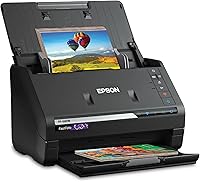
For a fast batch workflow, the Epson FastFoto FF-680W can scan up to 36 photos at a time and capture notes on their backs in the same scan. {{product B07DLX26BB | Batch capacity, duplex scanning and photo restoration features make it a useful fit for working through a large print collection.}}
What type of photo scanner should you choose?
Choose a scanner type based on the original media and how carefully you need to handle it. Flatbeds suit loose prints that need individual placement; feeders can process batches; film scanners read slides and negatives.
| Scanner type | A good fit for | Keep in mind |
|---|---|---|
| Flatbed | Loose prints, fragile photos, cards and mixed sizes | Place and remove each item by hand |
| Photo feeder | Many prints of similar size | Check supported sizes and handling guidance |
| Document feeder | Photos mixed with everyday paperwork | Confirm photo support before feeding originals |
| Film scanner | Negatives and mounted slides | Check film formats and included software |
| Portable single-sheet scanner | Occasional scans away from a desk | Usually designed for documents, not photo collections |
A flatbed can be a practical choice when a print is delicate or irregularly shaped. For more guidance on that style, see our best flatbed scanner for photos guide and what a flatbed scanner on a printer is.
If you’re digitizing a large box of ordinary prints, a feeder may save repeated placement. For old or delicate originals, compare options in our best scanners for old photos guide before choosing a faster workflow.
What is the difference between a photo scanner and a document scanner?
A photo scanner is intended to digitize prints, film or both, while a document scanner focuses on paper workflows. Some models handle both, but a document feeder may not be the right place for a fragile or curled photo.
Check the supported media, scan formats and software features. If you also need to process forms and receipts, compare the best document scanner for a home office and best scanner with an automatic document feeder.
Which scanner features matter most for photos?
Prioritize media support, resolution, handling and file options. A long feature list matters less than whether a scanner safely accepts your originals and saves files at a useful size.
How much resolution do photo scans need?
Choose resolution based on the final use, not the largest number on a spec sheet. Lower settings create smaller files for sharing, while higher settings can preserve more detail for cropping or enlargement.
A scanner's optical resolution is the relevant starting point for image detail. Software may enlarge an image digitally, but that does not add detail from the original print.
For large prints, tight crops or detailed archives, review our guide to a high-resolution photo scanner. Scan a representative print first, then check the result at the size you plan to view or print.
Do color depth and image correction matter?
Color depth affects how much color information a scan can record, while correction tools can help adjust faded color, dust or red-eye. Software features vary, so check what is supported for the scanner and operating system you plan to use.
Some scanners include controls such as color restoration, dust reduction, cropping or rotation. Treat automatic correction as a starting point: keep an untouched master scan so you can revisit edits later.
Should you use Wi-Fi or USB?
Choose a connection that fits where you plan to scan and where files need to go. USB connects a scanner directly to a computer, while wireless scanning can offer more flexibility in placement.
For phone setup, see Canon scanner Bluetooth connection options. For a model-specific walkthrough, read how to connect a Canon MG7100 scanner to a phone.
The Epson FastFoto FF-680W offers USB and wireless connectivity. If a wired setup is your priority, read our guide to choosing a photo scanner with USB.
What software and file options should you check?
Check whether the software works with your computer and supports the file types and destinations you need. A scanner may offer image correction, searchable document files, cloud saving or organization tools, but those features differ by model.
For a Mac setup, compare our best photo scanner for Mac guide. If you want software to sort and manage a growing archive, see our guide to a photo scanner and organizer.
How do you choose a scanner for prints, negatives and slides?
Match the scanner to the physical format of your originals. A print scanner cannot automatically replace a film scanner, and mixed collections may call for more than one scanning method.
For prints, compare flatbed and feeder models, then check the supported sizes. A flatbed can also help with sturdy cards and other items that need a flat surface.
For negatives and slides, look for a model that supports your film format. Our guide to a photo and negative scanner explains what to compare, while our slide and film scanner guide focuses on dedicated film options.
Sports cards also need a flat surface and careful placement. See the best flatbed scanner for sports cards if cards are part of your collection.
How should you scan a large photo collection?
A reliable batch workflow starts with sorting, testing and consistent file naming. Separate formats and conditions before scanning so you can choose settings and handling methods for each group.
- Sort prints by size, condition and format.
- Remove loose dust carefully, following the scanner’s care instructions.
- Test the settings on a photo that is easy to replace.
- Save a master file, then make smaller copies for sharing.
- Use a consistent folder and filename system.
- Back up the finished scans in a second location.
A feeder can reduce repeated loading for standard prints. Learn how a photo scanner for multiple photos compares, and read how to use a photo scanner with an automatic feeder before running a batch.
The FastFoto FF-680W is designed for batches of up to 36 photos and includes a carrier sheet for delicate photos. For a closer look at its features and fit, read our Epson FastFoto FF-680W review.
Which scanners fit different photo workflows?
Choose a scanner that matches your collection size, handling needs and available workspace. These examples range from a dedicated photo feeder to compact flatbeds and a mobile document scanner.
Epson FastFoto FF-680W for large batches
The Epson FastFoto FF-680W is designed to scan photos in batches, with support for photos up to 8 x 10 in, postcards and panoramas. Its single-step scanning can capture a photo and handwritten notes on the back.
It offers file options for sharing, archiving and enlarging, along with wireless and USB connections. Epson’s FastFoto app can add voice or text to photos and create slideshows.
For a brand-focused comparison, see our best Epson photo scanner guide. The FastFoto FF-680W is the dedicated batch option among the examples here.
Canon CanoScan LiDE 300 for straightforward flatbed scans
The Canon CanoScan LiDE 300 is a flatbed option for placing and scanning one item at a time. Its Auto Scan Mode detects what you’re scanning, and the scanner connects by USB.
The product information describes fade correction and dust reduction features. It can suit a modest mix of photos and documents when a feeder is not a priority.
Canon CanoScan LiDE 400 for higher-resolution flatbed scans
The Canon CanoScan LiDE 400 is a flatbed scanner with 4800 x 4800 dpi resolution and a USB Type-C cable. See how to use the Canon CanoScan LiDE 400 for setup and scanning steps.
Canon describes color restoration and dust removal features for photo scans.
Its Auto Scan Mode detects the item being scanned, while built-in buttons support scanning multi-page PDFs. Compare it with other flatbed choices in our best flatbed scanner for photos guide.
Epson WorkForce ES-50 for mobile document scanning
The Epson WorkForce ES-50 is a compact, single-sheet document scanner intended for mobile use. It connects by USB and can scan documents, receipts and ID cards.
It is not positioned as a photo collection scanner, so use it for paperwork rather than feeding valuable prints. If portability is a priority for photos, compare our best portable photo scanner guide.
Can an all-in-one printer scan photos?
An all-in-one printer can be convenient if you need printing and occasional flatbed scans in one device. Compare the scanning surface and photo features before relying on it for a large archive.
A printer scanner combo may suit a home that scans and prints everyday documents as well as photos. Our best printer scanner combo for photos guide covers that option, and our best photo printer for photos guide helps if printing the finished scans is part of your plan.
How should you organize and protect digital photo files?
Use clear filenames, dated folders and at least one separate backup. A simple system makes it easier to find images later and reduces the chance of losing a collection to a device problem.
Create folders by year, event or family group, then use a repeatable filename pattern. Keep original scans separate from edited copies so you can return to the source image if needed.
Store a second copy on a separate drive or cloud account. If you also digitize paperwork, these guides cover portable document scanners, CZUR book scanners, Epson receipt scanners and large-format scanners.
Explore document & photo scanners by topic
- Best Flatbed Scanners for Windows 11
What should you decide before buying a photo scanner?
Before choosing, count the types and quantity of originals you need to scan. Then match the scanner’s media support, handling method, connection and file options to that workload.
Pick a flatbed if you want to place each print by hand, a feeder if you need to process many similar prints, or a dedicated film scanner for slides and negatives. Choose a document scanner only when its supported media and intended workflow fit your photos.
For occasional scans, a flatbed can cover both prints and paperwork. If you need faster handling for a large photo archive, compare batch-capable models and plan your folders and backups before the first scan.
Frequently asked questions
What type of scanner is best for pictures?
A flatbed scanner suits fragile, curled or oddly shaped prints because each photo rests on the glass. A photo feeder can save time on a large stack of similar prints, while a film scanner is designed for negatives and slides.
Choose based on the media you have and the care each item needs.
What resolution should I use to scan printed photos?
Use a resolution that matches how you plan to use the scan. A moderate setting can work for sharing and viewing, while a higher setting gives more room to crop or enlarge.
Keep an unedited master file for important photos, and make smaller copies for sharing.
Can I scan several photos at once?
Some photo scanners accept a batch of prints in a feeder, while flatbeds generally scan one placement at a time. Batch scanning can speed up a large collection, but sort photos by size and condition first and follow the scanner's handling instructions to reduce the risk of jams or damage.
Can a document scanner scan pictures?
Some document scanners can scan photos, but their feeder design and software may not suit delicate, curled or valuable prints. Check the scanner's supported media and photo features before feeding originals.
A flatbed is a safer starting point when you want to place and remove each print by hand.
Should I save photo scans as JPEG or TIFF?
JPEG files are practical for sharing and everyday viewing, while TIFF is often used for larger archival files. Keep an unedited master in the format and quality your scanner supports, then export smaller JPEG copies for email, social posts or phones.